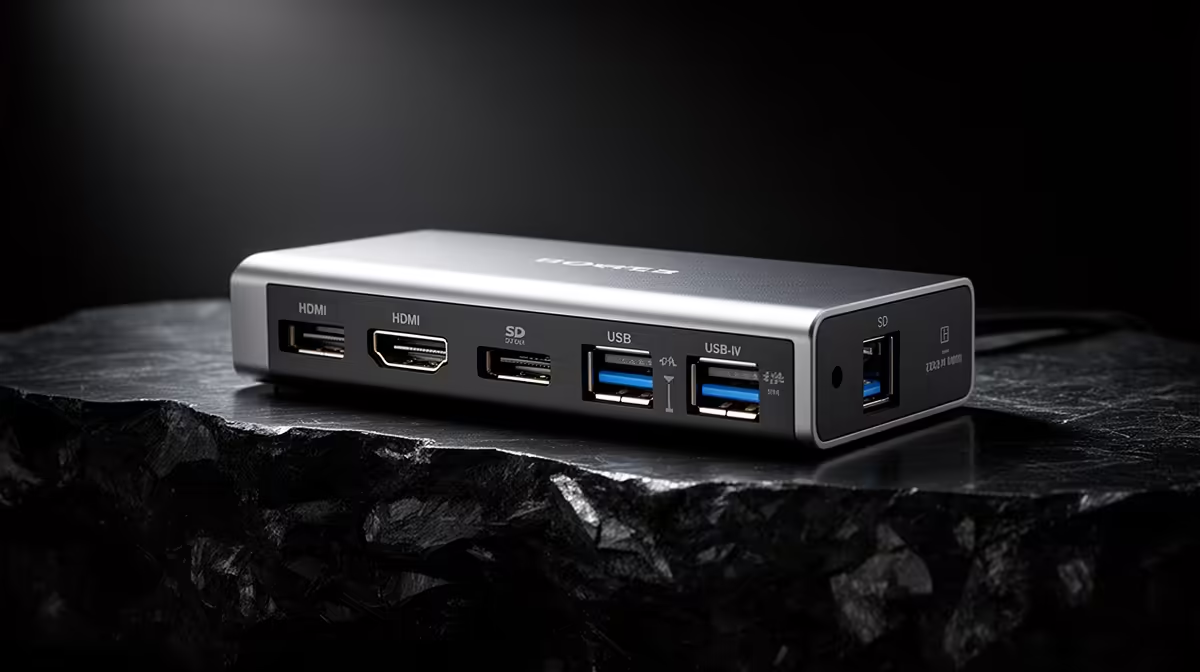
Plug a memory card from your camera straight into a MacBook and you quickly hit the wall every Mac owner knows: there is nowhere to put it. A USB-C hub solves that on day one, restoring the HDMI output, SD card slot and full-size USB-A ports that Apple stripped away in the name of thinness. For South African MacBook users, one well-chosen hub turns a single port into a working desk without a drawer full of separate adapters.
Quick Answer
A USB-C hub adds HDMI, SD card and USB-A connectivity to any modern MacBook through a single port, replacing several individual dongles. A solid model for most SA users sits in roughly the R600 to R1,500 band depending on port count and whether it supports pass-through charging and 4K HDMI output.
Why MacBooks need a hub at all
Apple's recent MacBooks lean almost entirely on USB-C and Thunderbolt ports. That is clean and fast, but it means an external monitor, a camera's SD card, a wired mouse and a USB stick all need an adapter the moment you sit down to real work. Buying four separate dongles is clumsy and easy to lose. A single hub consolidates them into one unit that lives in your bag and plugs in with one connector, which is why it is the first accessory most MacBook owners actually buy.
The ports that actually matter
Not every hub carries the same mix, and the right one depends on what you connect daily.
HDMI for an external display
Look for HDMI that supports 4K output. Cheaper hubs cap 4K at 30Hz, which feels sluggish for desktop work, while better ones manage 4K at 60Hz for smooth scrolling and video. If you drive a monitor at home, this single spec is worth checking before anything else.
SD and microSD for photographers
Photographers and videographers want a proper UHS-capable card reader so offloading a shoot does not take all evening. A hub with both full SD and microSD slots covers cameras, drones and the GoPro-style cameras many SA creators carry.
USB-A for the gear you already own
Keyboards, mice, external drives and flash sticks are still overwhelmingly USB-A. Two or three USB-A ports keep your existing peripherals usable without yet another adapter, which is the whole reason the hub earns its place.
Ethernet for a stable connection
If you work from a fixed desk on SA fibre, a hub with a Gigabit Ethernet port is worth seeking out. A wired connection is steadier than Wi-Fi for video calls and large uploads, and since the MacBook has no Ethernet jack of its own, the hub becomes the only practical way to plug in. It is a small addition that quietly improves reliability for anyone working from home.
Power pass-through: the spec people forget
Every device you attach draws power from the MacBook, and so does the hub itself. A hub with USB-C Power Delivery pass-through lets you run your charger through the hub and into the laptop, so a single cable both charges the MacBook and feeds the display and accessories. Skip this and you will be charging from a second port, defeating the point of consolidation. For a desk setup, pass-through is close to essential.
Matching the hub to your MacBook
Build quality matters more than it looks. An aluminium-bodied hub dissipates heat better during long sessions and feels solid in a bag, while flimsy plastic units can throttle or disconnect when warm. If your MacBook supports Thunderbolt, a hub that respects those higher data speeds is worth the small premium for fast external SSD work. You can match a hub to your specific model by checking it against the current MacBook lineup at Evetech, and if you want a quick read on which accessories MacBook owners trust most, the best-selling laptops and gear at Evetech is a useful starting point.
Heat, reliability and the cheap-hub trap
The most common regret with hubs is buying the cheapest one with the most ports. Cramming many high-speed controllers into a small plastic shell generates heat, and heat causes throttling, dropped displays and intermittent disconnects that are maddening to diagnose. A slightly more expensive hub with fewer, better-implemented ports almost always serves you better than a bargain unit bristling with sockets. Read how a hub behaves under sustained load, not just what is printed on the box, because a hub that fails during a presentation has cost you far more than it saved.
Who needs which hub
A student mostly wants HDMI for presentations and a couple of USB-A ports, so a compact, affordable hub is plenty. A photographer prioritises a fast card reader. A professional running a dual-monitor desk wants pass-through charging and reliable 4K 60Hz output. Buy for your actual daily use rather than the longest port list, because every extra port adds cost and bulk you may never touch.
A note on dual-monitor setups
Driving two external displays from a MacBook is trickier than it looks, because the built-in graphics on some models support only one external screen at full resolution. If a dual-monitor desk is your goal, confirm both your specific MacBook and the hub support it before buying, since a hub alone cannot add capability the laptop's silicon does not have. For many users a single large monitor is the simpler, more reliable answer.
Setting realistic expectations on speed
A hub does not multiply your MacBook's bandwidth, it shares it. Everything connected runs through the single port the hub occupies, so copying from a fast SSD while driving a 4K display and charging all draw from the same pool. For most people this is invisible, but if you move large video files daily, a Thunderbolt-rated hub that respects higher data speeds keeps transfers brisk where a basic USB hub would bottleneck. Knowing this stops the disappointment of expecting desktop-class throughput from an entry-level dongle, and it points heavy users toward the right tier rather than the cheapest one.
Frequently Asked Questions
Will any USB-C hub work with my MacBook?
Most modern USB-C hubs work with current MacBooks, but check that the HDMI output and pass-through wattage match your needs. Confirm 4K at 60Hz if you use a high-resolution display, and look for at least 87W pass-through for larger MacBook Pro models.
Do I need pass-through charging?
For a desk setup, yes. Pass-through lets one cable both charge the MacBook and run your peripherals, so you do not lose a second port to the charger.
Why does 4K only run at 30Hz on some hubs?
Cheaper hubs use older display standards that limit 4K to 30Hz, which makes the desktop feel laggy. Spend a little more for a hub rated at 4K 60Hz if you connect an external monitor.
Can a hub read my camera's SD card?
Yes, if it includes a card reader. Look for a UHS-capable SD and microSD slot so large photo and video files transfer quickly rather than crawling.
Is an aluminium hub worth the extra cost?
Generally yes. Aluminium handles heat better during long sessions and is more durable in a bag, which reduces the disconnects and throttling that plague flimsy plastic units.
Sorted on the hub but unsure of the MacBook? Browse the full MacBook lineup at Evetech via https://www.evetech.co.za/macbooks/l/3284 and pair it with a USB-C hub that gives you HDMI, SD and USB-A from day one.