Quick Answer
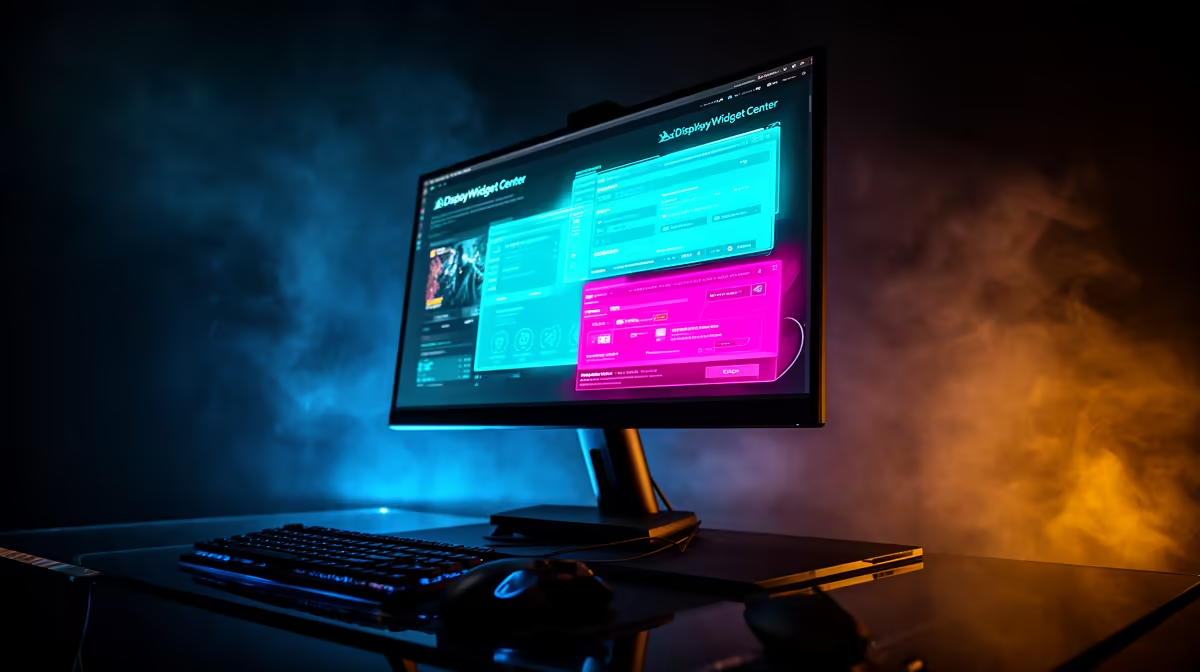
Yes, DisplayWidget Center (the software companion for ASUS monitors) lets you adjust brightness, contrast, refresh rate switching, HDR activation, shadow boost, and game-specific picture presets directly from Windows without touching the monitor's OSD buttons. For ASUS gaming monitor owners it meaningfully simplifies optimisation.
What DisplayWidget Center Actually Controls 🖥️
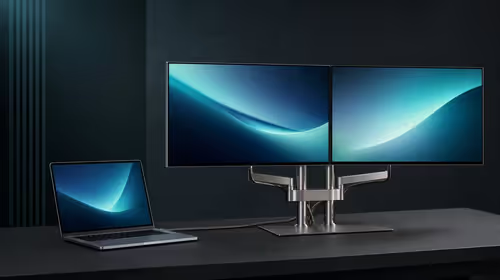
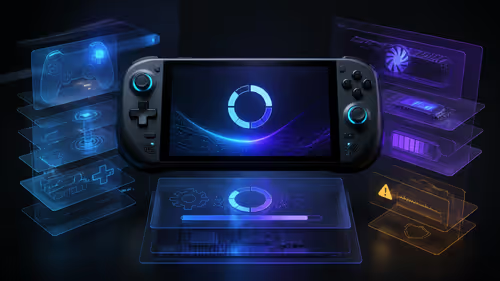
DisplayWidget Center is ASUS's first-party monitor management application for Windows. Once installed and the monitor is connected via USB-B or USB-C (for data pass-through, not just video), it exposes a software panel covering all OSD settings that would otherwise require reaching behind the monitor or using the joystick control. Settings accessible include: colour temperature and colour gamut switching, response time overdrive level, blue light filter strength, FreeSync toggle, ELMB Sync activation, refresh rate switching between available Hz values, GamePlus crosshair overlay, GamePlus timer and frame counter overlays, and Shadow Boost (contrast lifting in dark scene areas).
Game-Specific Profiles and Automation 🎮
DisplayWidget Center supports saved profiles that apply a full set of monitor settings simultaneously. You can create a competitive FPS profile (maximum refresh rate, high overdrive, Shadow Boost on, colour warmth reduced for clarity) and a cinematic profile (lower refresh rate, HDR on, warmer colour temperature). Switching between profiles takes one click. For SA gamers who play Valorant at 250 Hz in the evenings and watch streaming content in the mornings, this profile switching eliminates the need to manually navigate through six to eight OSD menus twice per day.
Limitations and What It Cannot Do 🔧
DisplayWidget Center requires a USB data connection between the monitor and PC, not just a DisplayPort or HDMI video connection. Without this USB link the software can read some information but cannot push setting changes to the monitor. Not every ASUS gaming monitor supports DisplayWidget Center: some older or budget models use a basic driver with limited software control. The application is not available for non-ASUS monitors. For SA gamers with monitors from other brands, alternative tools like ICM profiles in Windows colour management or manufacturer-specific software (such as LG OnScreen Control or Samsung's MagicTune equivalent) fill a similar role.
Connect Via USB-B to Unlock Full Software Control ⚡
Many users plug only the display cable (HDMI or DisplayPort) and wonder why DisplayWidget Center shows options as greyed out. The USB-B to USB-A cable included with compatible ASUS monitors must also be connected to your PC for the software to push OSD changes to the panel. Check your monitor box for this cable before assuming the software is malfunctioning.
FAQ
Is DisplayWidget Center free to download and use?
Yes. It is free and available from the ASUS support website. Download it for your specific monitor model to ensure you have the correct version with all compatible features enabled.
Can DisplayWidget Center improve input lag or response time directly?
It can set the response time overdrive level to a higher or lower setting, which affects how aggressively pixels transition. Setting overdrive too high introduces inverse ghosting (pixel overshoot); the software lets you fine-tune this without navigating the OSD. It does not alter the fundamental panel response time, only how the overdrive compensation is applied.
Does DisplayWidget Center work on Windows 11?
Yes. ASUS maintains active Windows 11 compatibility for DisplayWidget Center. Always download the latest version from the ASUS support page to ensure full Windows 11 feature support.
Considering an ASUS gaming monitor for your PC setup in South Africa?
Evetech stocks a range of ASUS gaming monitors compatible with DisplayWidget Center. Browse current availability to find the right panel for your gaming or productivity needs.