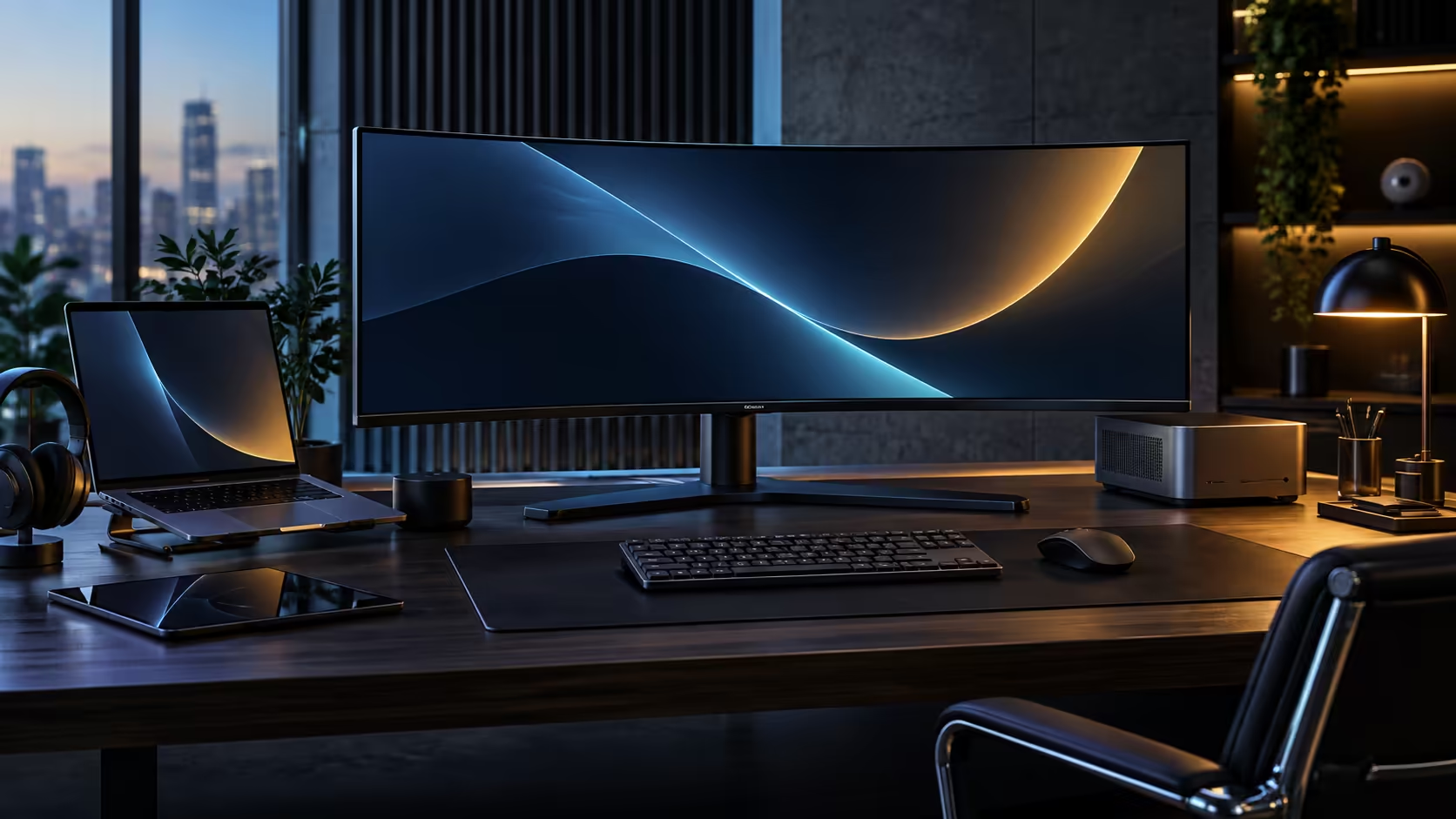
Four separate features on an ultrawide's spec sheet decide whether it merely displays your desk or actually runs it, and each one solves a distinct, specific frustration of working from a typical South African home rather than a purpose-built office. Picking an ultrawide monitor around these four features, rather than around screen size alone, is what separates a genuinely useful docking panel from a merely expensive display.
Quick Answer
The camera, the built-in KVM, the RJ45 network socket and the USB hub are the four features genuinely worth checking specifically, and all four sit together on the R7,999 CU34E4CW. Each one answers a distinct problem: the camera fixes call framing, the KVM handles a second computer, the network socket takes your laptop off a household's shared Wi-Fi, and the hub clears the whole desk of loose cables.
📷 The camera: solving the laptop-angle problem
A laptop's built-in webcam sits below the screen, which is a genuinely awkward angle that a monitor camera fixes by simple positioning.
A camera built into the top bezel of a 34-inch monitor sits roughly at eye level once the stand is raised, correcting the upward, unflattering angle a laptop lid forces on every call. This benefit exists purely from where the lens physically sits, independent of any other feature on the panel, and it is the single easiest of the four to judge for yourself: join a call and see whether the framing looks better than your laptop's own camera.
For anyone spending several hours a day on video calls, which describes a growing share of South African remote and hybrid workers, this single change is often the most immediately noticeable improvement of the whole setup, felt within the first meeting rather than after weeks of use.
🖱️ The KVM: solving the two-computer problem
A home office desk carrying both a work laptop and a personal PC side by side is a common setup, and a built-in KVM is what stops that pairing turning into a tangle of duplicate cables and peripherals.
Instead of two keyboards and two mice, one set plugs into the monitor and follows whichever computer's video input is active, switching automatically within a second or two. This only matters if a second computer genuinely shares the desk; for a single-machine setup, the feature offers nothing extra, which is worth being honest about before paying for it as a must-have rather than assuming every buyer needs it equally.
🌐 The network socket: solving the shared household fibre problem
This is the feature that matters more in a South African home office than it would in a dedicated office building, and the reason is specific rather than general.
Most South African homes run a single fibre line and one router serving the whole household at once, meaning a work video call regularly competes for bandwidth against streaming, gaming or another family member's own calls. An RJ45 socket built into the monitor lets you run a wired cable directly to the desk, taking your laptop off Wi-Fi entirely and removing that shared-bandwidth contention from the equation. It is a small physical change with an outsized effect on call reliability specifically.
The timing of this contention is also worth noting: peak household usage, everyone home from school or work, streaming and gaming in the evening, often overlaps directly with the tail end of a working day's calls. A wired connection removes your work traffic from that peak-hour contention entirely, rather than hoping the household's collective usage happens to stay low during an important meeting.
🔌 The USB hub: solving the cable-count problem
The least glamorous of the four features is also the one that shows up as a physical difference on the desk every single day.
A monitor's built-in hub takes keyboard, mouse and other USB peripherals off the laptop directly, so a desk with a docking monitor typically settles at three cables total: power for the panel, the network run, and a single lead carrying everything else to the machine. Without this feature, achieving the same tidiness means buying a separate USB hub as an additional box and cable, which defeats much of the point of a one-cable setup.
Three cables sounds like a small number until it is compared against the six or seven cables a typical undocked desk actually carries: a laptop charger, a separate USB hub, a wired mouse and keyboard each with their own lead, and very often a plug-in camera plus a standalone set of desktop speakers on top of that. Folding all of that into one hub built into the monitor is what actually delivers the "one cable" promise, rather than three separate accessories each solving one small piece of the same problem.
Compare the office monitor range for panels carrying all four features, and check the webcam range and wired networking category if you decide to mix and match dedicated accessories instead of a single bundled panel.
Frequently Asked Questions
Which of these four features matters most for a home office?
The network socket tends to make the single biggest practical difference, because it takes your work call entirely off the same shared wireless pool everyone else in the house is drawing from at the same time.
Is the built-in KVM worth having on a single-machine desk?
Not really, no. Its entire benefit only shows up once a genuine second computer joins the desk, so a one-machine setup gets no practical use from it at all.
Does a wired network connection through a monitor need any setup?
Generally none at all beyond plugging in the cable. Both Windows and macOS recognise it immediately as a standard wired adapter without needing any drivers installed manually.
Is the built-in camera as good as a dedicated webcam?
For everyday calls, the eye-level positioning gives it a real, immediately noticeable advantage over a laptop's own downward-angled camera. Specialist streaming or content creation work still benefits from dedicated, higher-end camera hardware.
How many cables does a desk with all four features typically need?
Around three: power for the panel itself, a wired line to the router, and the single USB-C lead carrying everything else to the laptop, with every other peripheral routed through the monitor instead of the machine.
Ready to choose a monitor around what your desk actually needs?
Check which of these four features solve a real problem for you before comparing panels on screen size alone.