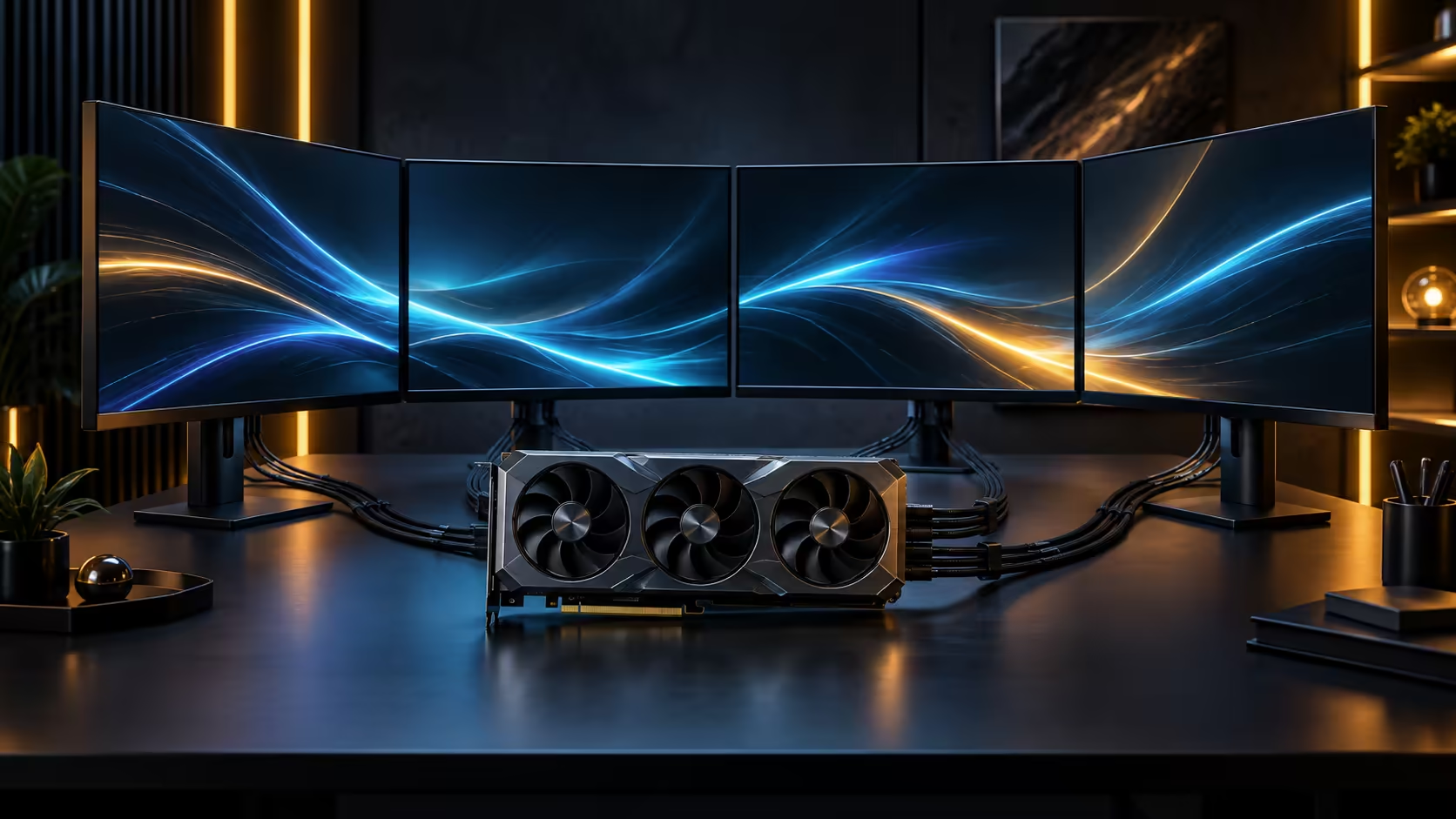
Every port on a graphics card's rear bracket looks identical from across the room, and treating them as interchangeable is how a four-monitor plan runs into trouble on install day. Explaining every graphics card display output properly means separating what the connector is, what it is rated for, and what a hub genuinely adds versus what it merely splits.
Quick Answer
A card's monitor count is set by its physical connectors plus whatever a DisplayPort hub can add on top, and both figures are capped by the card's own display engine, a separate specification from the connector count itself. Read the bracket, count the ports, then decide where a hub genuinely helps and where it simply divides bandwidth you already needed for the screens you have. The card used throughout this guide is R119,999.
🔌 Connector types and what distinguishes them
HDMI and DisplayPort are the two connector families found on current cards, and within DisplayPort specifically, some monitors support Multi-Stream Transport, allowing a single cable from the card to reach a second monitor through the first one's own DisplayPort output. This is a monitor-side feature, not something a card can add on its own, so confirm the specific panel supports pass-through before planning a chain around it.
USB-C carrying a DisplayPort signal, called DisplayPort Alt Mode, appears on some cards and monitors as well, and functions identically to a standard DisplayPort connection for video purposes despite the different physical connector shape it uses.
🔀 Hubs: what they add and what they only redistribute
A DisplayPort hub splits one port's output across multiple monitors, which genuinely adds a connection where the card physically has none free, but it does so by dividing the bandwidth that single port carries among however many screens are attached. This works well for lower-resolution or lower-refresh secondary screens, and works poorly for trying to run several demanding 4K high-refresh panels off one hubbed port.
A hub is the right tool when you have run out of physical ports but still have bandwidth headroom to spare; it is the wrong tool when your existing screens are already using most of what each port can carry.
🎯 The display engine limit nobody reads
Beyond physical ports and hubs, every card has a display engine, the underlying hardware responsible for actually driving a given number of independent displays regardless of how many ports are physically present. This figure is stated per card, separately from port count, and is the number that actually caps how many monitors can run simultaneously at their full settings, which is why simply counting connectors on the bracket does not tell the whole story.
Check the card's own specification for this figure directly rather than assuming port count alone answers the question. Browse monitor accessories for hubs and adapters once you know your actual ceiling, and the office monitor range if some of your planned screens are for productivity use at lower demands than a primary gaming or editing panel.
🧩 Docking stations as a different kind of output multiplier
A USB-C docking station connected through a single Thunderbolt or USB4 port can also drive additional monitors, working somewhat like a DisplayPort hub but through a different physical connection and often adding non-display connectivity such as extra USB ports and networking in the same unit. This is a useful option specifically for laptops or systems with limited native outputs, though on a desktop already carrying a dedicated card with several outputs of its own, a dock rarely adds anything a direct connection would not do more simply and with less potential for driver conflicts.
Where a dock is genuinely the right tool, check its own stated maximum resolution and refresh rate per port carefully, since docks vary considerably in how much of the upstream connection's total bandwidth they can actually deliver to each downstream display simultaneously.
🔧 Troubleshooting a monitor that will not join the group
If a fourth monitor refuses to be detected despite a confirmed compatible port and cable, the most common causes, in order of likelihood, are a display engine limit already reached by the other three screens, a cable rated below the connection's required bandwidth, and a driver more than 6 months out of date that has not been updated to the version supporting the card's full output configuration. Working through those three in that order resolves the large majority of cases without needing to replace any hardware. Compare the graphics card lineup if the diagnosis points to the display engine limit itself, since that is a hardware ceiling only a different card changes.
Frequently Asked Questions
Can I mix Multi-Stream Transport chaining with a hub on the same card?
Yes, in principle, though combining both adds more points of potential failure to diagnose if something misbehaves. Where possible, use whichever single method covers your full monitor count rather than layering the two together unnecessarily.
What is Multi-Stream Transport?
A monitor-side feature that lets one DisplayPort cable from the card reach a second monitor by passing through the first one's own output. Not every DisplayPort monitor supports it.
Does a hub add real display capacity or just split what exists?
It splits the bandwidth of one existing port among multiple screens rather than adding new capacity, which works well for lighter secondary screens and poorly for multiple demanding panels.
What is a display engine limit, and why does it matter?
That figure caps the maximum number of displays a card's hardware can drive simultaneously, stated separately from the physical port count, and it is the real ceiling on how many monitors can run at once.
Does Windows itself limit how many monitors I can arrange?
Windows supports arranging considerably more displays than any single consumer graphics card can drive, so the practical ceiling in a real setup is almost always the card's display engine and physical ports, not the operating system managing the arrangement.
Is a docking station worth using with a desktop graphics card?
Rarely, if the card already has enough native outputs for your planned monitors. Docks earn their place mainly on laptops or systems with limited built-in outputs rather than alongside a card that already carries several ports of its own ready to use directly.
Can DisplayPort Alt Mode over USB-C replace a standard DisplayPort connection?
Functionally yes for video purposes, provided both the card or dock and the monitor support it, since it carries the identical signal through a different physical connector shape.
Ready to plan a multi-monitor desk around the real limits, not just the ports you can see?
Check your card's display engine figure before assuming port count is the whole answer.