Spotting the PDF Scroll Tear on Office Monitors ⚡
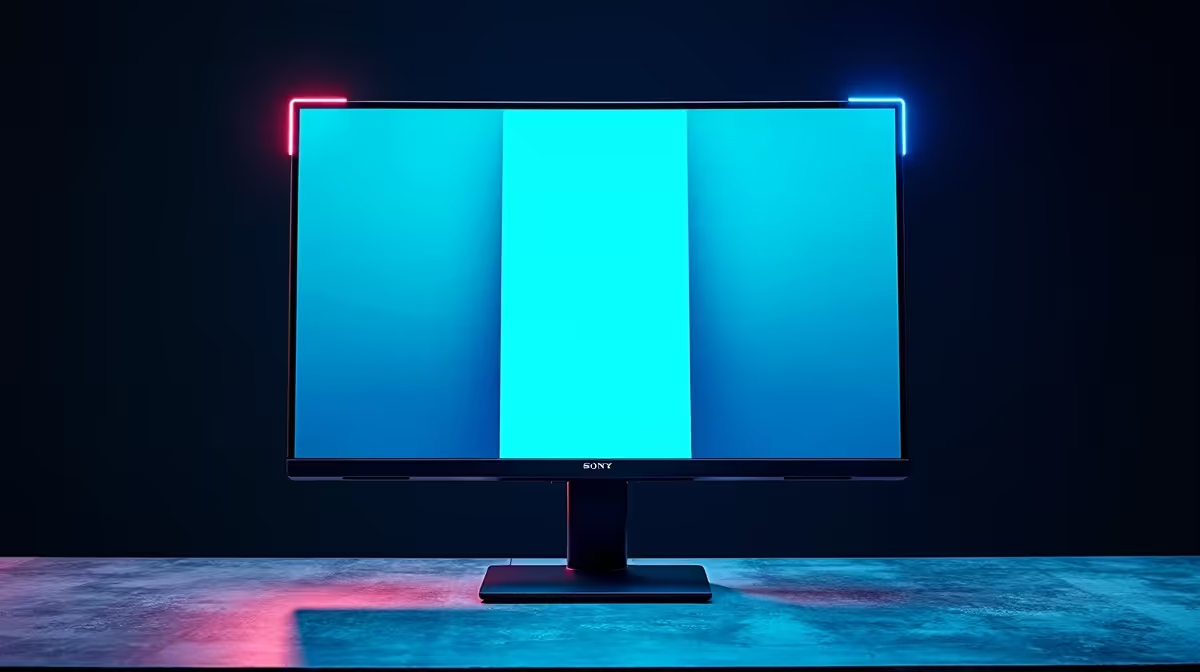
You’re reading a PDF on your office monitor and the scrolling suddenly looks jagged—lines misalign or flicker as you move down the page. That distracting scroll tear feels like it’s messing with your flow, especially during long work sessions. What’s going on, and how do you fix this without wasting time or money?
Root Causes of PDF Scroll Tear
- Display Refresh Rate Mismatch: Your monitor’s refresh rate and the PDF viewer’s rendering can be out of sync.
- Outdated or Faulty Graphics Drivers: GPU drivers that aren’t current may not handle smooth scrolling well.
- Monitor Hardware Limitations or Settings: The monitor itself might not support certain sync technologies or has settings causing tearing.
- PDF Viewer Software Glitches: Bugs or inefficient rendering engines in your PDF reader cause visible tearing.
Fixes to Stop PDF Scroll Tears on Office Monitors
Adjust Your Monitor’s Refresh Rate [[Easy]]
Most scroll tears happen because your display’s refresh rate is set suboptimally. Head into your Windows display settings and bump it up to 75Hz or higher if your hardware supports it. Higher refresh rates reduce visible tearing and smooth out scrolling.
If you want smooth visuals without upgrading your whole setup, check for unbeatable best PC monitor deals at Evetech first.
Update Graphics Drivers Using Evetech’s Recommended Tools [[Easy]]
Outdated drivers are often below the radar as culprits. Visit the GPU manufacturer’s website or use Evetech’s handy PC components section to find drivers tailored for your setup. Updated drivers optimise performance for tasks like PDF scrolling and reduce artefacts.
Enable V-Sync or Adaptive Sync in Your GPU Software [[Mod]]
Most graphic cards let you toggle sync technologies like V-Sync to fix tearing. Dive into your Nvidia or AMD control panel, and enable these. While this can add slight input lag, it smooths your PDF scroll visuals significantly.
Learn more about sync technologies on various gaming monitors if you’re considering an upgrade for better office and play.
Calibrate and Fine-Tune Your Monitor Settings [[Mod]]
Check your monitor’s OSD menu for features like “Ultra Low Motion Blur” or variable refresh rate support. If available, enable those. Sometimes, simply disabling “Overdrive” can reduce tearing on office monitors.
Considering enhanced viewing? Evetech offers various curved monitors that naturally improve visual comfort for reading.
Switch or Reinstall Your PDF Viewer Software [[Advanced]]
Occasionally, the software itself struggles with rendering. Try switching to an alternative PDF viewer with better smooth scroll support, like Adobe Acrobat DC or Foxit Reader. Reinstalling your current viewer might also clear corrupted settings causing tearing.
If your monitor struggles with newer software, a portable monitor might offer a quick, flexible workspace boost.
Upgrade to a Higher Resolution or Better Sync Monitor [[Advanced]]
If you constantly face tearing, your hardware might be the bottleneck. Look for monitors with built-in G-Sync or FreeSync technologies to match display refresh perfectly with your GPU.
Evetech stocks high-res options, including 5K and 4K monitors, letting you upgrade office visuals beyond just fixing tearing.
Red Flags When Troubleshooting Scroll Tear
If you notice smoke, strange odours, or your monitor flickers uncontrollably — switch off your system immediately. These signs indicate hardware failure beyond simple fixes. Contact a professional to avoid further damage.
Accessories to Complement Your Monitor Setup
Sometimes the smallest tweaks help. A good-quality DisplayPort or HDMI cable can ensure stable signals. Check out Evetech’s collection of monitor accessories for cables and mounts that make a solid difference in performance and ergonomics.
Upgrade Your Viewing Experience
Don’t let scroll tear distract you from your best work. Shop now at Evetech to find a monitor that powers smooth, comfortable scrolling without breaking the bank.