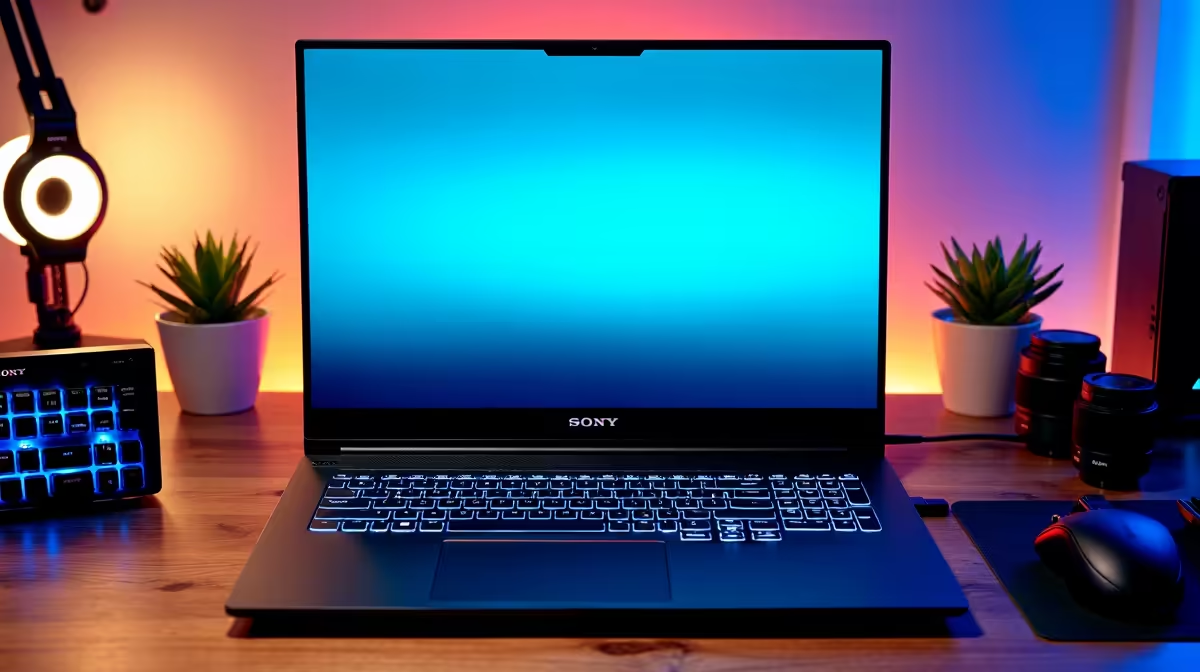
Tired of your powerful gaming laptop feeling… well, a bit messy? You've got the performance, but it's buried under a tangle of cables for your charger, monitor, mouse, and keyboard. What if you could unlock its full potential with a single connection? A clean, powerful, and efficient laptop command center setup isn't just for pro streamers; it's the ultimate upgrade for any South African gamer or power user looking to declutter and dominate. 🚀
Why You Need a Proper Laptop Command Center Setup
Let's be honest, the "portability" of a high-end laptop often means plugging and unplugging a half-dozen cables every time you move. A dedicated laptop command center setup solves this instantly. The core idea is simple: transform your portable powerhouse into a full-fledged desktop experience with one clean connection.
This isn't just about looking tidy. It's about workflow and efficiency. Imagine coming home, plugging in a single USB-C cable, and having your 4K monitor, mechanical keyboard, gaming mouse, and headset all spring to life… while your laptop charges. No more fumbling for the right dongle before a crucial meeting or a ranked match. This streamlined approach also reduces wear and tear on your laptop's precious ports.
The Heart of the Operation: The Docking Station
The magic behind the ultimate laptop setup is a docking station. This small but mighty hub is where all your peripherals live permanently. Your monitor, keyboard, mouse, ethernet cable, and external drives all plug into the dock. The dock then connects to your laptop via a single, powerful cable (usually USB-C or Thunderbolt).
Choosing the right one is key. For a clean and effective setup that won't break the bank, there are fantastic docking station options available for under R1000 that handle the essentials. If you're running multiple high-resolution displays or need more specialised ports, investing a bit more unlocks a world of connectivity, with powerful hubs well under the R2000 mark offering everything you could need.
Check Your Port's Power! ⚡
Before buying a dock, confirm your laptop's USB-C port supports 'DisplayPort Alternate Mode' (for video) and 'Power Delivery' (for charging). This info is usually on the manufacturer's spec sheet. It's the key to that true single-cable dream!
Assembling Your Ultimate Laptop Station
Creating your own command centre is easier than you think. It’s a simple, three-step process.
Step 1: Choose Your Hub
Select a docking station that matches your needs and budget. Consider the number of monitors you use, the type of USB ports you need, and whether you require an Ethernet port for stable, low-latency gaming. Brands like Promate offer a reliable range of docks known for solid performance and build quality.
Step 2: Connect Your Peripherals 🔧
Plug everything—your main display, keyboard, mouse, headset, webcam, and external storage—directly into the docking station. Take a moment to manage the cables at the back of your desk for that ultra-clean aesthetic. This is the last time you'll need to mess with these plugs.
Step 3: Unleash the Power
Now for the satisfying part. Connect the single USB-C or Thunderbolt cable from the dock to your laptop. That's it. Your entire laptop command center setup is online, peripherals are ready, and your machine is charging. You're ready to work or play. ✨
Ready to Build Your Command Center?
Stop juggling cables and unlock the true potential of your laptop. Explore our full range of docking stations and build the clean, powerful setup you deserve. Shop all docking stations now at Evetech for performance that leaves the clutter behind.