You have a few thousand Rand to spend on making your NAS faster, and two upgrade paths are staring at you: drop in an NVMe SSD cache, or simply add more RAM. The marketing makes SSD cache sound like the obvious win, but for the typical home NAS the SSD cache vs more RAM answer goes the other way. More memory usually delivers a bigger, more reliable improvement, and it is often cheaper. Here is why, and the one case where cache actually earns its keep.
Quick Answer
For most home NAS users, add RAM first. Going from 4GB to 8GB stops DSM swapping during large tasks and keeps Docker and apps stable, which is a bigger everyday gain than NVMe cache. SSD cache only accelerates repetitive random read and write workloads, which most home setups rarely generate.
Why RAM Wins for Home Use
Your NAS operating system uses free RAM as a fast read cache automatically. The more memory it has, the more of your frequently accessed data and metadata it can hold in RAM, which is far faster than any SSD. So adding RAM gives you a caching benefit for free, on top of everything else memory does.
The "everything else" is the real story. When a NAS runs low on RAM during a big task, indexing a photo library, running several Docker containers, handling a large backup, it starts swapping to disk. Swapping is slow and makes the whole unit feel sluggish or unstable. Moving from 4GB to 8GB gives the system breathing room so it stops swapping, and that single change often does more for day-to-day responsiveness than any cache.
RAM caching has matured
Memory-based caching in modern NAS software has improved considerably, so the gap between a well-fed RAM cache and an SSD cache is wider than it used to be for ordinary workloads. For a single-user home setup, that built-in RAM cache covers most of what you would have hoped SSD cache would do.
What SSD Cache Actually Does
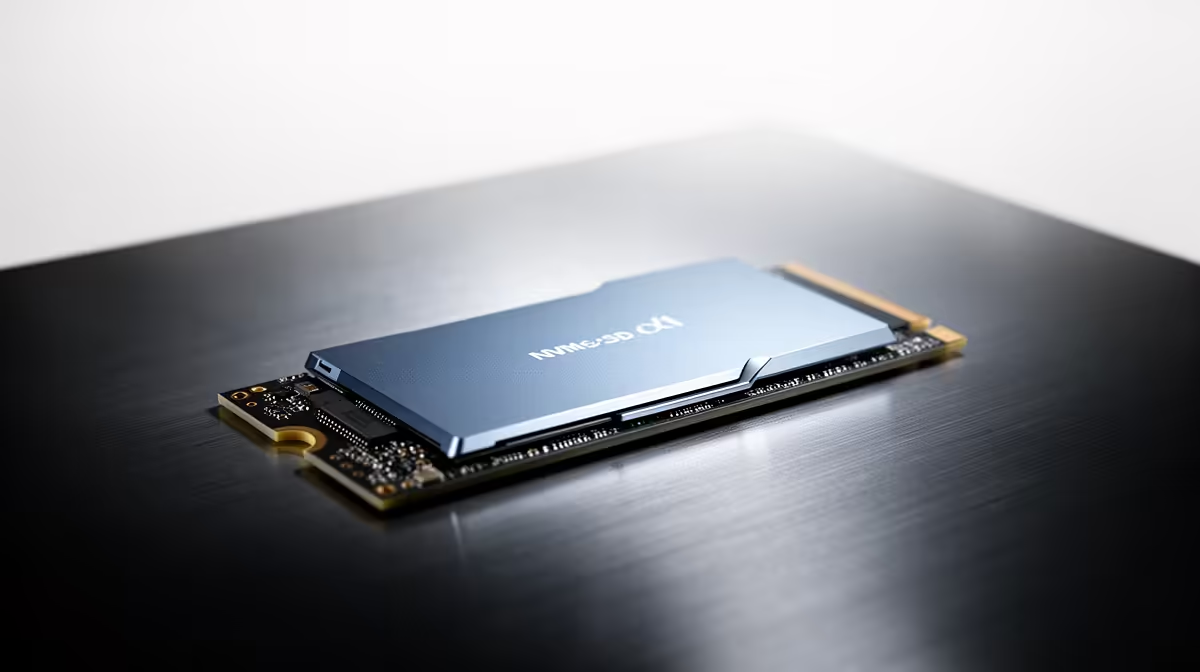
An NVMe SSD cache sits between your spinning hard drives and the network, holding copies of data that gets accessed repeatedly. Its strength is random input and output: lots of small reads and writes scattered across the disks, the kind generated by databases, virtual machines, or many users hammering different files at once.
That is the key qualifier. SSD cache shines on repetitive random workloads. It does very little for the sequential workloads that dominate home NAS use, like streaming a movie, copying one large file, or running a backup. Those move big blocks of data in order, which hard drives already handle well, so the cache rarely gets a chance to help.
The hidden cost of cache
SSD cache is not free in resources either. It consumes system RAM to manage itself, and the larger the cache, the more memory it needs. According to Synology's guidance, every 1 GB of SSD cache requires roughly 400 KB of system RAM to manage its metadata. So on a RAM-starved NAS, adding SSD cache can actually make the memory pressure worse. That is the irony: the machine that "needs" cache the most is often the one that should have bought RAM instead.
The Single User Reality
For a home with one or two people accessing files, the chance for SSD cache to prove itself is limited. The same files are rarely re-read in the tight, repetitive pattern that cache rewards, and there simply are not enough concurrent users creating random load. In this scenario, money spent on cache is usually money that would have done more elsewhere.
If you genuinely have a fast, demanding workload, a better move than caching is often a dedicated SSD volume, where chosen data lives permanently on flash rather than being cached in and out. You can compare suitable drives in the SSD best sellers at Evetech if a flash volume fits your use better than a cache.
Sizing RAM for Your NAS
The jump from 4GB to 8GB is the most impactful single step for most home NAS units. It brings the system to the point where DSM or QTS can run share protocols, background indexing and a handful of packages without hitting swap. Beyond 8GB, the gains become more workload-specific.
If you run Docker containers or several background packages, 16GB is worth considering. Each container reserves its own memory allocation, and running three or four at once on 8GB can still produce swap events during peak activity. Check your model's maximum supported memory and whether it requires a specific module type or ECC before buying, since fitting an incompatible stick is the most common wasted upgrade in this category.
When SSD Cache Is the Right Call
Cache earns its place when you have multiple users hitting multiple datasets at once, or you run services with heavy random I/O such as databases or several virtual machines off the NAS. In a small office, a busy household with many simultaneous streams and tasks, or a NAS doing real virtualisation work, the random read and write pattern finally matches what cache is built for. QNAP's own benchmarks show SSD cache lifting IOPS performance by up to ten times and cutting latency by around three times for database and virtual machine workloads.
Even then, the order holds: max out RAM first, confirm the system has enough memory to manage a cache, and only then add NVMe cache for the specific random workload that needs it. For write caching specifically, platforms recommend using two mirrored NVMe drives rather than one, so a cache drive failure does not put uncommitted data at risk. Choosing the right chassis matters too, so it is worth checking the diskless NAS range at Evetech for units that support both generous RAM and NVMe slots.
Frequently Asked Questions
Should I add RAM or SSD cache to my NAS first?
Add RAM first in almost every home scenario. More memory stops the system swapping, feeds the built-in RAM cache, and keeps apps stable, which delivers a broader everyday improvement than SSD cache for typical workloads.
Does SSD cache speed up media streaming and file copies?
Not really. Streaming and large file copies are sequential workloads that hard drives already handle well. SSD cache targets repetitive random reads and writes, so it offers little benefit for the sequential tasks common in home NAS use.
Will going from 4GB to 8GB make a noticeable difference?
Often yes. Doubling RAM from 4GB to 8GB gives the system room to stop swapping during large tasks and to run Docker and apps smoothly, which usually feels like a bigger upgrade than adding cache.
Does SSD cache use up RAM?
Yes. The cache needs system memory to track what it is storing, and larger caches need more memory. Synology guidelines put the overhead at roughly 400 KB of RAM per gigabyte of SSD cache. On a low-RAM NAS, adding cache can worsen memory pressure, which is another reason to upgrade RAM first.
When is SSD cache actually worth it?
When you have multiple users accessing different datasets at once, or you run databases or virtual machines off the NAS. Those create the repetitive random I/O that cache accelerates, but you should still max out RAM before adding it.
Planning a faster, more capable NAS? Browse the diskless NAS range at Evetech for units that take generous RAM and NVMe drives, and build the upgrade path that fits your workload.