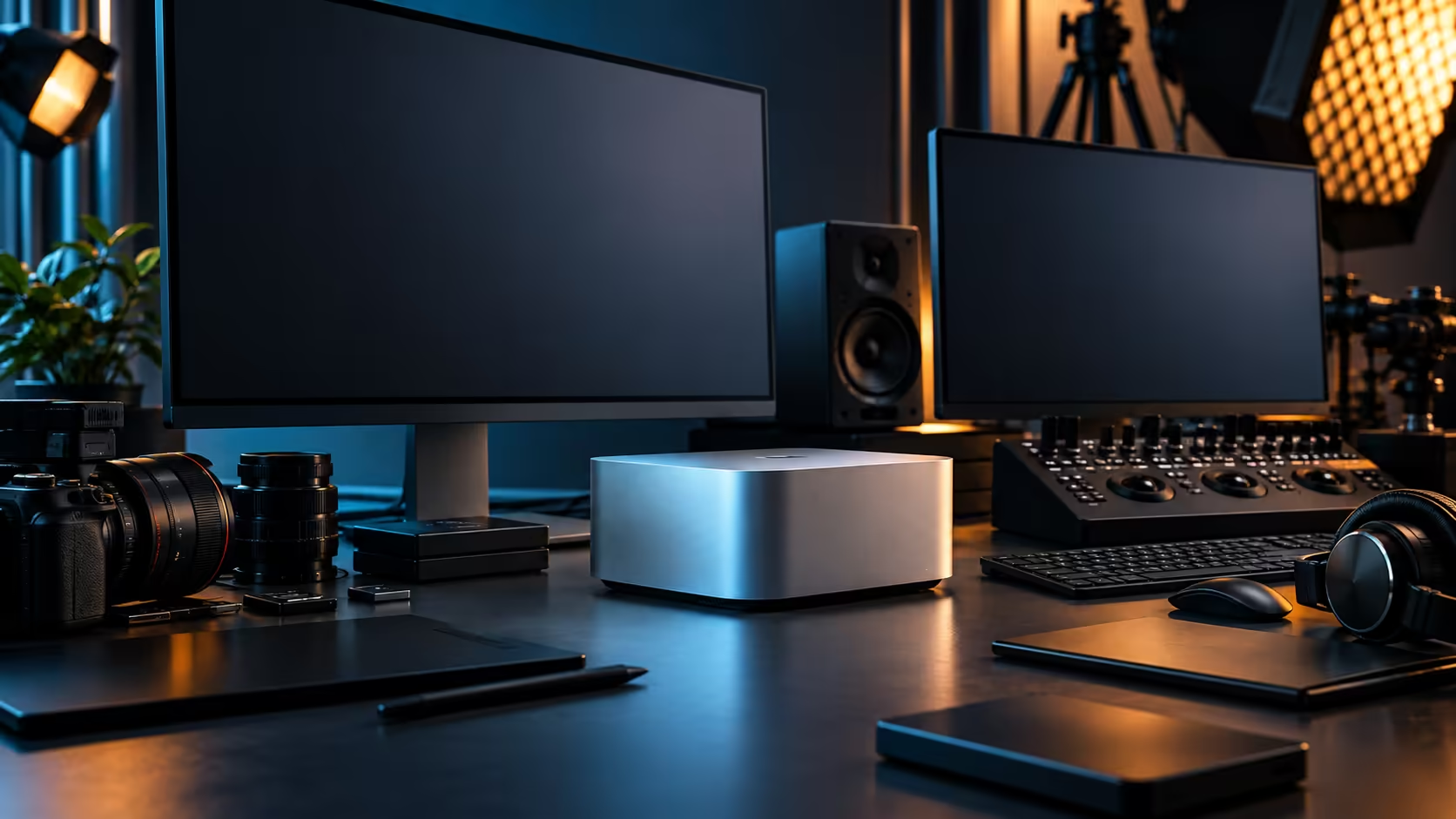
Flip a Mac Studio M5 Max around and the back panel reads like a small equipment rack: four Thunderbolt 5 ports, an HDMI output, a 10Gb Ethernet jack, an SD card slot, a pair of USB-C sockets, a pair of USB-A ones, and a headphone jack. Knowing which socket earns which device saves buying adapters you'll never actually use.
Quick Answer
Four Thunderbolt 5 ports, HDMI, a 10Gb Ethernet jack and an SD card reader cover the bulk of what a professional setup needs, with Wi-Fi 7 and Bluetooth 6 handling the wireless side. Match each device to the port it's actually built for rather than defaulting to whichever socket is free, and you'll avoid most of the adapter clutter that builds up around a poorly planned desk. The R49,499 configuration carries this full port layout.
🔌 Thunderbolt 5: the four ports that do the most work
These carry the heaviest traffic on the entire back panel, and planning around them properly matters more than any other single decision.
Each of the four ports on this Mac Studio M5 Max independently carries full data, display and power, making them the right home for monitors, fast external SSDs, docking stations and any accessory that genuinely needs high bandwidth. Give each demanding device, a display and a scratch drive at minimum, its own dedicated port rather than routing everything through a single hub, since contention here is the most common cause of a sluggish-feeling desk.
This is also where most of the wasted accessory spend happens. A buyer who doesn't map out which port serves which device before ordering often ends up with a drawer of adapters bought to solve a problem that proper initial planning would have avoided entirely: a Thunderbolt dock bought to work around a port shortage that a bit of forethought would have prevented, or a display adapter bought because the monitor's actual input was never checked against the machine's output options.
📺 HDMI: the straightforward video-only option
Not every display needs the full capability of a Thunderbolt connection, and HDMI covers that case cleanly.
A television, a projector, or an older monitor with no USB-C input at all connects naturally through the single HDMI output, freeing a Thunderbolt port for a device that actually needs its extra bandwidth. Treat HDMI as the default for anything that's purely a display with no other capability to carry, and reserve Thunderbolt ports for displays that also need data or power passed through the same cable.
🌐 10Gb Ethernet: wired speed your Wi-Fi router can't match
This single port does more for a busy studio than its size on the back panel suggests.
Paired with a matching switch and Cat6A network cabling, the 10Gb port moves large project files and backups at speeds a typical 1Gb home network, or Wi-Fi of any kind, simply can't reach. It's a wired connection built specifically for moving data between your own machines quickly, entirely separate from whatever speed your internet connection delivers.
📸 SD card reader: direct ingest without an adapter
Built-in and easy to overlook until you actually need it.
Camera media slots directly into the built-in SD card reader for ingest, skipping a separate card reader accessory entirely for anyone shooting on cards in that format. For other card formats, a compatible reader connects through one of the USB-C ports instead.
🔊📶 The rest of the back panel
A pair of USB-A sockets, plus two more built to the USB-C standard, cover everyday peripherals, a keyboard, a mouse dongle, a printer, so none of them ever needs to occupy a Thunderbolt lane. A 3.5mm combo jack covers wired headphones or a basic microphone directly. Wi-Fi 7 and Bluetooth 6 round out wireless connectivity for peripherals and casual network use, and a well-stocked cable range covers whichever of these ports needs a proper lead rather than whatever happened to be in a drawer.
🧵 Planning the physical cable runs, not just the sockets
A port list on a spec sheet doesn't tell you how the cables will actually sit once the machine is in place.
Position the Mac Studio so its most-used ports, typically the Thunderbolt lanes carrying a monitor and a scratch drive, face the shortest, most direct cable run rather than stretching across the desk behind other equipment. The 10Gb Ethernet and any permanent networking cable are usually better run along a wall or under a desk mat than left loose, since a 10Gb link is sensitive enough to cable quality that a kinked or coiled run can occasionally cost you real throughput. Leave the SD card slot and one USB-C port easily reachable rather than jammed against a wall, since those are the ones you'll actually use hands-on during a session rather than plugging in once and leaving alone.
Frequently Asked Questions
Which port should I use for my primary monitor?
A Thunderbolt 5 port if the monitor supports USB-C input, since it carries video, data and power together. Use HDMI for a display with no USB-C input, such as many televisions.
Do I need a separate card reader for camera media?
Not if your cards are SD format; the Mac Studio's built-in reader handles those directly. Other formats need a compatible external reader through a USB-C port.
Will my home Wi-Fi router give me 10Gb speeds?
No. The 10Gb port is a separate wired connection between your own devices, requiring a matching switch and cabling, and is unrelated to your internet or Wi-Fi speed.
What should go on the USB-A ports?
Lower-bandwidth peripherals like a keyboard, mouse dongle or printer, keeping the Thunderbolt ports free for devices that need more bandwidth.
Do I need Wi-Fi if I'm already using the wired 10Gb port?
Not for networking speed, but Wi-Fi 7 remains useful for peripherals and devices that don't have or need a wired connection, so most desks end up using both rather than choosing one exclusively.
Is it worth buying a docking station to reduce the number of cables running to the machine?
Often yes, for lower-bandwidth peripherals specifically. Route a keyboard, mouse and printer through one dock and reserve direct Thunderbolt connections for the display and any fast storage, which keeps the busiest ports uncontended while tidying the rest of the desk.
Ready to match every device to the right port?
Shop cabling and networking gear built to make the most of this back panel.