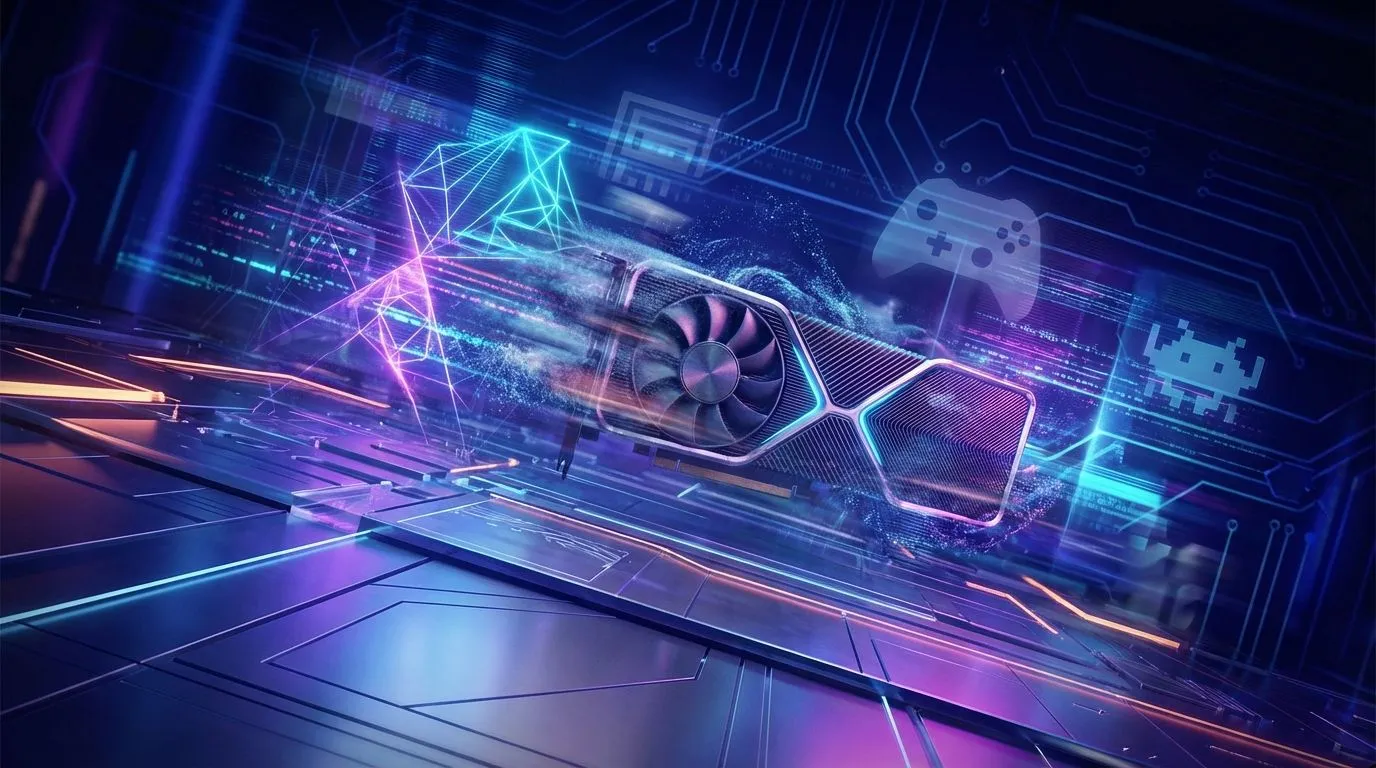
Got a trusty 6GB graphics card? It's the workhorse of many South African gaming rigs, but modern titles can push it to its limits. Don't rush to upgrade just yet! With the right 6GB graphics card settings, you can squeeze out precious frames and achieve much smoother gameplay. Let's dive into the tweaks that will get you back in the game, from texture quality to shadow details, without spending a single Rand. 🔧
Understanding VRAM and Your 6GB GPU
Before we tweak, let's understand the battlefield. Your graphics card's 6GB of VRAM (Video Random Access Memory) is like its short-term memory. It holds all the game assets your GPU needs to access instantly—textures, models, and shadows. When a game demands more VRAM than your card has, it results in stuttering and lag as data is shuffled around.
Optimising your 6GB graphics card settings is all about managing this limited resource effectively. It's a different challenge compared to the massive memory pools found on high-end workstation graphics cards, which are built for entirely different tasks like 3D rendering. For gaming, 6GB is still very capable, especially for 1080p.
Core Settings to Tweak for Smoother Gameplay
Jumping into a game’s graphics menu can be overwhelming. Focus on these key settings first for the biggest performance gains on a 6GB card.
Texture Quality
This is the number one VRAM consumer. "Ultra" or "Insane" texture settings in games like Cyberpunk 2077 or Alan Wake 2 can easily swallow more than 6GB of VRAM.
- The Fix: Drop texture quality from Ultra to High, or from High to Medium. The visual difference is often minimal during fast-paced action, but the performance boost is significant. This one change is often the most critical adjustment for smoother gameplay on a 6GB card.
Shadow Quality & Ambient Occlusion
Complex, realistic shadows look amazing, but they are incredibly demanding. The same goes for Ambient Occlusion, which adds depth where objects meet.
- The Fix: Lowering shadows from High to Medium can free up hundreds of megabytes of VRAM and reduce the load on your GPU. For Ambient Occlusion, try a less demanding setting like SSAO instead of HBAO+.
Anti-Aliasing (AA)
Anti-aliasing smooths out jagged edges ("jaggies") on screen, but high-end methods like MSAA are performance hogs.
- The Fix: Opt for more modern, efficient AA methods like TAA (Temporal Anti-Aliasing) or even FXAA. They provide a great balance of visual quality and performance, making them perfect settings for a 6GB graphics card.
See Your VRAM in Action ⚡
Use a monitoring tool like MSI Afterburner with the RivaTuner Statistics Server overlay. This lets you see your VRAM usage, GPU temperature, and frame rate in real-time while you play. Adjust a setting, see the immediate impact, and find the perfect balance for your specific rig. It’s the best way to truly optimise your 6GB graphics card settings.
Advanced Tweaks and Upscaling Tech
Don't stop at in-game menus! Modern GPUs have powerful tools in their driver software that can give you an extra edge. Technologies like NVIDIA DLSS and AMD FSR render your game at a lower resolution and then use AI to intelligently upscale the image.
This is a fantastic way to get smoother gameplay without a noticeable drop in visual quality. If your GPU supports it, enabling DLSS or FSR on a "Quality" or "Balanced" preset is a must. Many popular NVIDIA graphics cards and most modern AMD Radeon graphics cards support some form of this powerful technology.
When Optimisation Isn't Enough
You can work magic with the right 6GB graphics card settings, but eventually, you'll hit a wall with the newest, most demanding AAA titles. If you've tweaked every setting and still aren't getting the performance you want, it might be time to consider an upgrade. 🚀
The good news is that the market is packed with incredible options. Cards with 8GB or 12GB of VRAM offer more headroom for future games, with great value available from cards from brands like MSI and even compelling newer options like Intel Arc graphics cards entering the scene. An upgrade can unlock higher resolutions, ray tracing, and buttery-smooth frame rates you just can't achieve otherwise.
Ready for a Framerate Boost?
Optimising your 6GB card can work wonders, but sometimes an upgrade is the only way forward. Whether you're eyeing the latest powerhouse or a great value deal, we've got the GPU for you. Explore our massive range of graphics cards and find the perfect component to conquer your favourite games.