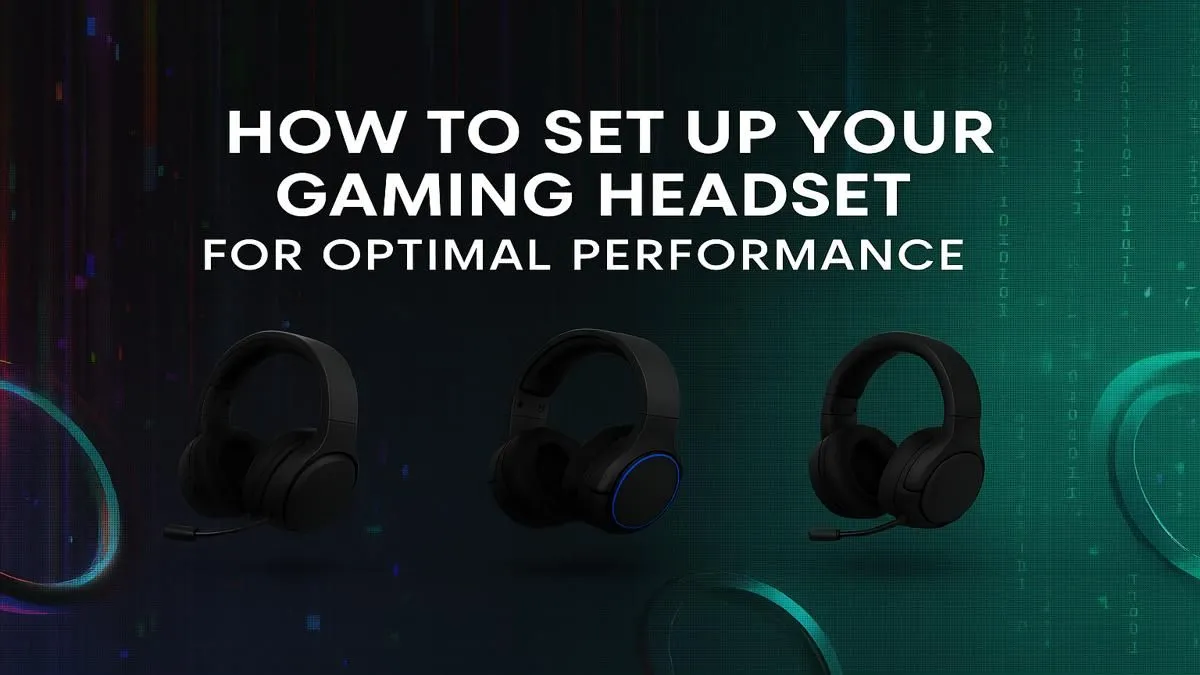
You’ve dropped thousands of ZAR on a beast of a PC, but you’re still getting outplayed in Valorant because you can’t pinpoint footsteps. Sound familiar? The culprit often isn't your headset… it's your setup. A proper gaming headset setup is the secret weapon you’re missing. It transforms muffled chaos into crystal-clear positional audio, giving you the competitive edge you need to climb the ranks. Let's get your audio dialled in for peak performance. 🎧
Nail the Physical Connection First
Before you even touch a software slider, your physical connection needs to be solid. The way you plug in your headset can make or break your audio experience. This is the foundation of a great gaming headset setup.
For many, the reliability of a good wired headset is unmatched. If you're using a 3.5mm jack, ensure it's plugged into the correct port on your motherboard or front panel—look for the green-coloured ring. For USB headsets, try to use a port directly on your motherboard (the back of your PC) rather than a hub, as this provides more stable power and bandwidth.
On the other hand, nothing beats the convenience and freedom of a top-tier wireless headset. For the best performance, make sure the wireless dongle has a clear line of sight to your headset and is placed away from other wireless devices (like your Wi-Fi router) to minimise interference.
Optimise Your Software and In-Game Settings
This is where the real magic happens for achieving peak audio performance. Your PC and console have powerful audio tools built-in, but they often need a little tweaking.
Windows & Console Audio
On PC, right-click the speaker icon in your taskbar, go to "Spatial sound," and try enabling "Windows Sonic for Headphones." It’s a free virtual surround sound solution that can seriously improve positional audio in many games.
For console gamers, the process is just as crucial. Whether you're optimising specific PlayStation headsets through the PS5's 3D Audio settings or configuring Dolby Atmos on your console to get the most from your Xbox headset, taking five minutes to explore the audio menu is essential. Don't just plug and play!
Discord Pro Tip 🎤
In Discord's "Voice & Video" settings, enable "Noise Suppression" (using Krisp) and correctly set your "Input Sensitivity." This ensures your teammates hear your callouts clearly, not your mechanical keyboard or the hadedas outside. A clean mic is a core part of a complete gaming headset setup.
In-Game Audio EQ
Most modern competitive games have audio presets. Don't just leave it on default. Look for settings like "Headphones," "Boost High," or "Night Mode." These profiles often compress loud explosions and amplify quieter sounds like footsteps and reloads. Experiment in a practice range to find the profile that gives you the clearest audio cues. This simple tweak is a vital step in perfecting your headset setup for competitive play.
Advanced Tweaks for God-Tier Audio 🚀
Ready to take your gaming headset setup to the next level? The final 10% of optimisation separates the good from the great.
First, always install your headset manufacturer's software (like Razer Synapse, Logitech G HUB, or SteelSeries GG). This software unlocks critical features like firmware updates, customisable EQ profiles, and surround sound settings that are far more powerful than Windows' default options.
Second, fine-tune your microphone. Use the software to enable features like a noise gate or blue VO!CE technology. This ensures your communication is sharp and professional, cutting out background noise so your team hears every critical callout.
Finally, remember that not all headsets are created equal. If you've tried everything and your audio still feels flat, it might be time for an upgrade. Exploring the latest tech in our full range of headphone & headsets can reveal what new features, like improved drivers or better wireless tech, could benefit you.
A flawless audio experience is within reach. It’s not about spending a fortune; it's about smart optimisation. By following these steps, you can ensure your headset is performing at its absolute best. If you feel your current gear is holding you back, why not check out some of the best gaming headset deals in South Africa?
Ready to Hear Every Detail?
A perfect gaming headset setup turns you from the hunted into the hunter. Stop guessing where the enemy is and start knowing. Explore our massive range of gaming headsets and find the perfect audio weapon for your rig today.