Is your MSI laptop feeling a bit sluggish in the latest titles? Stuttering in Helldivers 2 or dropping frames in Apex Legends? Often, the culprit isn't your hardware… it's outdated drivers. This simple guide is your key to unlocking the full power of your machine. We'll show you exactly how to update your MSI laptop drivers, ensuring you get the smoothest performance, whether you're gaming in Cape Town or Jozi. Let's get your rig running at its peak. 🚀
Why You Must Update Your MSI Laptop Drivers
Think of drivers as the instruction manual that tells your hardware (like your graphics card) how to talk to your software (your games). When that manual is old, communication breaks down, leading to glitches, crashes, and lower frame rates. A proper MSI laptop driver update doesn't just fix bugs; it often unlocks new performance features and optimisations for the latest blockbuster games.
Keeping your system current is crucial for getting the most value from your investment, whether you own a brand-new machine or a trusted older model from the entire range of MSI gaming laptops. Regular updates ensure better stability, tighter security, and ultimately, a much better gaming experience.
The Best Ways to Update Your Drivers 🔧
When it comes to an MSI laptop driver update, you generally have two solid options. There's no single "best" way; it depends on your comfort level.
1. The Simple Route: MSI Center
For most users, the MSI Center (or the older Dragon Center on some models) is the easiest path. This all-in-one utility came pre-installed on your laptop.
- How it works: Open MSI Center, navigate to the "Support" or "Live Update" section, and let it scan your system. It will identify outdated drivers for your chipset, audio, network card, and more, allowing you to install them with a few clicks.
- The Catch: While convenient, it might not always have the absolute latest graphics driver the day a new game launches.
2. The Gamer's Route: Directly from the Source
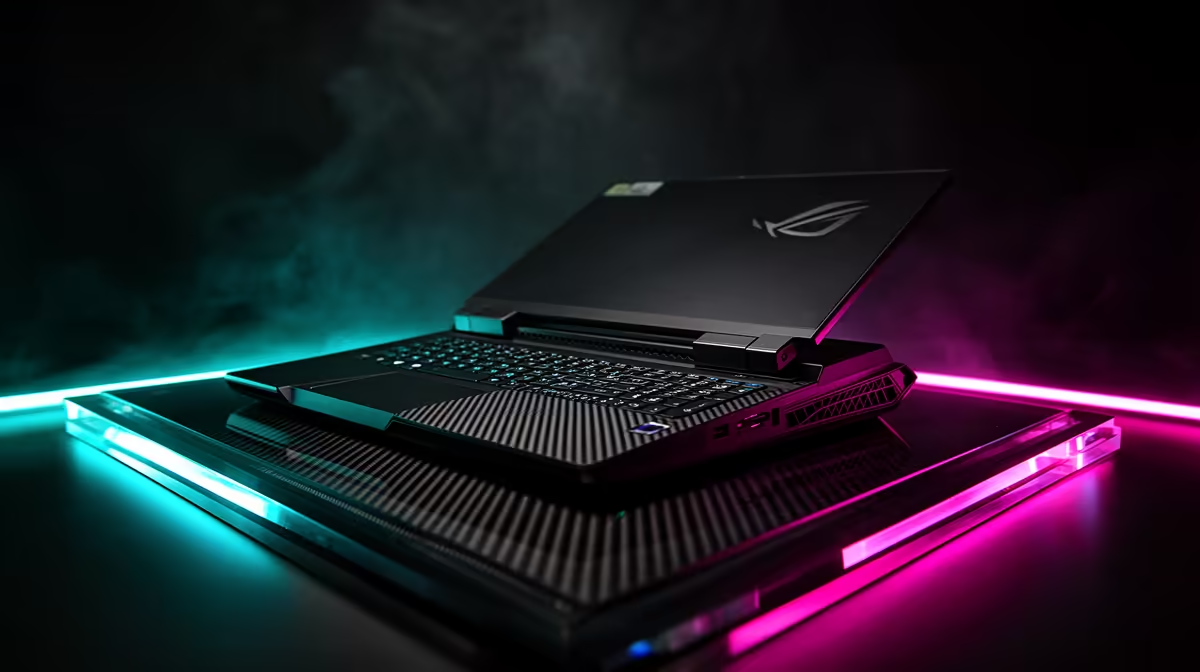
For maximum performance, especially in new releases, grabbing the graphics driver directly from NVIDIA, AMD, or Intel is the way to go. High-performance machines like the blazingly fast MSI Raider series often benefit most from these day-one game-ready drivers. This method gives you the latest optimisations as soon as they're available.
Pro Tip for a Clean Slate ⚡
If you're experiencing persistent graphics issues or crashes, a standard driver update might not be enough. Use a free tool called Display Driver Uninstaller (DDU) to completely remove all traces of your old graphics drivers before installing the new ones. It's the ultimate 'turn it off and on again' for your GPU software, ensuring a perfectly clean installation.
A Quick Guide to Updating Your GPU Driver
Manually updating your graphics driver is the single most important step for gaming performance. It's easier than it sounds.
- Identify Your GPU: Right-click your Start button, select "Device Manager," and expand the "Display adapters" section. You'll see your graphics card model (e.g., NVIDIA GeForce RTX 4070).
- Item
- Install the Driver: Open the software and check the "Drivers" tab. It will automatically detect your GPU and prompt you to download the latest version. During installation, always select the "Custom/Clean Install" option if available. This removes old profiles and settings for a fresh start.
This process ensures that even powerful laptops like the MSI Vector GP series are primed and ready for any AAA title you throw at them. ✨
Common Pitfalls to Avoid
To keep your MSI laptop driver update process smooth, avoid these common mistakes:
- Never use third-party driver tools: Many "driver finder" programs are bundled with bloatware or even malware. Stick to official sources like MSI, NVIDIA, or AMD.
- Don't interrupt the installation: Let the process finish completely. Your screen may flicker or go black for a moment—this is normal.
- If it ain't broke…: While it's good to stay current, you don't need to update every single driver every week. Prioritise your GPU driver for gaming, and run the MSI Center scan every few months for everything else.
By following this guide, you're not just updating software; you're ensuring your MSI gaming laptop continues to deliver the elite performance you paid for.
Ready for a Serious Hardware Upgrade? Keeping your current rig optimised is smart, but sometimes you just need more power. If you're ready to conquer the next generation of gaming, Evetech has the perfect machine for you. Explore our massive range of laptop specials and find the perfect rig to dominate the competition.