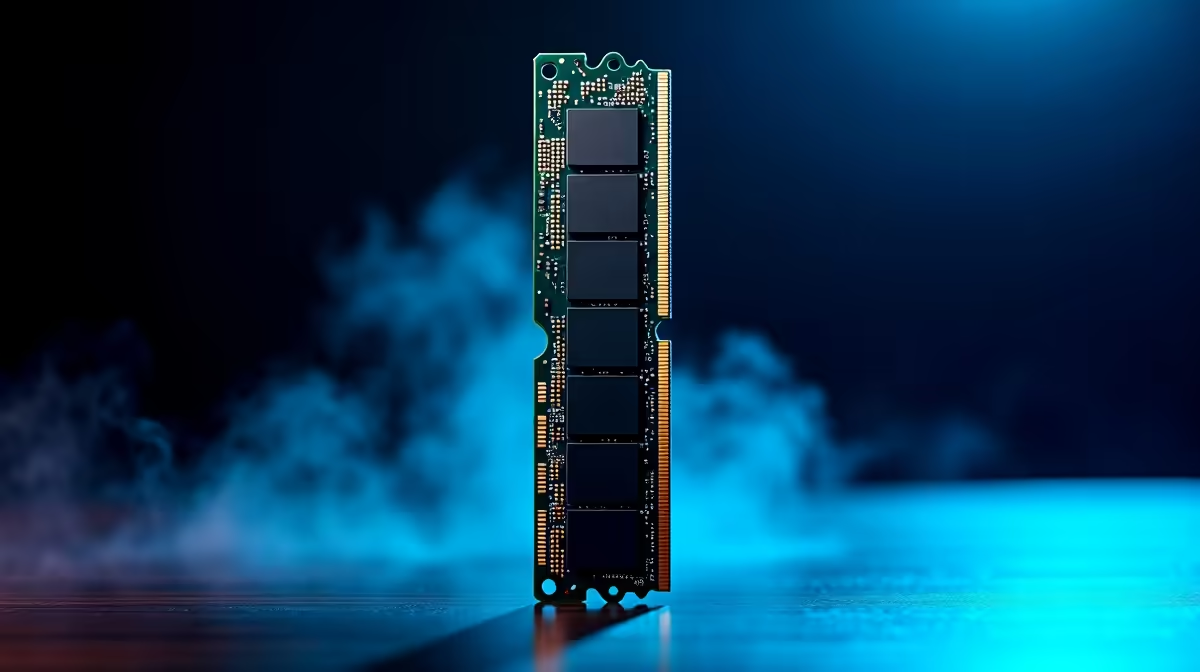
You’ve spent your hard-earned ZAR on a shiny new DDR5 7200MHz RAM kit, dreaming of buttery-smooth frame rates and lightning-fast load times. But instead of gaming bliss, you’re stuck with a PC that won’t boot, crashes randomly, or just refuses to run at its advertised speed. Don't panic. You're not alone, and the fix is often simpler than you think. This practical DDR5 7200MHz troubleshooting guide will help you tame that high-speed memory and unlock its true potential. 🚀
First Steps in DDR5 7200MHz Troubleshooting
Before diving into complex voltage tweaks, let's cover the basics. Pushing RAM to 7200MT/s and beyond is on the bleeding edge, and it demands perfect harmony between your CPU, motherboard, and the RAM modules themselves. An enabled XMP (for Intel) or EXPO (for AMD) profile isn't a guarantee… it's an overclocking suggestion that your specific hardware needs to be able to handle.
The main culprits for instability are often a dated motherboard BIOS or a CPU with a less-than-perfect memory controller (the "silicon lottery" is a real thing!). Let's get these sorted first.
Your Essential Troubleshooting Checklist 🔧
Work through these steps methodically. More often than not, one of the first three will solve your stability issues.
1. Update Your Motherboard BIOS
This is the golden rule of PC building, especially with new tech like DDR5. Motherboard manufacturers constantly release BIOS updates that improve memory compatibility and stability. Head to your motherboard’s support page, download the latest version to a USB stick, and flash it. This single step solves over 50% of high-speed RAM issues.
2. Check the Qualified Vendor List (QVL)
Your motherboard's manufacturer tests specific RAM kits to certify they work at advertised speeds. This list is called the QVL. While many non-QVL kits work fine, sticking to the list is the safest bet for guaranteed stability. If you're building from scratch, considering pre-tested Intel barebone kits can save you this headache by ensuring all parts are already vetted for compatibility.
3. Confirm Correct DIMM Slot Installation
Check your motherboard manual! For a two-stick kit, the correct slots are almost always A2 and B2 (the second and fourth slots from the CPU). Placing them in A1/B1 can prevent the system from booting or running XMP/EXPO profiles correctly. Reseat the modules firmly until you hear a click.
Quick Stability Test ⚡
After making a change, don't just boot into Windows. Run a memory stress test like TestMem5 or the built-in Windows Memory Diagnostic tool for at least 30 minutes to confirm your system is truly stable. A successful boot doesn't mean you won't crash mid-game!
When Your Hardware Is the Bottleneck
If you’ve tried everything and your 7200MHz kit still won't stabilise, the issue might be a hardware limitation. The Integrated Memory Controller (IMC) on the CPU plays a huge role, and not all chips can handle these extreme speeds. Similarly, entry-level motherboards may lack the power delivery or signal integrity needed.
Instead of endless frustration, sometimes the most cost-effective solution is a balanced upgrade. Investing in perfectly matched upgrade bundles ensures the CPU and motherboard are a perfect pair, ready to handle high-frequency RAM. For gamers seeking top-tier performance, powerful AMD Ryzen 7 bundles are specifically designed for this kind of workload. Or, to simplify things even further, hassle-free AMD barebone kits provide a rock-solid foundation for your high-speed build.
Getting DDR5 7200MHz memory to run smoothly can be a challenge, but the performance payoff is immense. With a little patience and methodical troubleshooting, you'll get there. ✨
Ready to Stop Troubleshooting and Start Gaming?
High-speed RAM can be tricky, but the right foundation makes all the difference. Instead of fighting with settings, consider a platform built for performance from the start. Explore our guaranteed compatible upgrade bundles and build a rig that just works.