


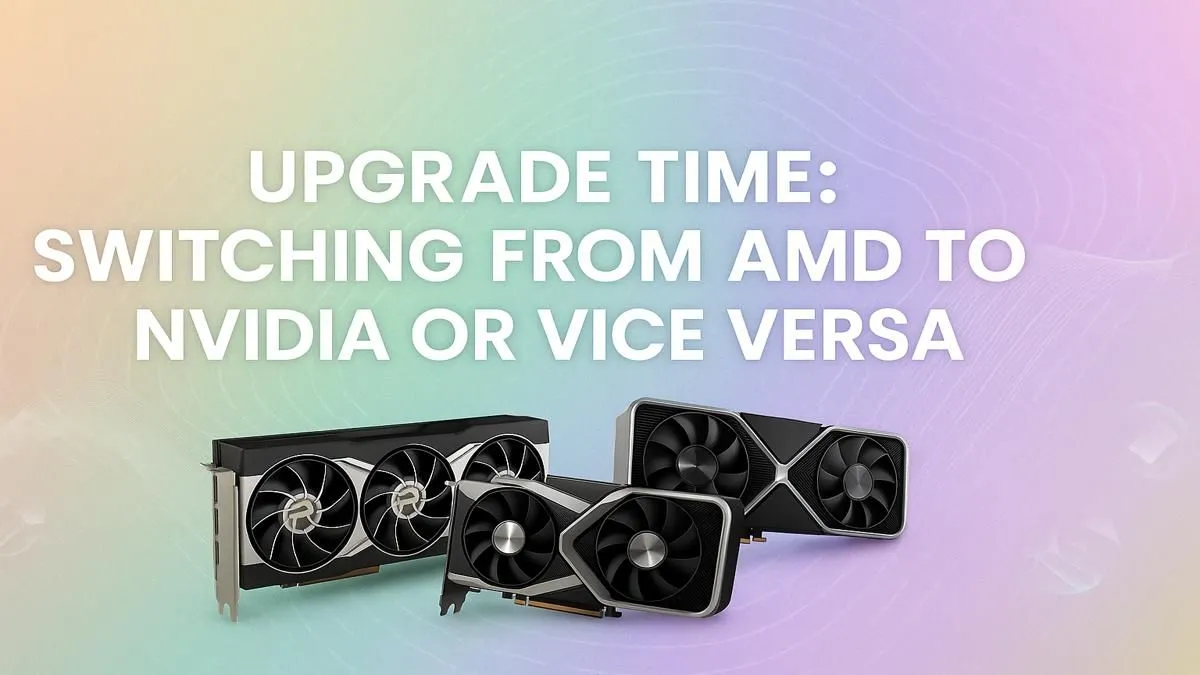
So, you're eyeing that shiny new GeForce RTX card, but your rig is currently powered by a Radeon GPU. The thought of swapping them can feel a bit daunting, right? Worries about driver conflicts and black screens are valid. But don't stress... making the switch from AMD to NVIDIA is easier than you think. This guide will walk you through every step for a smooth, hassle-free upgrade for your South African gaming setup. 🚀
Why Switch from AMD to NVIDIA?
While both brands produce fantastic hardware, there are compelling reasons to jump to Team Green. NVIDIA's DLSS (Deep Learning Super Sampling) technology often provides a significant performance boost in supported titles, and their Ray Tracing performance is typically considered top-of-the-line. For creators, NVIDIA's CUDA cores can accelerate workflows in specific video editing and 3D rendering applications.
Of course, this isn't to say Team Red is a slouch. AMD's Radeon GPUs offer incredible value and raw performance, especially with technologies like FSR (FidelityFX Super Resolution). The choice always comes down to your specific needs, budget, and the games you play most.
The Clean Swap: A Step-by-Step Upgrade Guide
Ready to get your hands dirty? Following these steps carefully will prevent 99% of potential issues when you upgrade from an AMD to an NVIDIA GPU. The secret ingredient is a complete driver cleanse.
Step 1: The Software Purge (DDU is Your Best Friend)
Before you even touch a screwdriver, the most critical step is to completely remove all traces of your old AMD drivers. Windows' default uninstaller often leaves behind registry keys and files that can cause conflicts.
- Download NVIDIA Drivers: Go to NVIDIA's website and download the latest Game Ready Driver for your new graphics card. Save it to your desktop.
- Download DDU: Grab the latest version of Display Driver Uninstaller (DDU) from a reputable source like Guru3D. It's a free and powerful tool.
- Disconnect from the Internet: Unplug your Ethernet cable or disconnect from Wi-Fi. This stops Windows from automatically trying to install its own drivers in the middle of the process.
- Reboot into Safe Mode: Restart your PC and boot into Safe Mode.
- Run DDU: Launch DDU. Select "GPU" as the device type and "AMD" as the vendor. Click "Clean and shutdown". Your PC will run the uninstaller and then power off completely.
Pro Tip for a Flawless Driver Wipe ⚡
Always run Display Driver Uninstaller (DDU) in Windows Safe Mode. This ensures that no driver files are in use, allowing the tool to perform a much deeper and more thorough cleaning of your system. This single step is the key to preventing black screens, stuttering, and other weird behaviour after your GPU swap.
Step 2: The Physical GPU Swap 🔧
Now for the fun part. With your PC powered off and unplugged, it's time for the physical installation.
- Ground Yourself: Touch a metal part of your PC case to discharge any static electricity.
- Open Your Case: Remove the side panel.
- Unplug & Unscrew: Disconnect the PCIe power cables from your old AMD card. Then, unscrew the bracket holding the card to the case and unlock the PCIe slot clip on the motherboard.
- Remove the Old Card: Gently pull the AMD card straight out of the PCIe slot.
- Install the New Card: Slot your new NVIDIA card into the same PCIe slot until you hear a "click". Screw it into the case bracket and reconnect the necessary PCIe power cables.
- Close Up: Put the side panel back on your case.
Step 3: Installing New NVIDIA Drivers
With the hardware in place, it's time to bring your new GPU to life.
- Boot Up: Plug everything back in and turn on your PC. Your resolution might look low or stretched—this is normal.
- Install Drivers: Run the NVIDIA driver installer you downloaded earlier. Choose the "Custom (Advanced)" installation option and tick the box for "Perform a clean installation" for good measure.
- Reboot & Reconnect: Once the installation is complete, restart your PC one last time. You can now reconnect to the internet.
That’s it! Your AMD to NVIDIA upgrade is complete. You’re ready to install GeForce Experience, optimise your game settings, and enjoy the performance of your new hardware. ✨
Choosing Your Next GeForce Powerhouse
Feeling confident about the process? The next step is picking the right card. Whether you're aiming for 1080p high-refresh-rate gaming with an RTX 4060 or 4K ultra settings with a mighty RTX 4080 SUPER, you can explore NVIDIA's powerful GeForce lineup to find your perfect match. For the best prices in ZAR, it's always smart to check out the latest graphics card deals and find a special that fits your budget.
Ready for a Performance Boost? Whether you're chasing higher frame rates with DLSS or diving into immersive ray-traced worlds, a new GPU is the heart of your next upgrade. Making the switch from AMD to NVIDIA can unlock incredible performance. Explore our massive range of NVIDIA GeForce graphics cards and find the perfect card to conquer your game.









