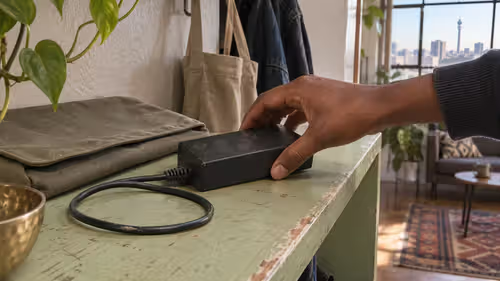
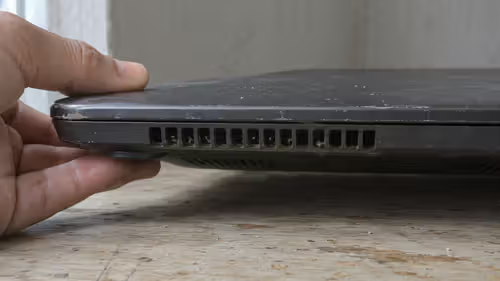
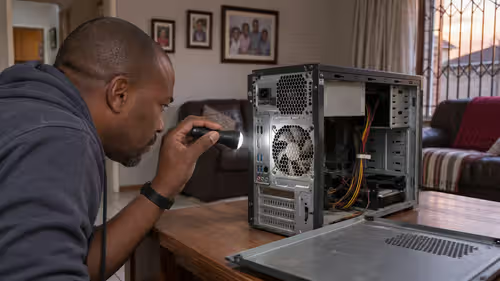
You bring a camera card back to the desk and plug it in. Windows makes a sound, but File Explorer shows nothing. If the card holds photos or video you need, find out whether Windows can see the card before you agree to format it.
Quick Answer
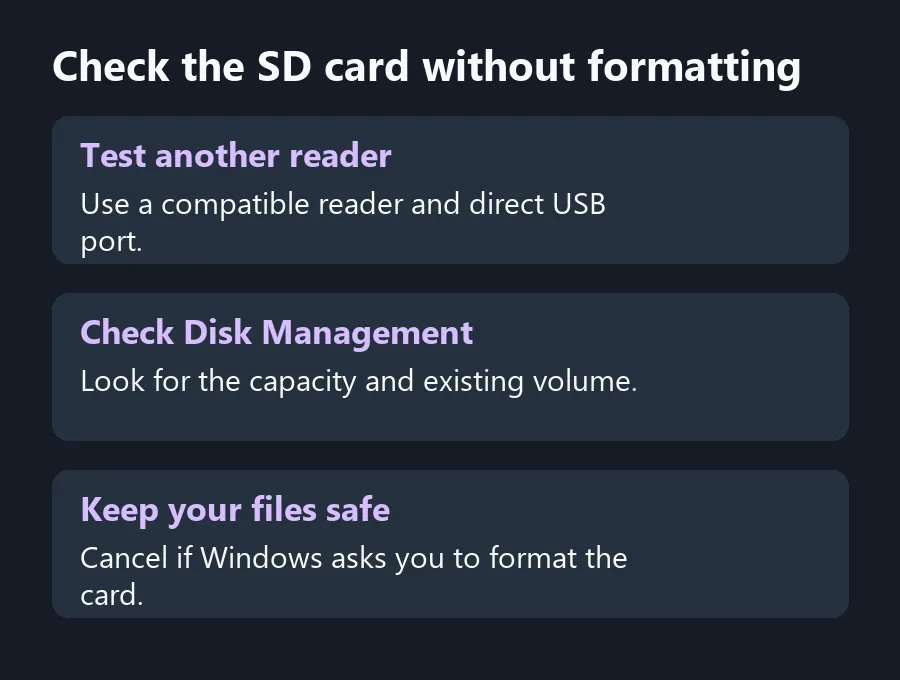
If your SD card is not showing up in Windows 11, try a second compatible card reader and look for the card in Disk Management. Both checks cost R0 if you have another reader to borrow. Cancel any request to initialise or format the card if you need its files.
💾 Test the card and reader separately
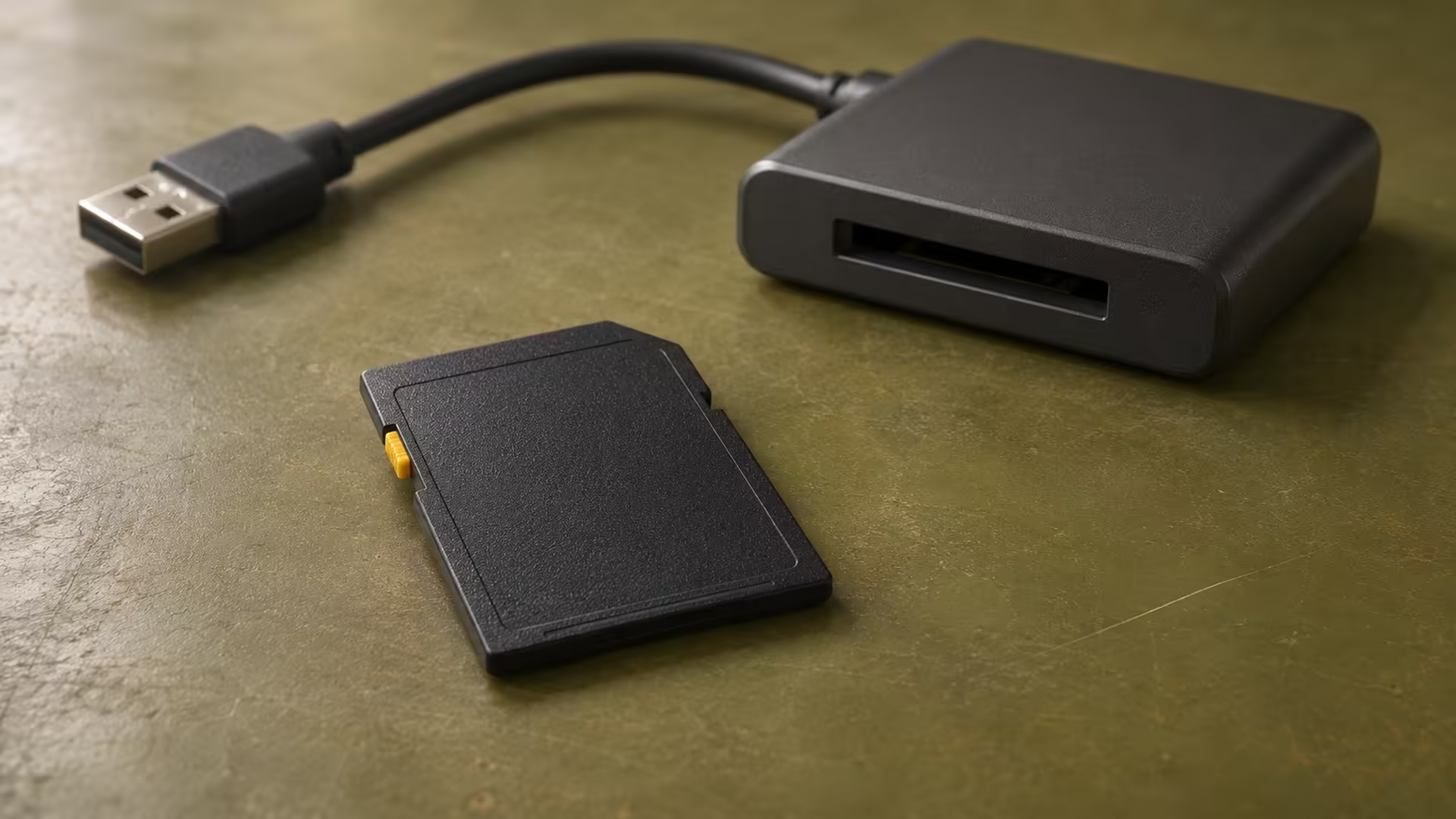
Read the type printed on the card, then look up the reader's supported formats in its manual. If you use microSD in a full-size adapter, try a known-good adapter or a reader with a native microSD slot. If the reader connects over USB, plug it directly into the computer for this test. Check the slot and plug with the card and reader removed. Avoid forcing a connector or poking inside the slot.
Try a known-good card in your current reader. Next, try the original card in a second compatible reader or in the camera it came from. Change one part at a time. If the photos still open in the camera, use a supported transfer method to copy them to a separate drive before attempting any repair. If two cards fail in the same reader but work elsewhere, focus on that reader or its cable.
🖥️ Check Disk Management without changing the card
Right-click Start and open Disk Management. Look for a removable volume with the capacity you expect. Compare the list before and after connecting the reader. Wait for any file transfer to finish before you unplug it. If Windows shows a healthy, readable volume without a drive letter, you can assign an unused letter using Change Drive Letter and Paths. Check that you have selected the correct volume.
If Windows shows RAW, unallocated space, or asks to initialise the card, stop and leave those options alone if the files matter. A new drive letter does not repair a file system. If Windows fails to list the device even though the original camera reads it, copy from the camera first. If the camera and another reader both fail, set the card aside and consider recovery before further changes.
🧰 Choose a replacement only when the reader fails
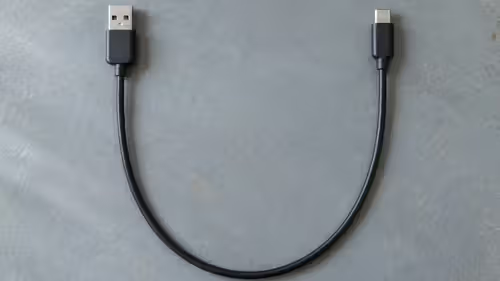
A reader is worth replacing once you can repeat the fault with different cards. Check whether your computer has USB-A or USB-C and whether the reader supports the SD format and capacity you use. If you already need spare ports, compare the card slots on USB Hubs first. If you only move camera files, a simple dedicated reader may suit the job.
Save a second copy of important files before reusing the card. One of the USB Flash Drives can carry a copy to another computer. Keep a separate copy on a device you normally back up, especially when you will need to clear the card for another shoot.
Frequently Asked Questions
Should I format an SD card when Windows asks?
Cancel if you still need the files. Check the card in a compatible reader or in the camera first.
Why does File Explorer show nothing?
The reader might not detect the card, or Windows may detect a volume that has no drive letter.
Where do I find Disk Management in Windows 11?
Right-click Start and select Disk Management. Confirm the card's capacity before touching any setting.
Can a drive letter repair a RAW volume?
No. Assign a letter only to an existing readable volume that lacks one.
Will a different microSD adapter help?
It can help isolate a bad adapter. Try a compatible adapter or a native microSD reader.
What if the camera still sees the files?
Use the camera's supported transfer method to copy the files first. Verify the copy before reusing the card.
Test another reader
Use a second reader and check Disk Management before formatting a card that may still contain files.