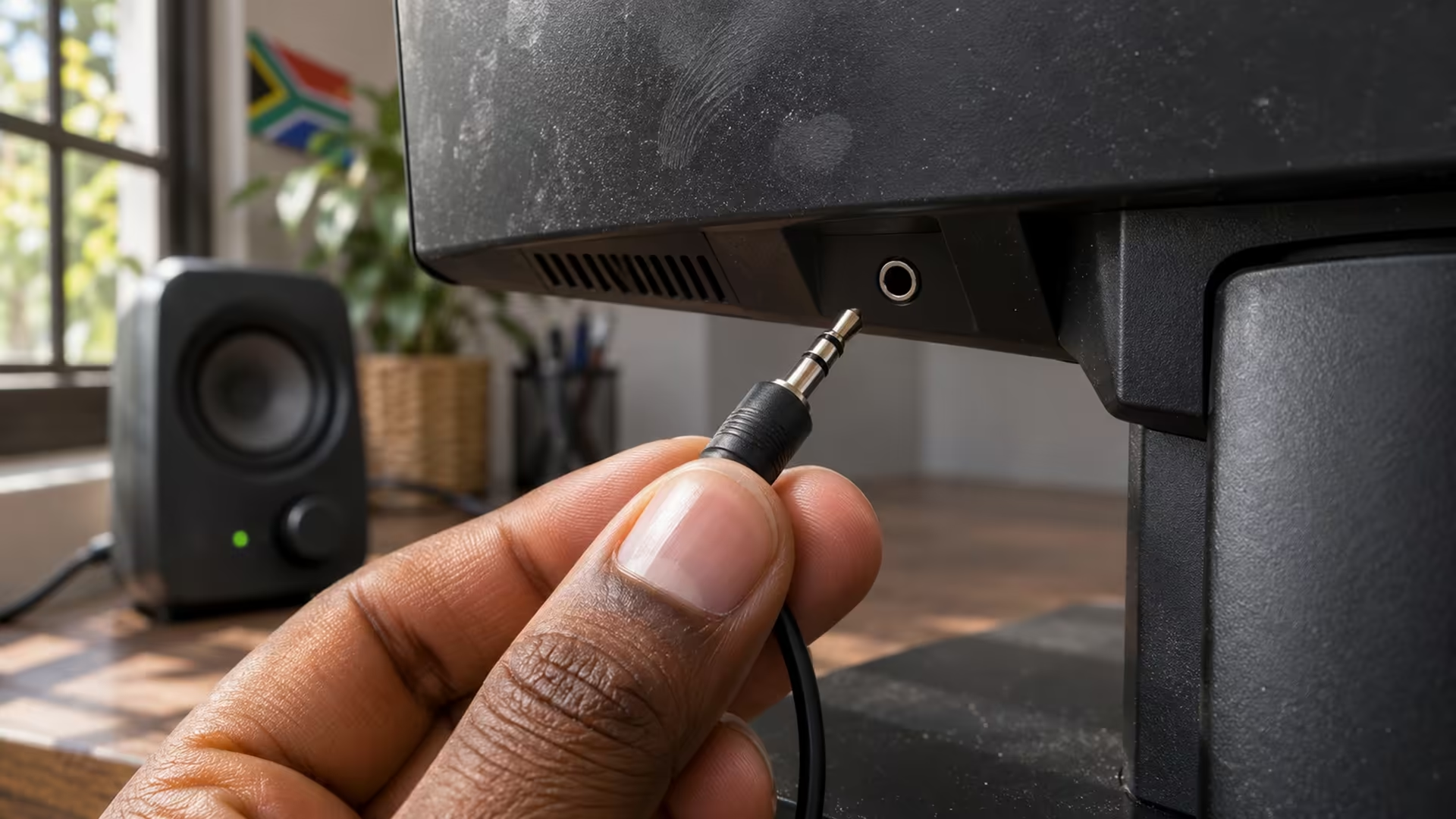
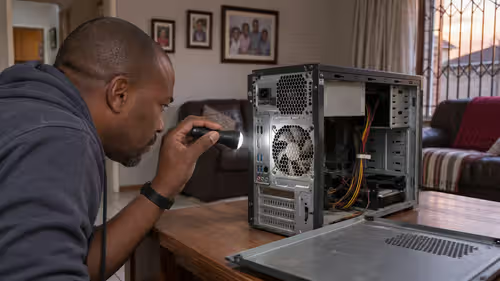
The speakers went quiet when you moved their plug from the PC to the monitor. Now there's a buzz under every video. A monitor's 3.5 mm socket and the PC's audio socket can look identical, but they give you two different paths to test.
Quick Answer
If you hear speakers buzzing when plugged into monitor audio, turn the speaker volume down and try the same speakers and cable through the PC's own audio output. That comparison costs R0 if you have the right port. Check the monitor manual to see whether its socket is line out or a headphone output.
🔌 Read the label before moving the plug
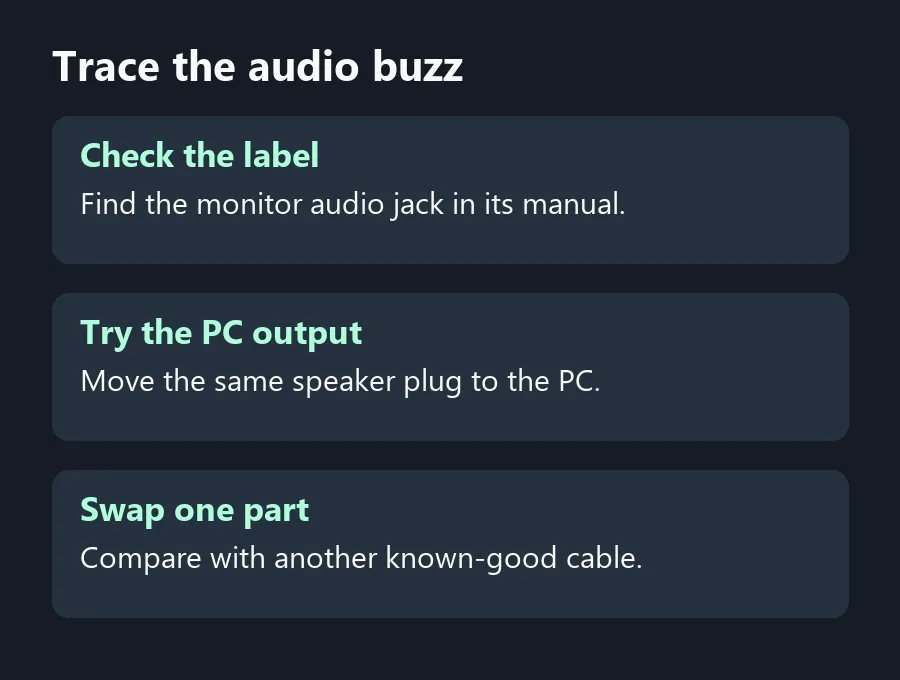
Switch the speakers off or turn their volume down before moving the plug. Find the diagram for your exact monitor model. Some screens label the socket Audio Line Out and expect it to feed an amplified input. Some have a headphone output, and some have a separate socket for each job. Use the manual to check what the jack can drive.
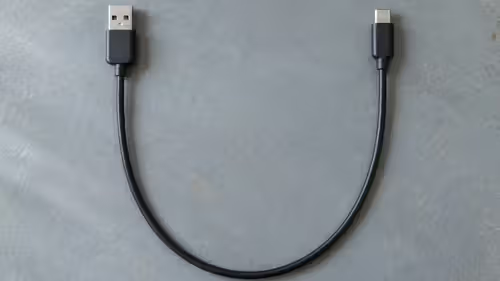
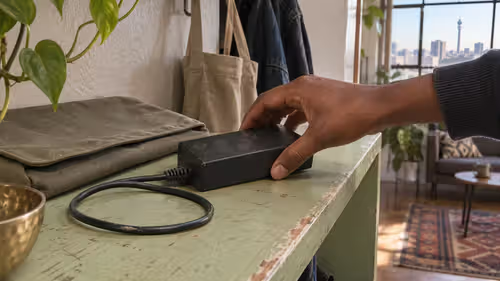
Confirm that the speakers have their own power and that their cable is in the correct input. If you are using a small USB-powered set, remember that the USB lead can supply power while the round plug carries sound. Keep the USB power connection in place when you move the audio lead so the first test changes one thing.
🎧 Compare the same speakers on a second output
Choose a short video or piece of speech that you can play again. With the speakers at a low volume, move the cable from the monitor to the PC's labelled audio output. Then select that output in your sound settings. Listen during a quiet pause and while the speech plays. The screen and the PC can have different volume levels, so compare at a comfortable listening level.
If the buzz disappears, you can use the PC output while you check the monitor's port and source settings. This is useful when a laptop or console shares the display, since moving the audio cable to the PC also changes which device can use the speakers. If the buzz follows the speakers, try another known-good audio lead if your speakers have a removable cable. Keep the test source and speaker power the same for that swap.
🛠️ Buy only after the noise follows a part
Listen with nearby dimmable lights switched off and move loose audio leads away from their power leads. Keep the original power adapters and plugs intact. If you unplug the signal cable with the speakers switched off, then turn them back on at low volume and still hear the buzz, the PC sound signal is out of that test. The speakers or their power source deserve a closer look.
Use Speakers to compare inputs if you can reproduce the fault with the same set on two sources. If you still need audio from sources connected to the screen, check your monitor manual before shopping Monitor Accessories. A cable swap only makes sense after you have found the socket and signal path you intend to keep.
Frequently Asked Questions
Can I plug headphones into a monitor line out?
Read the monitor manual. Several monitors reserve line out for powered audio equipment and provide a different socket for headphones.
Does USB power make a speaker a USB audio device?
Check its manual. Some sets use USB for power and a separate 3.5 mm plug for sound.
Why can I hear a buzz during silence?
The noise may come from the input path, nearby electrical equipment or the speakers. Compare one connection at a time.
What if only the monitor jack buzzes?
Use the PC output for now and check the monitor manual for the port's intended use.
What if moving the cable changes the buzz?
Test a known-good lead if your set has a removable one. Repeat the test at a similar volume.
Should I replace the monitor first?
Test the same speakers through a second source and verify the monitor's port before choosing a replacement.
Check the label
Test the monitor audio path before replacing a set of desktop speakers.