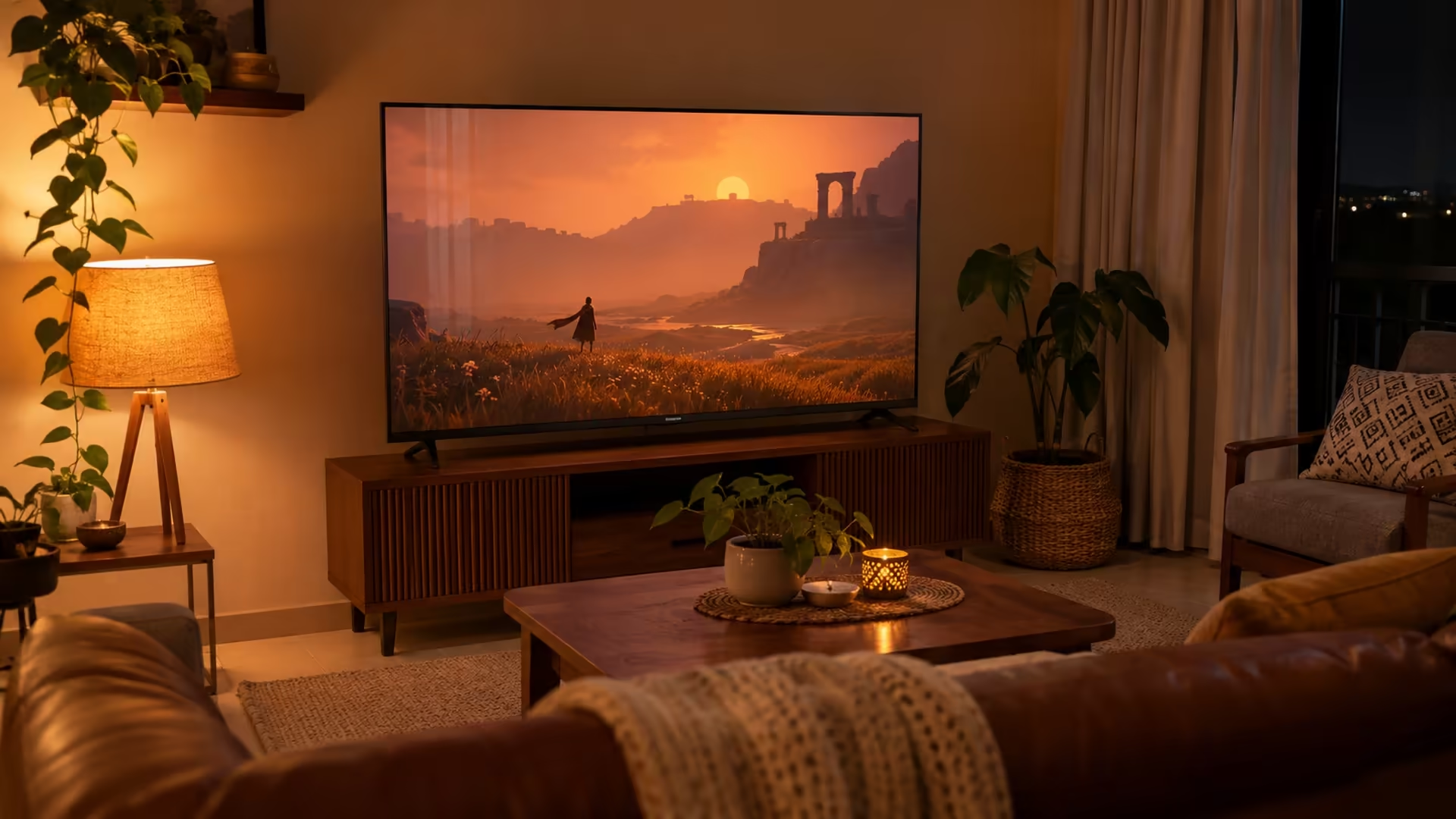
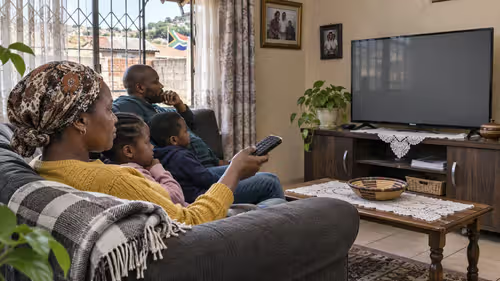
Your Switch 2 looks fine in your hands, but dock it and an older game looks pale on the TV. The console has a setting that lets you test whether the picture changes when the game runs without forced HDR.
Quick Answer
If Switch 2 HDR looks washed out on your TV, dock the console and set System Settings > Display > HDR Output to Compatible Software Only. Compare a game that supports HDR with one that does not. The check costs R0. If HDR still looks wrong in supported software, check the dock's HDMI input and run Adjust HDR.
📺 Compare two games on the same TV input
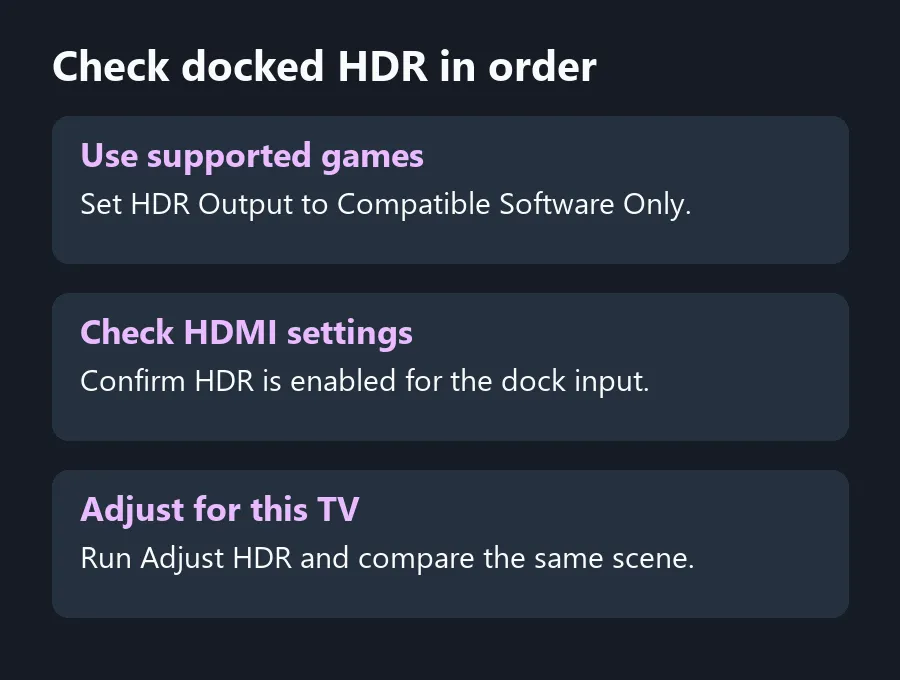
Dock the console and open System Settings from the HOME Menu. Scroll to Display and locate HDR Output in the TV settings. Choose Compatible Software Only, then load an older game that you know uses standard dynamic range, or SDR. Use a familiar location or menu with clear colours and dark details. Next, open a game with HDR support and check its own display settings before comparing.
Keep the TV on the dock's input and stick with the same room lighting. Try the same SDR scene with HDR Output set to For All Software, then return to Compatible Software Only and replay it. If the difference follows that toggle, you have a clear reason to leave the compatible-only option on for a mixed library. If you can see no change in that game, move on to the TV check.
🎮 Check the HDMI port before adjusting the picture
Some TVs let you turn HDR support on or off per HDMI input. Open the TV's connection settings and confirm which input the dock uses. The manual for your exact TV can identify the name of the setting and which ports support it. On the Switch 2, look under Display > Video Output Information for details about the current signal.
Once the console can see the HDR display, run Adjust HDR while docked. Follow the on-screen steps for the TV you plan to use. If you move the dock from the lounge TV to a monitor in another room, take another look at the settings on that screen. Keep the TV's picture mode steady during tests so you can see what the console adjustment changes.
🧾 Decide whether the screen needs an upgrade
Turn HDR off for a comparison if the image still looks wrong. Keep the display mode you prefer for the games you play. Write down which HDMI input works, which test game supports HDR and which setting you used. Use those notes when you move the dock to another screen.
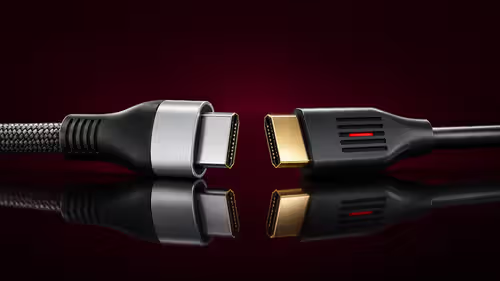
If you already plan to shop Gaming Monitors, check the manual for HDR over HDMI on the specific input you will use. A screen can have different features available across its inputs. Check the cable path as well. Test the dock directly on the screen if it normally connects through a switch or receiver. Look at Premium Cables if your test points to a cable problem or you need a longer run for the desk.
Frequently Asked Questions
What does Compatible Software Only do?
It outputs HDR only for compatible software while the system uses the TV output.
Can I check TV HDR in handheld mode?
Dock the console before changing the TV HDR setting and checking what the TV receives.
Why does HDR work on one HDMI input only?
Some TVs use per-input settings or offer different features on different ports. Look up the exact model and input.
Should I adjust HDR when I move the dock?
Check HDR again on the new screen. The adjustment can vary from one TV to another.
Can I leave HDR off?
Yes. Off is one of the console's TV HDR options, and you can compare how the same game looks that way.
Where do I see details of the docked signal?
Open System Settings, select Display and look for Video Output Information.
Use supported games
Try the console's free HDR settings before spending on a new screen.