A glance at the taskbar can show more detail without adding another clock app. Windows show seconds in taskbar clock uses a built-in display preference. It is useful when visible seconds help your routine, provided you keep display detail separate from accurate elapsed-time measurement.
Quick Answer
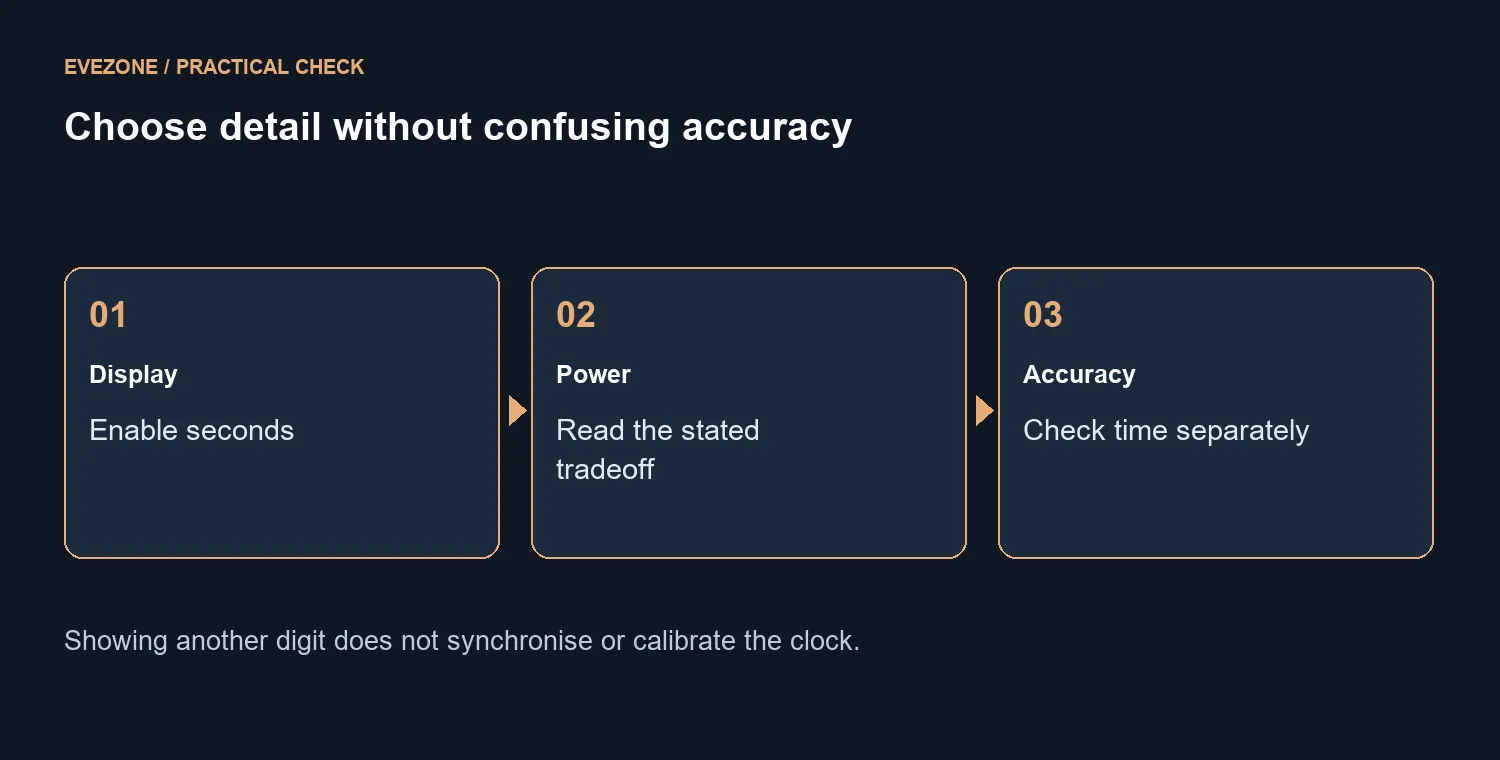
Open the Windows time and date settings, expand the system-tray time display option and select Show seconds in system tray clock. It costs R0. Windows notes additional power use. This changes the visible clock; it does not correct a wrong time zone or synchronise a clock that has drifted.
🕒 Find the display preference
Search Settings for time and date if your Windows layout differs from an older screenshot. Look for the expanded option that controls time in the system tray. Enable seconds and return to the desktop to check the result.
Use the ordinary desktop view for the test. A clock in a notification panel and the small taskbar display can be different surfaces. Confirm that the seconds appear where you wanted them rather than assuming every clock presentation changes together.
🔋 Decide whether the extra detail is useful
The control's power-use note matters most when you are trying to preserve a laptop battery. No fixed runtime penalty is claimed here. Turn the preference on or off according to whether the information earns its place in your normal routine.
For a desk machine, browse mini PCs around the applications and connections you need. A Ninkear M7 V2 was R6,999 in stock on 11 October, but its price and capability are separate from this free display choice. Compare office monitors for comfortable viewing, not for access to a Windows clock option.
🎯 Do not mistake digits for calibration
If the time is wrong, inspect the time zone and synchronisation settings separately. Showing seconds does not establish accuracy. For a timed task, use a suitable stopwatch or measurement tool instead of manually reading a small clock repeatedly.
If the preference is missing, check the Windows version and any management restrictions before installing a replacement utility. Record the exact missing control rather than describing the entire taskbar as broken. A clear symptom keeps the next support step focused and avoids unnecessary changes to unrelated date settings.
Frequently Asked Questions
Where is the seconds option?
Look under the system-tray time and date display settings and expand the option to show seconds.
Does it cost anything?
The Windows option costs R0. No clock utility is required simply to display seconds.
Why does Windows mention power?
Refreshing the display more often can use more power. Decide whether the visible seconds are useful on a battery-powered machine.
Will it fix an incorrect time zone?
No. Display detail and the selected time zone are separate settings.
Is it a precise timing instrument?
No. Use an appropriate timer or measurement tool for tasks that need accurate elapsed time.
What if I cannot find the option?
Check your Windows version and search Settings for time and date. Managed devices can also restrict available settings.
Choose useful clock detail
Choose clock detail that earns its space. Use a proper timing tool when accurate elapsed time matters.