A desktop that fills with optional programs before you start working can feel busy for no good reason. Windows startup apps lets you choose which installed tools open after sign-in. Make that list match your routine, while keeping the background functions you actually depend on.
Quick Answer
Review Settings, Apps, Startup, or use Task Manager's Startup apps section. Turn off one optional app and test the next sign-in. The change costs R0 and does not uninstall it. A Ninkear M7 V2 mini PC was R6,999 in stock on 11 October; that separate hardware reference is no reason to replace a computer before checking its launch list.
🚀 Identify entries before disabling them
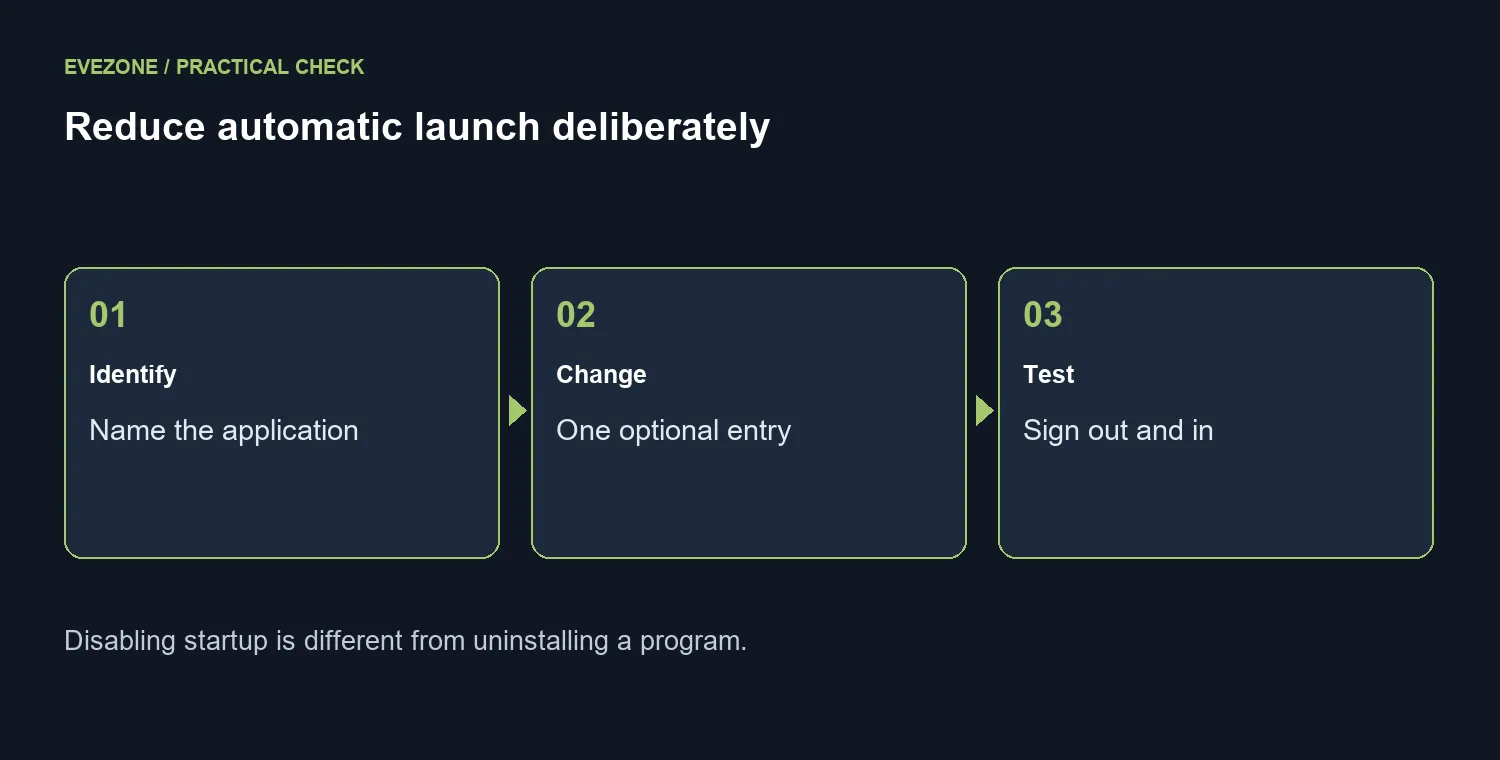
Read the application name and ask what it provides. A chat tool you rarely use and a security component serve different purposes. Do not disable every unfamiliar name just to make the list shorter. If the publisher or function is unclear, identify it first.
Start with one optional app that you can open manually later. Save your work, sign out and back in, then check whether the change had the intended effect. If an essential function is missing, restore that entry and investigate another candidate.
🧰 Understand what the list controls
Startup settings govern automatic launch, not installation. An app can remain available in Start after its automatic opening is switched off. Some programs also have their own start-with-Windows preference or use a startup-folder shortcut, so an absent list entry is not proof that the app can never open automatically.
Keep current PC deals for a separate capability comparison. If the problem is only an unwanted window at sign-in, a new desktop is an expensive way to repeat the same setup. Review SSD options only when a real storage requirement exists.
⏱️ Measure the change you made
Test the same ordinary sign-in routine instead of comparing a fresh restart with an already-running session. Note the app you changed and whether the desktop became easier to use. A startup impact label is a clue about launch behaviour, not a full performance report. If the machine remains slow throughout the day, describe that broader symptom separately. Keeping startup choice and everyday workload apart prevents a small preference change from turning into an unsupported hardware diagnosis.
Frequently Asked Questions
Where do I review startup apps?
Use Settings, Apps, Startup, or the Startup apps section of Task Manager.
Does Off uninstall the app?
No. It changes automatic launch. You can still open the installed app yourself.
Should I disable every entry?
No. Identify each app and keep functions you rely on, including security and required device controls.
Why is an app absent from the list?
Some apps use their own launch preferences or startup-folder shortcuts. The visible list is not every possible launch path.
What is the best way to test?
Change one optional app, sign out and in, then check the result and restore it if needed.
Does a high impact label prove I need a new PC?
No. It is a reason to inspect startup behaviour. It is not a complete diagnosis of everyday performance.
Start with the apps you need
Keep automatic launch matched to your routine. Change one optional entry and check the next sign-in before trimming another.