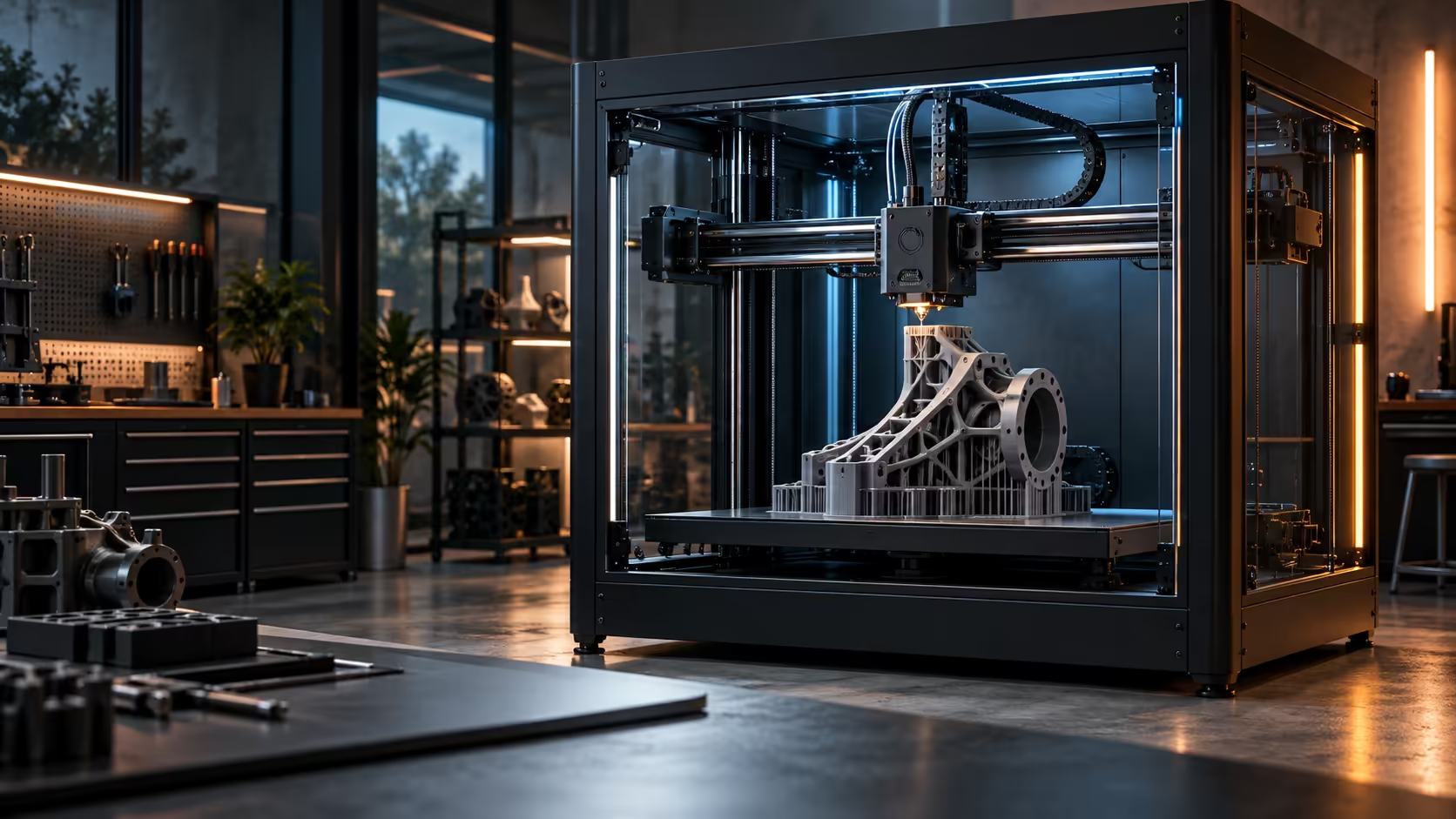
Running one printer is a settings problem. Running several as a 3D printing cluster is a networking problem wearing a slicer's clothes, and the two get confused constantly because both involve a computer talking to a machine with a heated nozzle.
Quick Answer
A cluster is one print list on a host computer feeding jobs to several printers, each reachable at its own network address. Wired Ethernet is the right choice for the uploads themselves, since a long file transfer over Wi-Fi that drops mid-upload wastes far more time than running a cable ever costs. Before planning a farm at R13,999 per machine, check the Creality K1 Max product page for exactly what networking and queue management it supports, since that detail decides how the setup actually gets wired.
🖧 What a cluster actually is
Strip away the marketing language and a cluster is three things: a host machine holding the print list, a network connecting it to each printer, and an address for every printer on that network so jobs land on the right machine. None of that requires anything exotic, most home and small-business routers handle it without configuration.
The part that goes wrong is usually addressing, not printing. If two printers grab the same IP address from the router on the standard 192.168.1.x or 192.168.0.x range most home routers hand out, whichever one asks first keeps it and the second one drops off that list silently, which looks like a printer fault and is actually a network one.
🔌 Wired versus wireless, and where each one earns its place
Wi-Fi is fine for status checks, a webcam feed, and starting a job that is already loaded onto the printer's own storage. It is the wrong choice for pushing a large G-code file across the room, because a dropped packet mid-transfer usually means starting the upload over rather than resuming it.
Ethernet solves that by being deterministic: the same cable, the same speed, every time, regardless of how many other devices are asking the router for bandwidth. A small unmanaged wired network switch next to a bank of printers is a cheap fix for a farm that keeps losing uploads, and it also keeps large transfers off the household Wi-Fi that everyone else in the house is trying to use.
📋 What to check before buying for a cluster
Not every printer exposes the same level of remote control. Some accept a job over the network and report status back; others need a memory card moved by hand between machines, which defeats the point of clustering entirely. Read the specific product page for whichever machine you are pricing, including the 3D printer range here, and confirm print-queue management and network protocol before assuming a farm will work exactly as pictured.
Buying identical machines also simplifies the whole exercise, since one slicer profile and one set of spare parts covers the entire farm instead of several.
🖥️ The host machine: what it actually needs to do
The computer running the print list does not need to be powerful, it needs to be reliable and always on. Slicing a model into G-code is comparatively light work that finishes in under 2 minutes even on a modest machine, and once a file is generated and sent, the host's main job is tracking which printer is running which job and reissuing the next file the moment a machine frees up.
A small, low-power machine left running permanently in the same room as the printers suits this better than a shared family computer that gets switched off overnight, since a cluster that loses its host mid-shift stalls every printer waiting on the next file, not just one. If uptime matters to your operation, treat the host the same way you would treat any other piece of production equipment: dedicated, backed up, and not doubling as anyone's everyday laptop.
🗂️ Organising the job list itself
Once several printers are pulling from one list, naming and tracking jobs becomes its own small discipline. Label each job with the part name and the printer it is assigned to rather than relying on default filenames, since a list of even 12 generically named files becomes unreadable within 1 day and makes it hard to tell which physical part came off which run.
Batch similar jobs onto the same printer where practical too. Grouping every print using one filament colour or one material type onto a single machine cuts the number of spool changes across the whole cluster, which matters more as the printer count and the job rate both climb. A cluster that looks efficient on paper can still lose most of its time savings to constant manual filament swaps if the job assignment is not planned with that in mind from the start.
🛠️ Maintenance across several machines at once
A single printer running badly is a nuisance; the same fault repeated across 5 machines in a cluster is a production problem, and it usually traces back to one shared cause rather than five separate ones. If every printer in the cluster starts producing the same defect on the same day, check what changed for all of them at once first: a new batch of filament, a firmware update pushed to the fleet, or a change in the room's temperature or humidity, before assuming each machine has developed its own fault independently.
Stagger routine maintenance across the fleet instead of servicing every printer on the same day. Cleaning nozzles, checking belt tension and re-levelling beds takes roughly 20 minutes per machine on a rotating schedule, keeping at least most of the cluster productive at any given time, rather than taking the whole operation offline at once for a maintenance day that could have been spread across a week.
Frequently Asked Questions
Do all the printers in a cluster need to be the same model?
No, but matching models means one slicer profile and one spares list covers everything, which is worth the trade-off for most small operations.
Can a home router really handle several printers on the network?
Yes for a handful of machines; assign each one a fixed address in the router settings so it never loses its spot to another device.
Is Wi-Fi ever good enough for a cluster?
For monitoring and starting jobs, yes; for the upload itself on a large file, a wired connection avoids the dropped transfers that waste the most time.
What is the single most common cluster setup mistake?
Letting the router hand out addresses automatically, which lets two printers collide on the same IP and silently knocks one out of that list.
Thinking about running more than one printer at once?
Sort the network first, wired for uploads, and confirm what each machine actually supports before buying for a farm.