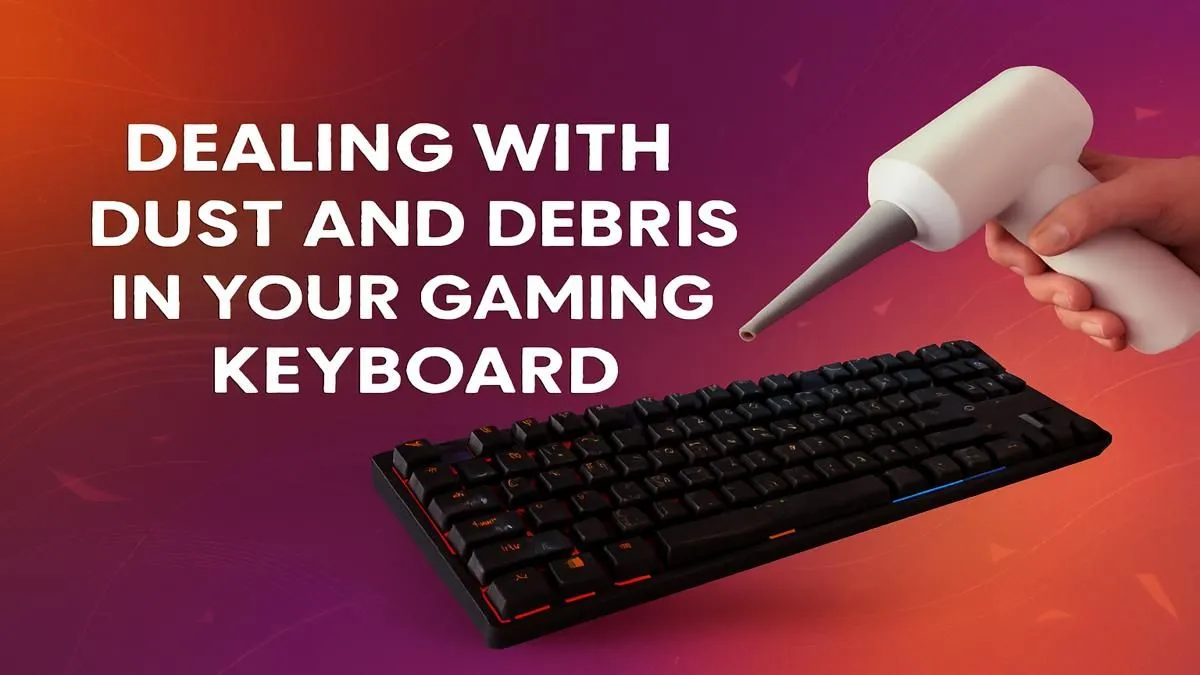
Let's be honest, we've all been there. The aftermath of a late-night gaming session fuelled by NikNaks and energy drinks. Your keyboard, once a pristine battle station, is now a graveyard of crumbs and sticky residue. A dirty keyboard doesn't just look bad; it can slow you down. This guide will show you exactly how to clean a gaming keyboard, restoring its performance and making it feel brand new. Ready to get started?
Your Keyboard Cleaning Toolkit 🔧
Before you begin, you'll need a few basic supplies. You probably have most of these at home already. This simple kit is all you need for a thorough gaming keyboard cleaning.
- Keycap Puller: Essential for mechanical keyboards.
- Compressed Air: To blast out dust and debris from hard-to-reach places.
- Isopropyl Alcohol (70% or higher): Perfect for cutting through grime without damaging electronics.
- Microfibre Cloths: For a lint-free wipe-down.
- Cotton Swabs or a Small Brush: For detailed cleaning around switches.
- A Bowl of Warm, Soapy Water: For washing the keycaps.
The Quick Clean: Weekly Maintenance
This is your go-to five-minute routine to keep the dust bunnies at bay. Doing this weekly will make the deep clean much easier.
- Unplug Your Keyboard: Safety first! Always disconnect your gear before cleaning.
- Turn and Shake: Turn the keyboard upside down over a bin and give it a gentle shake to dislodge any loose crumbs.
- Blast It: Use short bursts of compressed air to blow out any remaining dust from between the keys.
- Wipe Down: Lightly dampen a microfibre cloth with isopropyl alcohol and wipe down the keycaps and frame.
This simple process keeps your entire setup looking sharp, especially if you're running a matching keyboard and mouse combo.
The Deep Clean: A Full Refresh 🧼
For a keyboard that has seen some serious action, a deep clean every few months is crucial. This is the ultimate guide on how to clean your gaming keyboard properly, getting it back to factory-fresh condition.
Step 1: Disconnect and Document
Unplug the keyboard from your PC. Before you pull a single keycap, take a clear photo of your keyboard layout with your phone. Trust us… this will save you a massive headache later.
Step 2: Remove the Keycaps
Using your keycap puller, gently wiggle and pull each keycap straight up. For larger keys like the spacebar or shift key, be careful of the stabiliser bars underneath. Place all the keycaps in a bowl. This is also a great time to think about a visual upgrade with some fresh custom keycaps to really personalise your rig.
Step 3: Wash the Keycaps
Fill the bowl with warm water and a drop of dish soap. Let the keycaps soak for about an hour, giving them a gentle stir occasionally. Afterwards, rinse them thoroughly with clean water and lay them out on a towel to air dry completely. Completely is the key word here; any moisture left behind can damage the switches.
Mechanical Switch Care ⚡
cleaning the keyboard body, never spray liquid directly onto the switches. Instead, apply a small amount of isopropyl alcohol to a cotton swab to clean the area around each switch. If you find a switch that feels mushy or unresponsive even after cleaning, it might be time to look into [replacement keyboard switches](https: www.evetech.co.za buy-keyboard-switches x 1584) to restore that satisfying click.
Step 4: Clean the Keyboard Body
With the keycaps removed, your keyboard's base is exposed. Turn it upside down and give it another shake. Use compressed air to clear out everything that was trapped underneath. For any stubborn grime, use a cotton swab or small brush dipped in isopropyl alcohol to scrub it away. A clean board deserves a comfortable setup, so consider adding an ergonomic wrist rest to complete the refresh.
Step 5: Reassemble and Admire
Once the keycaps are 100% dry, press them back onto the switches, using your photo as a guide. You'll hear a satisfying click as they snap into place. Plug your keyboard back in, test every key, and enjoy the crisp, clean feel of your restored battle station.
When Is It Time for an Upgrade?
Sometimes, a keyboard is beyond saving. If you've followed this gaming keyboard cleaning guide and still have sticky keys, unresponsive switches, or visible wear and tear, it might be time to retire your old faithful. Constant issues can cost you precious milliseconds in-game, and a new keyboard is often the best solution.
Thankfully, upgrading doesn't have to cost a fortune. You can find many affordable gaming keyboards in South Africa that deliver excellent performance. For those looking for the latest tech and features, check out the best gaming keyboard deals to find a worthy successor.
Ready for That Fresh-out-the-Box Feeling?
A clean keyboard is a fast keyboard, but nothing beats the crisp response of a brand-new one. If your old board has fought its last battle, explore our incredible gaming keyboard deals and find the perfect upgrade to dominate your game.