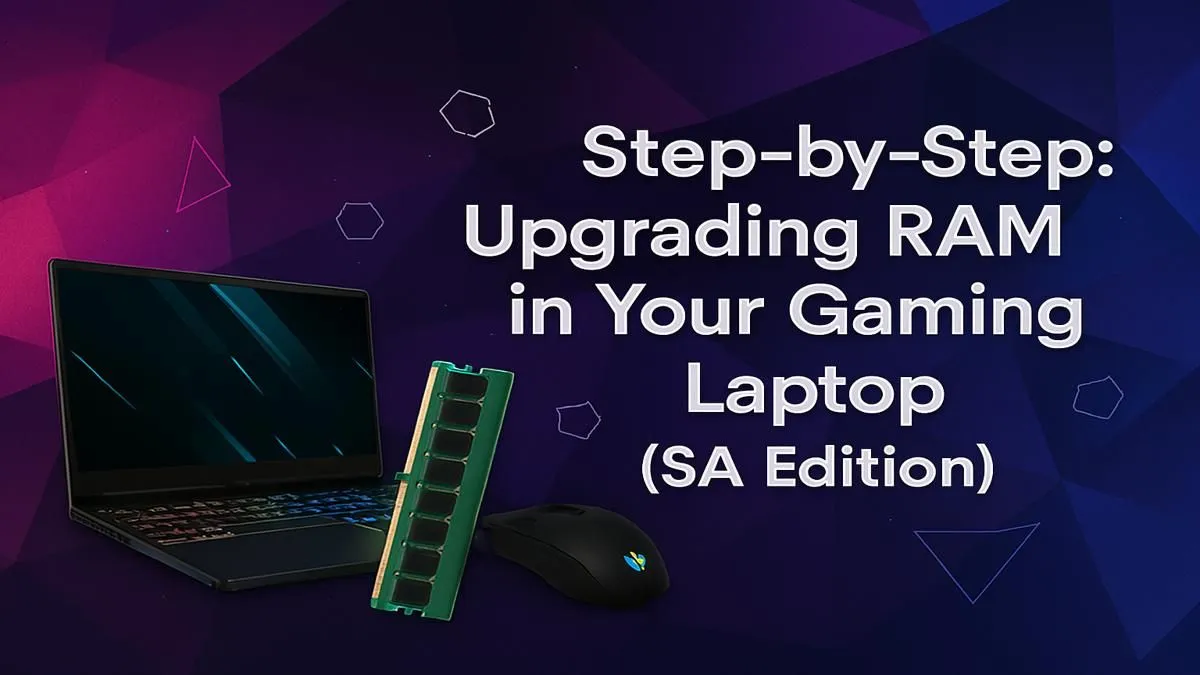
Is your gaming laptop starting to feel a bit sluggish? Are you seeing frustrating stutters in the final circle of Warzone or frame drops in Helldivers 2? Before you start pricing out a whole new machine, there's a powerful, cost-effective secret weapon you might be overlooking. Learning how to upgrade your gaming laptop RAM is one of the easiest and most affordable ways to breathe new life into your portable powerhouse, getting you back in the game smoothly. 🚀
Why Upgrade Your Gaming Laptop's RAM?
Random Access Memory (RAM) is your laptop's short-term memory. It holds all the data your system needs to access instantly—like game assets, textures, and background apps like Discord. When you don't have enough, your laptop has to pull data from your slower SSD or hard drive, causing those annoying performance hiccups.
A simple gaming laptop RAM upgrade can deliver some serious benefits:
- Smoother Gameplay: More RAM means less stuttering and more consistent frame rates, especially in demanding open-world titles.
- Better Multitasking: Keep Discord, your browser, and Spotify open while gaming without your system grinding to a halt.
- Future-Proofing: New games are only getting more memory-hungry. Upgrading now prepares your machine for what's next.
Before You Buy: Checking Compatibility is Key
Before you spend a single Rand, you need to play detective. Buying the wrong RAM is a classic rookie mistake, but it's easy to avoid. Here’s how to get the right info.
Step 1: Find Your Laptop's Current Specs
The quickest way is through Windows Task Manager.
- Press
Ctrl + Shift + Escto open it. - Go to the Performance tab and click on Memory.
- Here you'll see the Speed (e.g., 3200MHz), Slots used (e.g., 1 of 2), and the Form factor (which should be SODIMM for a laptop).
This tells you what you have, but not the maximum your laptop supports. For that, a quick Google search of your exact laptop model is your best bet.
Step 2: DDR4 vs. DDR5... and Does it Matter?
Yes, it matters immensely! DDR4 and DDR5 are different generations of RAM. They have different physical notches and are not interchangeable. Your laptop's motherboard will only support one type. Generally, newer platforms like the latest AMD Ryzen gaming laptops and cutting-edge Intel gaming laptops are more likely to use DDR5. Always confirm what your specific model uses before buying.
Pro Tip: Go for Dual-Channel! ⚡
"If your laptop has two RAM slots, always try to use both with identical sticks of RAM (e.g., two 8GB sticks instead of one 16GB stick). This enables 'dual-channel' mode, which significantly increases memory bandwidth and can give you a noticeable performance boost in many games. It's basically free performance!"
Step 3: How Much RAM Do You Really Need?
- 16GB: This is the sweet spot for modern gaming in South Africa. It provides enough headroom for almost any title and some light multitasking.
- 32GB: Ideal for hardcore gamers, streamers, or content creators who run memory-intensive applications alongside their games. It's a great choice for high-end machines like many Intel Core i7 gaming laptops.
The Step-by-Step Guide to Your RAM Upgrade 🔧
Alright, you've bought your compatible SODIMM RAM. Let's get it installed. It's easier than you think!
What You'll Need:
- Your new RAM module(s).
- A small Phillips-head screwdriver.
- A plastic pry tool or an old credit card.
- An anti-static wrist strap (highly recommended to prevent damage).
The Process:
- Power Down Completely: Shut down your laptop, unplug the power adapter, and disconnect all peripherals.
- Open the Chassis: Place your laptop upside down on a soft, non-static surface. Unscrew all the screws on the bottom panel. Keep them organised! Use your plastic pry tool to carefully unclip the panel and lift it off.
- Ground Yourself: Before touching anything inside, touch a large metal object to discharge any static electricity, or use your anti-static wrist strap.
- Locate & Remove Old RAM: The RAM slots are usually covered by a small metal shield or are immediately visible. To remove a stick, gently push the silver retention clips on either side outwards. The stick will pop up at an angle. You can then slide it out.
- Install New RAM: Align the notch on your new RAM stick with the ridge in the slot. Insert it at the same 45-degree angle, then gently press it down until the retention clips click securely into place. ✨
- Reassemble & Test: Put the bottom panel back on, screw it in, and power up your laptop. Your system should boot normally. Head back to Task Manager to confirm that Windows recognises the new amount of RAM. Success!
When an Upgrade Isn't the Answer
Sometimes, RAM isn't the main bottleneck. If you have an older CPU or a less powerful graphics card, adding more RAM might not give you the performance leap you're hoping for. In that case, it might be time to consider a new rig.
The cost of a major component overhaul can sometimes approach the price of a brand-new, balanced system. You can find some incredible gaming laptops under R20k that offer fantastic value. For those seeking the ultimate experience, our range of powerful gaming laptops above R20k will handle anything you throw at them.
Ultimately, if your GPU is what's holding you back, even 32GB of RAM won't help you enable ray tracing. That's where today's powerful GeForce RTX gaming laptops on special truly shine. Before making a decision, it's always worth checking out the best gaming laptop deals to see what your budget can get you.
Ready for a Real Performance Leap? Whether you're upgrading a component or getting a whole new beast, Evetech has you covered. An informed choice is a powerful one. Explore our massive range of laptop specials and find the perfect machine to conquer your world.