A clear-data dialog can offer far more deletion than the problem requires. With Edge clear cache, the useful habit is to inspect the selected categories before confirming, especially on a browser that also holds saved passwords and open work.
Quick Answer
Open the clear-browsing-data controls with Ctrl+Shift+Delete, select Cached images and files, and review the time range. Leave other categories unchecked when cache is the only intended target. This test needs R0 of extra storage hardware, although the next visit may have to download page resources again.
🗃️ Know which browser data you are removing
Cached files are stored copies of page resources such as images and other media. Cookies can hold preferences and sign-in information. Passwords, browsing history and download history are separately listed categories. The dialog groups them in one place, but that does not make them interchangeable or equally relevant to a stale page.
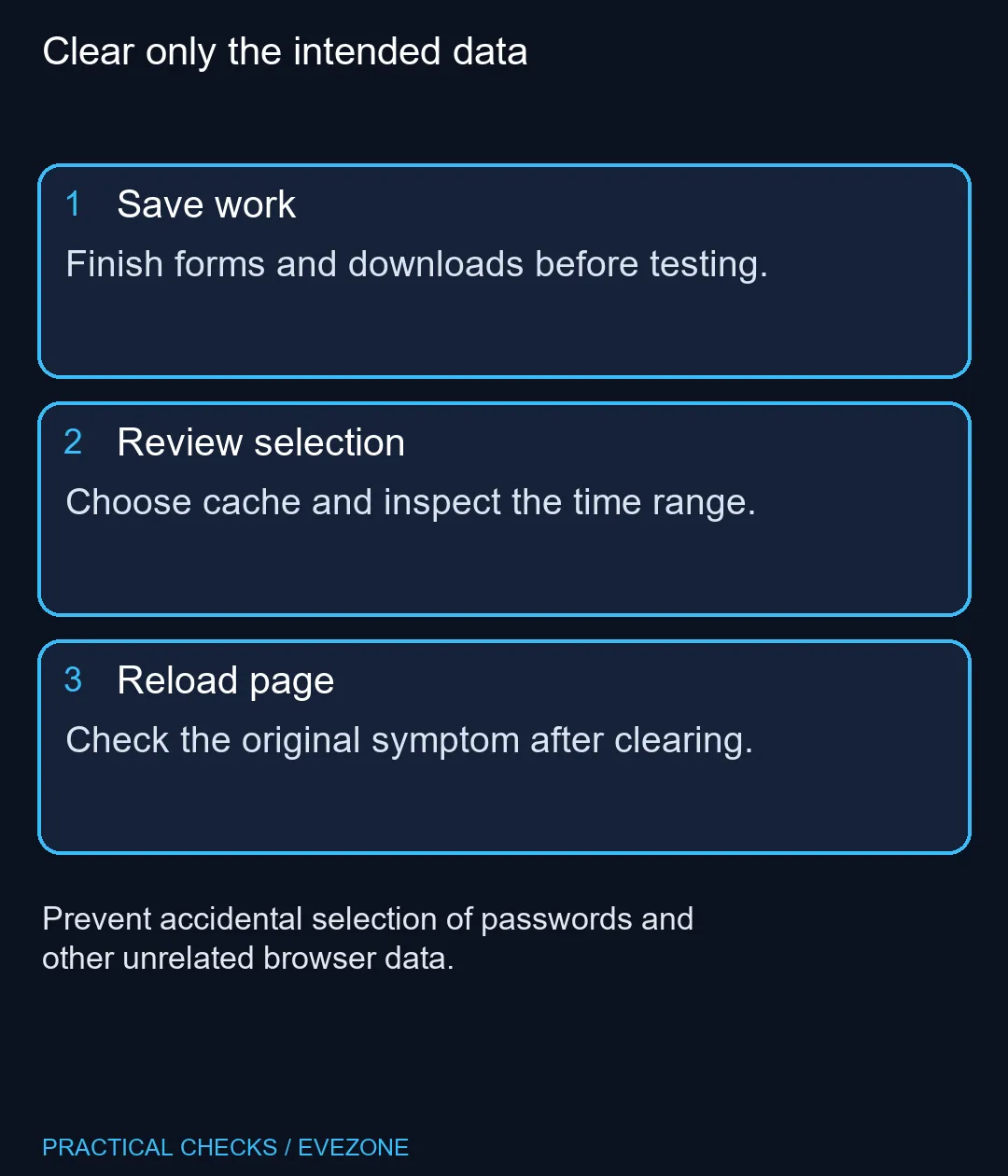
Before you open it, save any form work you do not want to lose during a reload. Then read the selected categories rather than accepting the last-used combination without looking. A previous troubleshooting session may have left a broader selection than you need today. The right action is the one you intend, not the largest possible cleanup.
🎯 Choose a time range and a test
Identify the page that appears stale or behaves incorrectly, and note what you expect to change. Choose a time range appropriate to the test, confirm the cache selection and clear it. Return to that page and reload, then compare the original symptom rather than judging success only by a smaller data-size display.
If the issue remains, repeatedly removing the same files is unlikely to explain it. The cause may be elsewhere in the site or browser. Keep a record of what was cleared so the next test adds information. Do not escalate from cache to passwords simply because the first action did not help.
🔑 Keep cookies and sync in view
Microsoft's support guidance asks you to consider whether you intend to clear data on this device or across synced devices. Read the sync state when selecting categories that can sync. For a cache-focused test, avoid casually turning a broader account-level cleanup into part of the exercise.
Cookies deserve their own decision because they can remember sign-in state and site preferences. A cookie reset may be useful for a particular fault, but it is a different action from removing stored page images. Make sure you can sign back in before choosing it. Your goal is a controlled repair, not an unexpected round of account recovery.
💾 Separate cleanup from storage upgrades
The browser cache is not a full backup and clearing it is not a drive-health test. If the computer is genuinely running out of space, inspect the wider storage problem rather than treating a temporary browser reduction as the whole solution. Our 27 October read found a Dahua V800256GB SATA SSD at R1,199, a dated example of a separate storage purchase.
Compare internal ssds only after checking the machine's supported drive interface. Use external ssds when a portable file-copy solution suits the requirement instead. Neither category is required to clear browser cache, and no new drive guarantees that a specific website will behave differently. Finish the browser test first, then decide whether a distinct storage need remains.
Frequently Asked Questions
What should I select to clear cache?
Choose Cached images and files and inspect every other selected category before confirming.
Does clearing cache require deleting passwords?
No. Saved passwords are a separate category; leave them unselected if you intend to remove only cached files.
What is the shortcut?
Ctrl+Shift+Delete opens the clear-browsing-data controls in desktop Edge. Check the selections before continuing.
Will deleting download history erase my files?
Microsoft says deleting download history removes the list, not the downloaded files themselves.
Can clearing cookies sign me out?
Cookies can contain sign-in state and preferences. Clear them only when that separate action is intended.
Should I keep clearing cache to speed everything up?
No. Cache can help repeat visits load faster. Use a specific test rather than making repeated clearing a routine fix.
Sorting out a stale webpage?
Clear only the intended browser data, then compare storage options if a separate capacity problem remains.