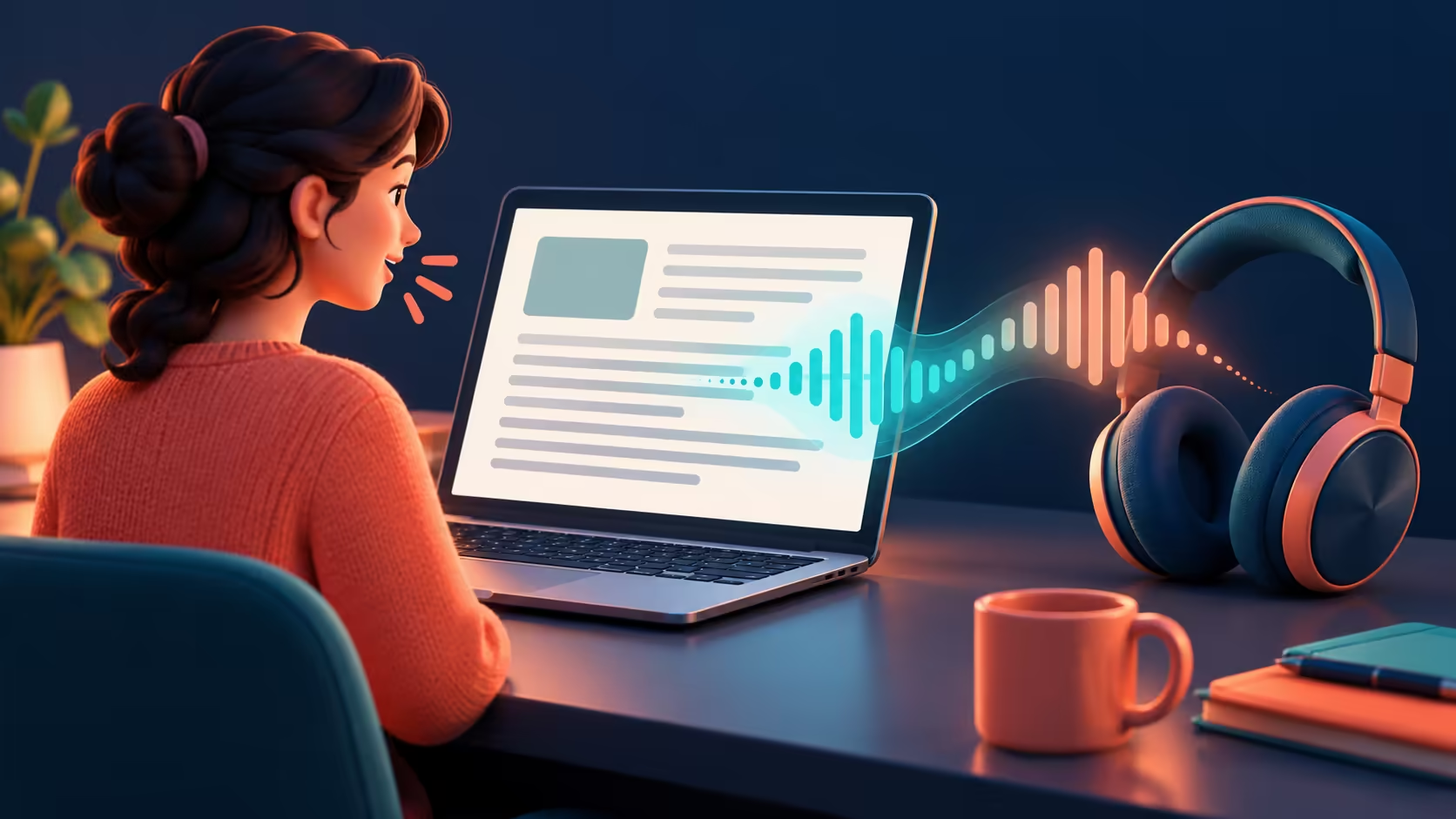
A moving highlight with no sound can make a working reading tool look broken. Edge read aloud is worth testing in two parts: first the webpage and playback controls, then the device that should carry the sound to you.
Quick Answer
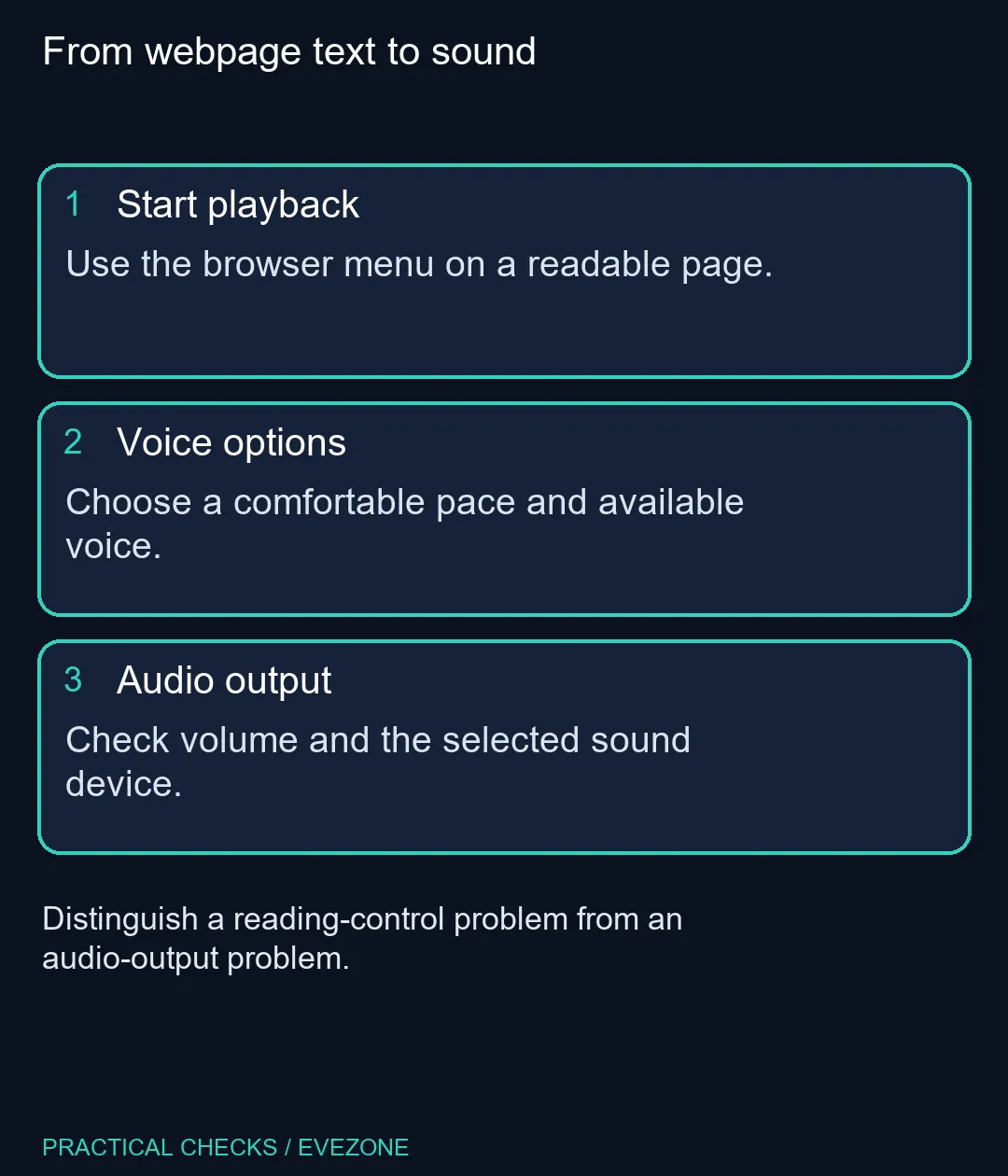
In Edge, open the menu and look under More tools for Read aloud. Use Voice options to select a comfortable pace and an available voice. The initial checks cost R0 in extra hardware when your existing speakers work; they do not require a new laptop or headset.
🔊 Find the playback controls first
Try a normal article containing selectable paragraphs. Open Read aloud and watch whether playback advances through the text. The toolbar provides play or pause, movement between paragraphs and voice controls. Start with a short passage so you can tell immediately whether the correct part of the page is being spoken.
If the command is missing or unavailable, compare another readable page before changing the whole installation. A complex application or an image containing words is a different test from ordinary webpage text. Reading mode may provide another route on supported pages, but a different toolbar layout does not by itself show that your speakers have failed.
🎧 Follow the sound to the actual output
When the text highlight progresses silently, check the PC volume and the output device Windows is using. A connected monitor, wireless headset or other audio device can change where you expect to hear the result. Test another familiar sound through the same output, then return to the webpage.
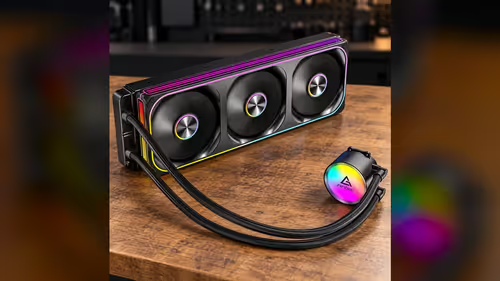
You can compare gaming headsets if private listening is the eventual goal. Buying one is not the first diagnostic step, and an expensive pair cannot fix a webpage that supplies no readable text. Keep the purchase decision separate from establishing whether audio reaches a device you already own.
🗣️ Choose a pace you can follow
Open Voice options and change one setting at a time. A slower pace can help when checking unfamiliar terms, while a faster setting may suit a familiar article. Listen to the same paragraph after each adjustment so the difference is easy to judge rather than guessing from a slider position.
Online and offline voice choices can differ. If a particular voice is absent, confirm the connection and available options without assuming that a new computer is needed. On an existing notebook, this is a small settings exercise; browse intel gaming laptops only when a separate computing requirement justifies replacing the machine. Read aloud is not a benchmark for the rest of its hardware.
📖 Keep reading and conversation distinct
Current Reading mode documentation also describes interactive tools. That does not mean every ordinary listening session needs a microphone. Use the playback controls for spoken text, and enable voice conversation only when that is the feature you intend to use. Read the controls shown in your own build rather than granting extra access reflexively.
Finish by checking that you can pause and close playback. This gives you a repeatable way to use the feature for study notes, long articles or a second pass over your own writing. It remains a reading aid, not a guarantee that every page element, pronunciation or specialised term will be handled exactly as you expect.
Frequently Asked Questions
How do I start Read aloud?
Open the Edge menu, choose More tools and Read aloud. Available shortcuts and controls can vary with the build.
Where is the speed setting?
Open Voice options in the playback toolbar and adjust the reading-speed control.
Why do words move without sound?
Check playback volume, app volume and the selected Windows output before assuming the reading feature has failed.
Can it work offline?
Microsoft describes offline use, but the available voices can differ from online natural voices.
Will it read every image or web app?
Do not assume that every image, protected document or interactive page exposes readable text.
Do I need to buy a headset?
No hardware purchase is required to test existing speakers. Choose a headset only if you need private listening.
Prefer listening to long pages?
Test the voice and your current audio output, then choose private-listening hardware only if it adds something useful.