Refresh rate marketing leans so heavily on gaming that it is easy to assume 120Hz has nothing to offer someone who spends their day in a browser and a spreadsheet. That assumption is simply wrong, and the reason is timing rather than opinion: 120Hz halves the gap between frames compared with a standard 60Hz screen, and that gap is exactly what your eyes are actually tracking all day long.
Quick Answer
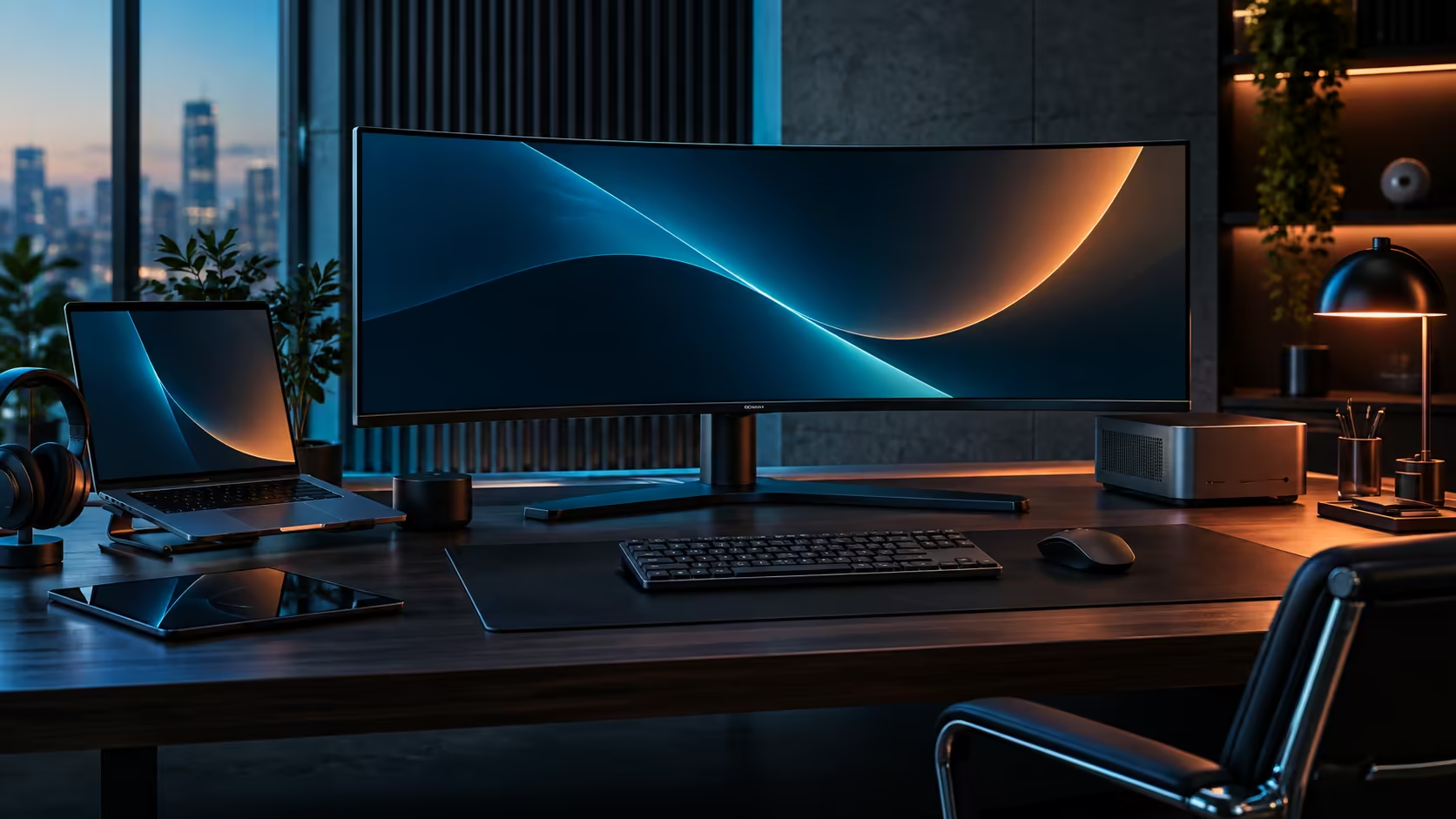
Yes, 120Hz genuinely improves everyday use, not just games. A 60Hz screen draws a new frame every 16.7 milliseconds; a 120Hz screen does it every 8.3 milliseconds, exactly half, so moving text, a dragged window and a scrolled page all render with noticeably less blur between positions. On the R7,999 CU34E4CW that gain arrives bundled together with USB-C docking, so you are never really paying for a refresh-rate premium sitting in isolation on its own.
⏱️ Where the extra frames actually show up
The improvement is genuinely not subtle once you know exactly where to look for it, even though nobody ever points a spreadsheet at a review benchmark.
Dragging a window across the desktop at 120Hz keeps its edges sharper mid-motion, where the same drag at 60Hz shows a faint smear as the window's position updates less often. Scrolling a long document or a web page shows the same effect: text at 120Hz stays legible while it moves, and at 60Hz there is a brief blur every time you flick the mouse wheel. The cursor itself tracks noticeably tighter to fast hand movement at 120Hz, which is the single change most people notice first and struggle to explain afterward, often describing the whole desktop as feeling generally "snappier" without being able to point to a specific cause.
None of this requires a game or any specialised software whatsoever. The screen's own redraw rate is the entire cause, so the benefit shows up identically in every single application running on it, work or play.
🖱️ Why 120Hz feels bigger than the number suggests
Doubling a frame rate from 60 to 120 sounds like a modest jump, but the perceived difference is larger than the raw number implies.
The improvement follows diminishing returns rather than a straight line: going from 30Hz to 60Hz feels like a dramatic change because you are removing a large amount of blur, while 60Hz to 120Hz removes a smaller absolute amount of blur that is still very noticeable because your eyes are extremely sensitive to motion smoothness at these speeds. Most people who switch from 60Hz to 120Hz for a week and then go back describe the 60Hz screen as feeling "sluggish", even though nothing about it changed; their perception simply recalibrated.
This recalibration effect is why demo comparisons in a shop or a five-minute test rarely tell the full story. The first glance at 120Hz often reads as only mildly smoother than 60Hz, and it is only after a genuine week of daily use, followed by a return to the slower screen, that the difference becomes obvious. Judging 120Hz on a brief side-by-side comparison alone tends to undersell exactly how much of a change it actually is once your eyes have had time to adjust.
🖥️ Getting 120Hz to actually run, not just sit in a spec sheet
A monitor rated for 120Hz does not automatically run at 120Hz the moment you plug it in, which trips up considerably more people than any actual fault with the panel technology itself.
Windows frequently defaults a newly connected monitor to 60Hz even when the panel and the cable both support more. Head into Settings, then System, then Display, open the Advanced display page, and check the refresh rate field there actually shows 120Hz rather than the conservative 60Hz default. The cable matters here too: the CU34E4CW needs a connection with enough bandwidth for 3440x1440 at 120Hz, so a low-spec HDMI cable inherited from an older monitor can silently cap the refresh rate even when everything else is configured correctly.
This is worth checking immediately after any fresh Windows install or driver update too, not only on first connection. A driver reinstall can occasionally reset the display settings back to a conservative default, silently dropping a monitor that was previously running at 120Hz back down to 60Hz without any obvious warning that the setting has reverted.
Graphics card output also has a ceiling worth checking. An older integrated graphics chip or a budget card may support the resolution but not the combined resolution-and-refresh-rate figure, in which case the display settings menu will simply not offer 120Hz as an option at 3440x1440, no matter how the cable or the monitor itself is configured.
For the cable side of getting 120Hz running reliably, the gaming monitor range carries other high refresh options if a docking ultrawide is not the fit, and the current monitor deals page is worth checking before buying at full price. Browse the office monitor range to see where the CU34E4CW sits among the other panels on offer.
Frequently Asked Questions
Does 120Hz actually matter outside of gaming?
Yes, genuinely. Cursor movement, window dragging and page scrolling all render with noticeably less blur at 120Hz than at 60Hz, entirely independent of whatever specific application happens to be running at the time.
Why does my new monitor default to 60Hz instead of 120Hz?
Windows often sets a conservative default refresh rate the very first time a new display connects. Set it manually under Settings, System, Display, Advanced display, and check it again after any driver update.
Can a cheap HDMI cable limit my refresh rate?
Yes, easily. A cable without enough bandwidth for your exact resolution and refresh rate combination will silently cap the monitor below its rated 120Hz, even though every other setting in Windows still looks perfectly correct.
Will my graphics card definitely support 120Hz at 3440x1440?
Not necessarily. Older integrated graphics chips and some budget cards support the resolution on its own but not that same resolution at the higher refresh rate together, so the 120Hz option may simply never appear as a choice in Windows.
Is 120Hz worth it if I never play games?
Yes, based purely on the everyday improvement to cursor tracking, scrolling and window movement, which shows up whether or not a single game ever gets launched on that screen.
Ready to feel the difference eight milliseconds makes?
Check that your display is actually running at 120Hz in Windows, then judge the difference for yourself over a normal working day.