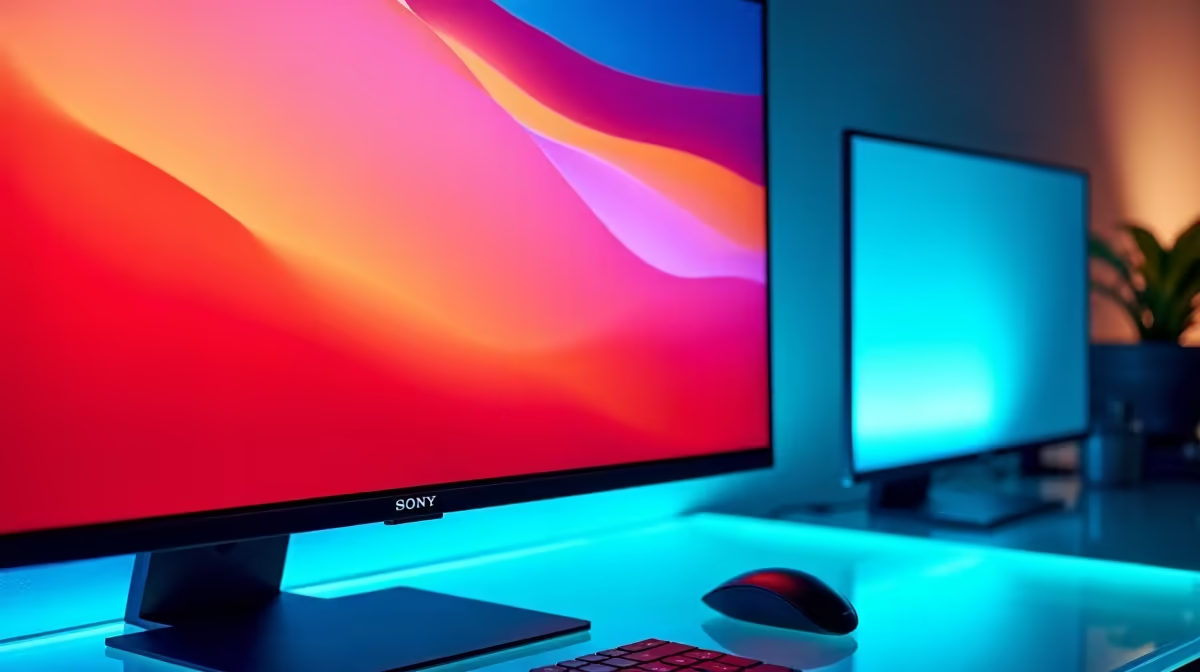
It’s a classic South African scene: the sun dips below the horizon, your room darkens, but your monitor is still blazing with the intensity of a Highveld summer sun. That pesky auto brightness adjustment feature was meant to help, but instead, it’s either searing your retinas or leaving you squinting in the dark. If you’re tired of fighting your screen’s brightness, you’re in the right place. Let's fix that screen brightness glare for good.
Why Auto Brightness Can Be a Headache
At its core, auto brightness adjustment is a clever idea. Your monitor or laptop uses an ambient light sensor to measure the light in your room and tweak the screen's brightness accordingly. Bright room? Brighter screen. Dark room? Dimmer screen. Simple, right?
Well, not always. The problem often lies in the execution. Sensors can be poorly placed, software algorithms can be too aggressive, or a simple driver bug can throw the whole system into chaos. This leads to that annoying flickering or sudden, jarring shifts in brightness right in the middle of a critical clutch moment in Valorant. For gamers who demand consistency, this unpredictability is more than just an irritation… it’s a competitive disadvantage. A reliable display is key, which is why so many gamers browse through all gaming monitors to find a panel that puts them in control.
Your Guide to Fix Screen Brightness Glare 🔧
Tired of your screen having a mind of its own? Regaining control is easier than you think. The first step is to dive into your system settings and disable the problematic auto brightness adjustment.
For Windows Users:
- Head to Settings: Right-click your desktop and select 'Display settings'.
- Find the Toggle: Under the 'Brightness & colour' section, look for a checkbox that says "Change brightness automatically when lighting changes."
- Turn It Off: Uncheck that box. That's it! You've disabled the automatic adjustments.
If the option isn't there, your device might not have a sensor, or the setting could be in your graphics card's control panel (NVIDIA Control Panel or AMD Radeon Software).
For macOS Users:
- Open System Settings: Go to the Apple menu > System Settings.
- Navigate to Displays: Click on 'Displays' in the sidebar.
- Disable the Feature: Look for the "Automatically adjust brightness" toggle and switch it off.
Now that you’ve stopped the automatic changes, you can manually set a comfortable level. This single step will often fix screen brightness glare and give you a more consistent viewing experience across our wide range of PC monitors.
Pro Tip: Tame Blue Light
Eye strain isn't just about brightness. Use Windows' 'Night Light' or a free app like f.lux. These tools reduce blue light in the evening, making late-night gaming sessions or work much easier on your eyes without constantly needing to fix the brightness.
Taking Back Control: Manual Brightness Settings ✨
With auto brightness adjustment turned off, you are now the master of your display. This is where the real optimisation begins. Manual control ensures your screen looks exactly how you want it, every single time.
For competitive gaming, consistency is everything. You don't want your screen dimming as you peek a dark corner. By setting a fixed brightness (say, 60-70% for daytime and 30-40% for night), you ensure visual information remains constant. This is especially crucial on the latest displays, where colour accuracy is paramount. The vibrant details on crisp 4K and 5K monitors deserve to be seen as the developers intended, not washed out by unpredictable software.
Furthermore, a great panel can help mitigate glare issues from the start. The gentle wrap-around effect of immersive curved monitors can reduce distracting reflections and create a more focused field of view, pulling you deeper into the game.
Optimising Your Setup for Perfect Brightness 💡
Sometimes, software tweaks aren't enough. Your physical environment plays a huge role in how you perceive your screen. A few smart adjustments to your gaming station can make a world of difference.
- Positioning is Key: Try to position your monitor so that windows and bright lights are to the side, not directly behind you or the screen. This minimises direct glare.
- Bias Lighting: Placing a soft, neutral light source (like an LED strip) behind your monitor reduces the harsh contrast between a bright screen and a dark wall. This technique, used by professionals, significantly cuts down on eye strain. You can find many options among essential monitor accessories to perfect your setup.
- Consider Your Use Case: If you're constantly on the move, dealing with different lighting conditions is a daily battle. This is where handy portable monitors shine, offering the flexibility to set up an optimal dual-screen workspace anywhere.
Ultimately, having full control over your display is the best way to defeat glare and inconsistency. Disabling a faulty auto brightness adjustment feature is the first, most crucial step.
Ready for a Visual Upgrade?
If you're still battling with a dim or glaring screen, it might be time for a better panel. Check out the best PC monitor deals at Evetech and get the crystal-clear, consistent display your setup deserves.