



PCIe 5.0 vs PCIe 4.0 for Video Editing in 4K in SA
PCIe 5.0 and PCIe 4.0 differ most in lane support, compatibility, and upgrade value for video editing in 4k. SA buyers should match the choice to their actual hardware and games.
Read moreStruggling with overly bright screens? 🔦 Our guide fixes auto brightness across devices for better comfort & battery. #TechTips
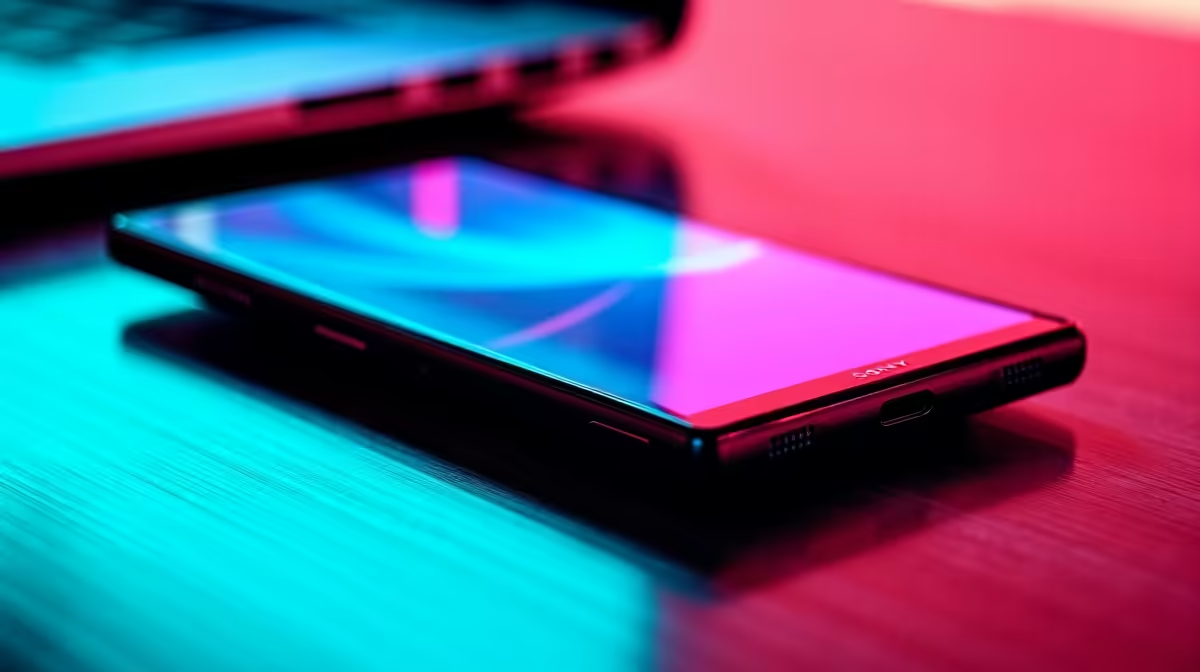
Is your phone or laptop screen going rogue? One minute it’s perfectly visible, the next it’s searing your retinas or dimming into oblivion. You’re not alone. When auto brightness is too strong, it’s more than just an annoyance; it ruins your gaming session and strains your eyes. Luckily, there are a few simple tweaks you can make to regain control and fix this frustrating issue for good. Let’s dive in. 🔧
Before we fix it, let's quickly understand the culprit. Most modern devices use an ambient light sensor, a tiny eye that measures the light in your environment and adjusts the screen's brightness accordingly. The problem is, these sensors can be easily fooled. A stray reflection, a shadow from your hand, or even a dusty sensor can cause it to make drastic, incorrect adjustments. This is why you often need to fix auto brightness that's too strong manually.
For mobile gamers and daily scrollers, an unpredictable screen is a deal-breaker. Here’s how to sort it out on the most popular platforms.
Apple hides this setting a little deeper, but it's just as easy to adjust.
Disabling this feature gives you full manual control, preventing those sudden, jarring shifts in brightness. While you're optimising your mobile experience, consider how a dedicated screen can elevate your game; many find that immersive curved monitors offer a superior viewing experience by reducing distortion at the edges.
Sometimes the fix is simple! Take a microfibre cloth and gently wipe the top bezel of your device where the front camera and sensors are located. Dust and smudges can block the ambient light sensor, causing erratic behaviour.
A laptop screen that constantly changes brightness is a productivity killer, especially when you're trying to focus. Here’s how to fix it on Windows and macOS.
Windows calls this feature "content adaptive brightness control," and it can be particularly aggressive.
MacBooks are generally better at this, but they can still get it wrong.
This gives you back full control via the function keys or the Control Centre, ensuring your display is always exactly how you want it.
If you've tried these fixes and still find your screen lacking, the issue might be the hardware itself. Budget displays on laptops and phones often have less sophisticated sensors and limited brightness ranges. A high-quality external monitor provides a massive upgrade in control, colour accuracy, and overall viewing comfort.
Whether you're a competitive gamer or a creative professional, the difference is night and day. Modern PC monitors deliver consistent brightness and vibrant colours that onboard displays simply can't match. For ultimate clarity, the pixel density on today's crisp 4K and 5K monitors ensures every detail is sharp, reducing eye strain during long sessions. Checking out the latest range of all our gaming monitors can show you just how much technology has improved.
Upgrade Your View, Perfect Your Setup Stop fighting with your screen and take control of your visual experience. Find the perfect display for your needs in our list of the best PC monitor deals and complete your battle station with the right gear.
Sensors may misread ambient lighting or software issues cause brightness spikes. Calibrate display settings for better accuracy.
Go to Display settings > Brightness and toggle off auto-brightness. Adjust manual slider for consistent lighting control.
Modern laptops let you calibrate ambient light sensors through system settings, often under Power Options or Display Preferences.
Yes! Overly bright screens increase eye fatigue. Manually adjusting screen brightness reduces strain and improves comfort during long use.
Applications like f.lux automatically adjust screen warmth and brightness based on time of day for better visual comfort.
If experiencing brightness issues, temporarily disable auto-brightness to manage display levels manually until problem is resolved.
Calibrate every 3 months or when noticing inconsistencies to maintain optimal screen performance and reduce eye strain.
PCIe 5.0 and PCIe 4.0 differ most in lane support, compatibility, and upgrade value for video editing in 4k. SA buyers should match the choice to their actual hardware and games.
Read more
ATX 3.1 and ATX 3.0 differ most in connector handling and GPU power design. For SA gamers, the choice comes down to your graphics card, PSU quality, cable clearance, and whether a newer 12V-2x6-ready unit makes sense for the build.
Read more
80+ Platinum or 80+ Titanium for cinematic should be shortlisted around the job it must do. South African buyers should compare fit, performance, compatibility, and upgrade room, warranty path, and upgrade room before treating any pick as best.
Read more
AM5 and AM4 can both work for competitive esports, but the real-world difference is platform headroom. SA players should compare CPU choices, memory speed, latency goals, monitor refresh, and future upgrade plans.
Read more
LGA 1851 and LGA 1700 differ most in CPU support, compatibility, and upgrade value for couch co-op gaming. SA buyers should match the choice to their actual hardware and games.
Read more
DLSS 4 and DLSS 3 differ most in game support, compatibility, and upgrade value for streaming on twitch and youtube. SA buyers should match the choice to their actual hardware and games.
Read more
RTX 5090 on a 1200W PSU has usable headroom when the supply is strong and the build is measured. For SA gamers, OC potential depends on CPU draw, cooling, cabling, stability targets, and how much safety margin you keep.

How to fix low FPS on gaming laptop starts with power mode, drivers, heat, and game settings. Use this South Africa-focused checklist to confirm charger use, GPU selection, RAM pressure, and cooling before changing parts or tweaking every setting.

Real world difference between b850 b650 mmo live service games sits in stability, networking, storage, and upgrade room. SA players should compare LAN quality, USB layout, RAM support, and SSD slots for always-updated games.

Dead Pixel on Wi-Fi 7 Router is likely a display-path or source-title issue, so check the screen, cable, driver state, and related system symptoms before blaming the device itself.

Put the headphones in pairing mode, open Bluetooth and devices in Windows 11, then add the headset. If it fails, remove the old pairing and check charge, range and drivers.

Microsoft says upcoming Windows 11 work will target memory use on 8GB PCs and improve boot and sign-in responsiveness. There is no public release date or measured uplift yet.

Windows 11 does not show CPU temperature in its standard Settings pages. Use your CPU maker's supported utility or a trusted monitor, then read idle and loaded temperatures in context.
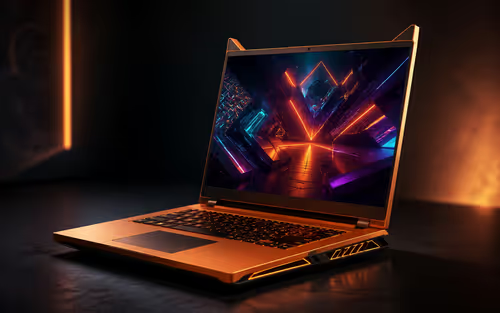
The Colorful MEOW X16 Pro pairs a Ryzen 7 8745HX with a 115W RTX 5060 Laptop GPU. It is a China-only launch for now, so local RTX 5060 pricing is the practical benchmark.

Industry reports point to another roughly 10 percent Intel processor increase from 5 October, but Intel has not published a consumer price list confirming the scope. South African buyers should treat it as a risk signal, not a guaranteed Rand change.

Tests reported audio capture and local-network scanning on a specific LG television with its screen off. LG says supported standby modes can keep voice and connected-device features active, so owners should review model-specific settings.
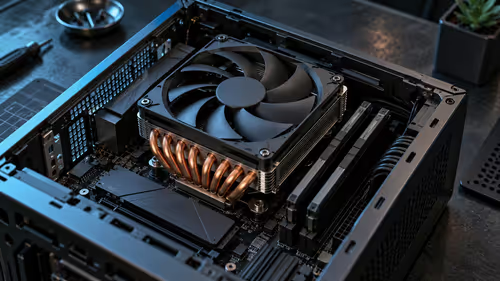
Thermalright's AXP120-X77 is a 77 mm top-down cooler with six heatpipes and a slim 120 mm fan. Local availability is not confirmed, so compact-PC builders should verify case height, memory clearance and socket support before comparing it with stocked coolers.
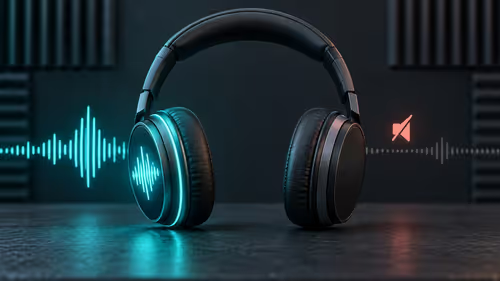
One-sided sound can come from balance settings, a dirty or loose connector, Bluetooth pairing data, firmware, the source device or a failed cable or driver. A short swap test isolates the cause before you reset software or replace the headset.