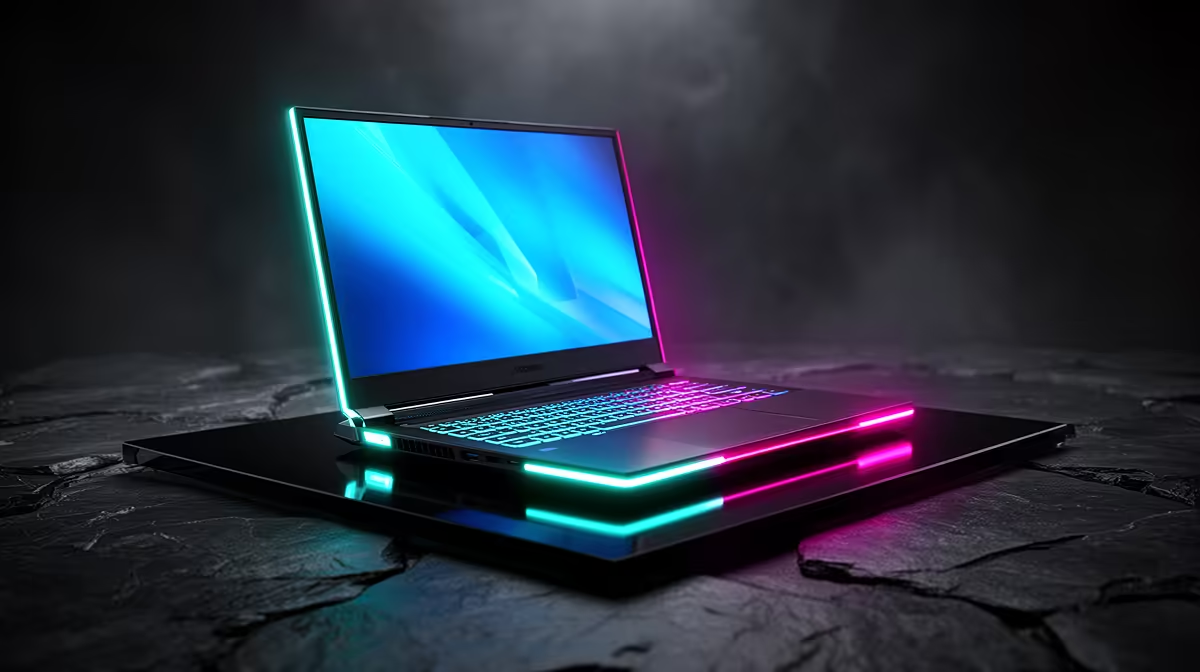
You’re mid-clutch in a tense Apex Legends match, the final ring is closing, and then… BAM. The dreaded Blue Screen of Death. A Lenovo gaming laptop blue screen can feel like a game-over moment, but don't rage-quit just yet. More often than not, this frustrating error is fixable. This guide will walk you through the most common causes and solutions, getting you back to dominating the leaderboards in no time. 💻
What Triggers a Lenovo Gaming Laptop Blue Screen?
Before diving into the fixes, it helps to understand the enemy. The Blue Screen of Death (BSOD) is Windows' way of saying it has hit a critical error it can't recover from. For a Lenovo gaming laptop, the blue screen is often caused by a few key culprits:
- Outdated or Corrupt Drivers: Your graphics card (GPU), chipset, and other components need up-to-date drivers to communicate properly. A faulty driver is the number one cause.
- Overheating: Intense gaming sessions push your hardware to the limit. If your laptop's cooling can't keep up, components can become unstable and trigger a crash.
- Faulty Hardware: Sometimes, the issue is physical. A failing RAM stick or a dying solid-state drive (SSD) can lead to persistent blue screens.
- Corrupted System Files: Windows system files can get damaged over time, leading to system instability.
Step-by-Step Fixes for the Blue Screen of Death
Let's work through these solutions from simplest to most complex. Start with step one and see if it resolves your Lenovo gaming laptop blue screen before moving on.
1. Update Your Drivers and Windows 🔧
This is your first and most important stop. An outdated driver is often the source of the conflict causing the blue screen on your Lenovo gaming laptop.
- Windows Update: Go to
Settings > Update & Security > Windows Update and install all available updates, including optional ones which often contain driver updates. - NVIDIA/AMD Drivers: Go directly to the NVIDIA or AMD website and download the latest driver for your specific graphics card.
- Lenovo Vantage: This pre-installed software is your best friend. Run it to scan for and install Lenovo-certified driver and BIOS updates.
Pro Tip: Use Lenovo Vantage ✨
Lenovo Vantage is a powerful tool designed specifically for your machine. Beyond drivers, you can use it to run hardware diagnostics, check your warranty status, and even optimise system settings for better gaming performance. It's the safest way to get BIOS updates without risk.
2. Check for Overheating
Gaming laptops, especially slim and powerful ones, can get hot. If your laptop feels like it could fry an egg, overheating might be your problem.
- Clean Your Vents: Dust is the enemy of cool. Use a can of compressed air to carefully blow dust out of the intake and exhaust vents.
- Elevate Your Laptop: Ensure there's plenty of space for air to circulate underneath. A dedicated laptop cooling pad can make a massive difference.
- Monitor Temperatures: Use software like HWMonitor to check your CPU and GPU temperatures while gaming. If they're consistently hitting over 90°C, you've found your issue. This is crucial for all models, from affordable workhorses like the Lenovo IdeaPad 3 Gaming to high-end rigs.
3. Run System Diagnostics
If drivers and heat aren't the problem, it's time to check your system's integrity. Windows has built-in tools for this.
- Windows Memory Diagnostic: Search for "Windows Memory Diagnostic" in the Start Menu and run it. It will test your RAM for errors on the next reboot.
- System File Checker (SFC): Open Command Prompt as an administrator and type
sfc /scannow. This command will scan for and attempt to repair any corrupted Windows system files. A healthy system is key for a stable experience on reliable machines like those in the Lenovo LOQ gaming laptops range.
4. Check Your Hardware
If software fixes fail, the Lenovo gaming laptop blue screen issue could be hardware-related. If you're comfortable opening your laptop, you can try reseating your RAM sticks. A loose connection can cause all sorts of strange errors. However, for persistent issues, it might point to a failing component, which is more common in older machines than in modern, robust powerhouses like the Lenovo Legion gaming laptop deals we see today.
When Is It Time to Upgrade? 🚀
You've tried everything... but the blue screens keep coming back. Sometimes, a laptop is simply reaching the end of its life. If your machine is several years old, constantly crashing, and can no longer keep up with the latest games, pouring more time and money into repairs might not be the best investment.
An upgrade means a fresh start with a warranty, better performance, and the latest technology. Instead of battling error codes, you could be enjoying flawless frame rates. Exploring the latest Lenovo gaming laptops can show you just how far the technology has come in terms of power and cooling efficiency.
Tired of Crashing? Upgrade Your Arsenal.
Stop troubleshooting and start gaming. A new, reliable machine lets you focus on what matters… winning. Explore our massive range of laptop specials and find the perfect rig to conquer your favourite games, crash-free.