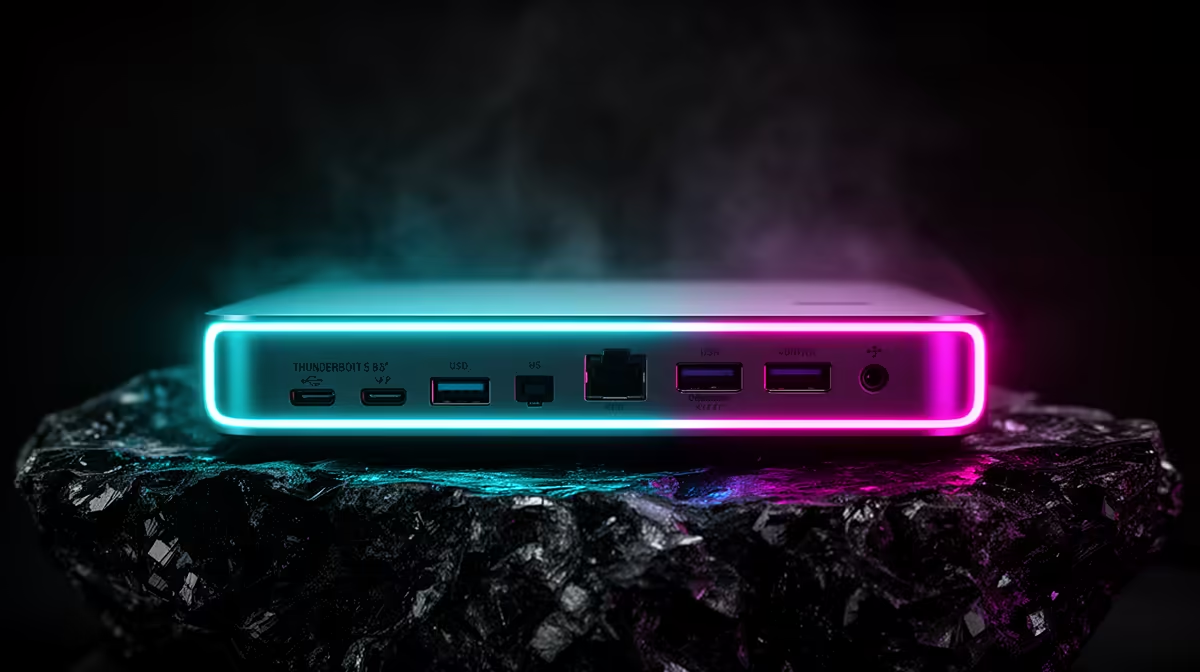
So, you've invested in the future. A shiny new dock, a lightning-fast external SSD, maybe a glorious 8K display… all ready for that sweet 80 Gbps Thunderbolt 5 connection. But instead of blistering speeds, you're getting flickering screens, disappearing peripherals, and frustrating disconnects. Eish. You’re not alone. Let’s sort out those pesky Thunderbolt 5 connectivity issues and get your high-spec setup running the way it was meant to. 🚀
Understanding Common Thunderbolt 5 Connectivity Issues
Before we dive into the fixes, let's identify the enemy. Thunderbolt 5 connectivity issues usually manifest in a few common, maddening ways. You might see your external monitor randomly go black for a few seconds, your daisy-chained drives disconnecting, or data transfer speeds that are nowhere near the advertised rates. Often, these problems aren't due to a faulty device, but a simple mismatch somewhere in the chain. The incredible complexity that allows for such high bandwidth also creates more points of potential failure.
Your Ultimate Fix Guide for Thunderbolt 5 Problems
Ready to get your hands dirty? Let's work through the most effective troubleshooting steps, from the laughably simple to the more technical. We’ll tackle this methodically to find the source of your Thunderbolt 5 problems.
1. Check Your Cables (No, Really) ⚡
This sounds basic, but it’s the number one cause of connection headaches. Not all USB-C cables are created equal. For Thunderbolt 5, you must use a certified passive cable under 1 metre or an active cable for longer distances. That cheap cable you got with your old phone won't cut it.
- Is it Certified? Look for the Thunderbolt lightning bolt symbol and the number 5 on the connector.
- Is it Too Long? Signal degradation is a real thing. For passive cables, shorter is always better.
- Is it Damaged? Check for any kinks, frays, or bent connectors.
2. Update Everything… Everything
Outdated software is the silent killer of performance. Your operating system, motherboard BIOS, and device firmware all need to speak the same language. An outdated driver can cause all sorts of instability with high-bandwidth connections.
- Motherboard BIOS/Firmware: Check your manufacturer’s website for the latest updates. This is crucial as it governs how the ports behave at a hardware level.
- Thunderbolt Drivers: Go directly to your laptop or motherboard manufacturer’s support page. Intel’s generic drivers are good, but the specific ones for your machine are always optimised. Ensuring your machine is modern, like some of the great Intel laptops on special, often means better and more consistent driver support from the get-go.
- OS Updates: Make sure you’re running the latest version of Windows or macOS.
Quick Port Check 🔧
Sometimes the simplest fix is physical. Power everything down and use a can of compressed air to gently clean out the Thunderbolt ports on your laptop and peripherals. A tiny bit of dust or debris can cause a poor connection and lead to intermittent signal drops.
3. Simplify Your Setup
If you're daisy-chaining multiple devices (connecting one device to another in a line), you're adding complexity. To find the culprit, unplug everything from the Thunderbolt chain. Then, connect one device at a time, testing for stability after each addition. This helps you isolate whether a specific device or a combination of them is causing your Thunderbolt 5 troubleshooting nightmare. If a single device is the problem, check its specific power requirements and firmware.
When Software Fixes Aren't Enough: The Hardware Factor
If you've tried all the software and cable fixes and you're still experiencing Thunderbolt 5 connectivity issues, it might be time to look at your core hardware. The seamless integration of Thunderbolt controllers directly into the CPU, as seen in the latest generation of laptops, provides a level of stability that older systems with add-on cards sometimes struggle to match.
For creators and gamers who can’t afford downtime, a system built around a modern architecture is key. The tightly integrated controllers in new Intel Core Ultra 7 laptops provide a robust foundation for complex peripherals. For those pushing the absolute limits with multiple 4K displays and high-speed storage arrays, the sheer power of the integrated controllers in bleeding-edge Intel Core Ultra 9 systems makes a tangible difference, eliminating bottlenecks before they start.
Sometimes, the most effective fix is a foundational upgrade. A powerful Intel Core i7 laptop can provide the stable I/O and processing power needed to manage high-bandwidth accessories without a fuss. For ultimate peace of mind, especially in a professional workflow, top-of-the-line Intel Core i9 laptops are engineered to handle these demanding connections flawlessly. If you're looking for a fresh start with guaranteed compatibility, exploring the latest Intel laptops on special is a smart move.
Ready for a Flawless Connection?
Stop fighting with your setup and start creating. Explore our range of high-performance laptops built with the latest Intel technology for rock-solid stability. Shop now at Evetech for performance that leaves connectivity issues in the dust.