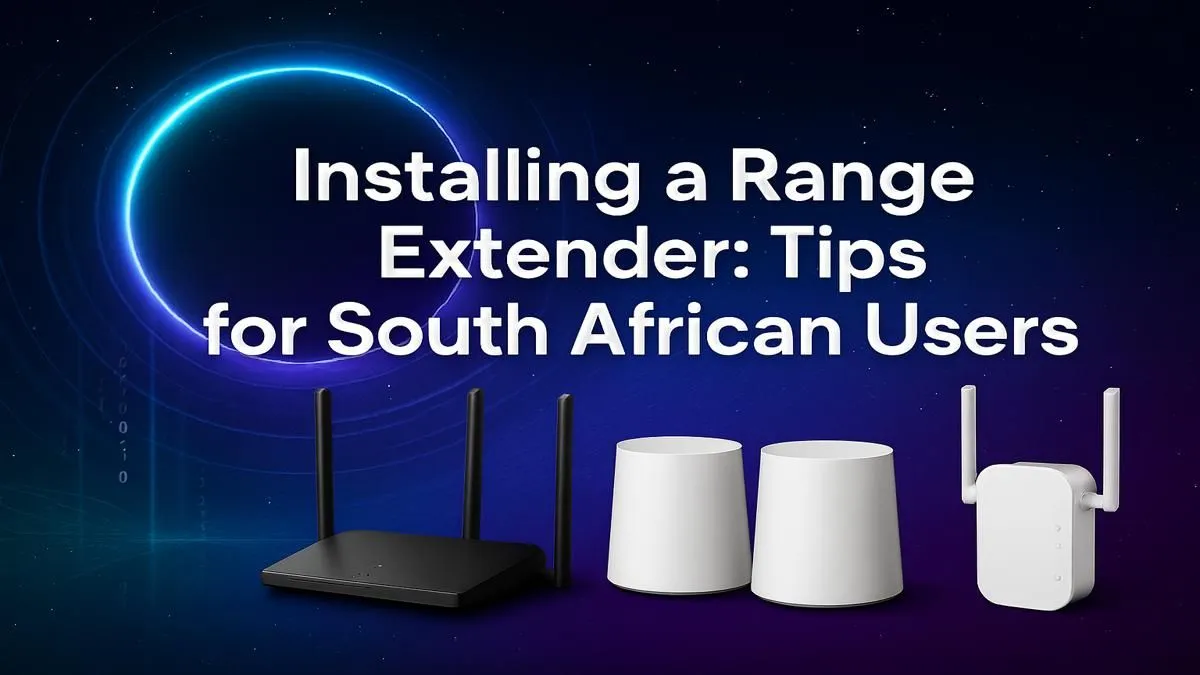
Is your WiFi signal weaker than a day-one loadout? It’s a classic South African story: the main router is in the lounge, but the signal barely reaches your gaming room or the braai area. Constant buffering and lag spikes can ruin a gaming session or a Netflix binge. The good news? You don't need a degree in network engineering to fix it. This guide will show you exactly how to install a WiFi extender in South Africa and reclaim your entire home for seamless connectivity.
First, What Exactly Is a WiFi Extender?
Before we dive into the setup, let's quickly cover what this little gadget does. Think of a WiFi extender, or range extender, as a relay runner for your internet signal. It picks up the existing WiFi signal from your router and rebroadcasts it, pushing the signal into those hard-to-reach dead zones. ⚡
It’s the perfect, budget-friendly solution for most standard-sized homes struggling with one or two specific problem areas. For a quick and effective fix, browsing a selection of modern wireless range extenders is the best place to start.
Your Step-by-Step WiFi Extender Setup Guide
Getting your new extender up and running is usually a quick job. Most models offer two simple methods for installation. Here’s how to do it.
Step 1: Find the Perfect Spot
This is the most critical step. Don't just plug the extender in the room with the worst signal. It needs to be placed where it can still receive a strong, stable signal from your main router. The sweet spot is usually about halfway between your router and the WiFi dead zone.
Step 2: Power Up and Connect
Plug the extender into a wall socket and wait for its power light to become solid. Now, you have two main options for the setup process:
The WPS Method (Easiest)
WPS (Wi-Fi Protected Setup) is the simplest way to connect.
- Press the WPS button on your main router.
- Within two minutes, press the WPS button on your WiFi extender.
- The lights on the extender will blink and then should turn solid, indicating a successful connection. That’s it!
The Web Browser Method (Manual)
If your router doesn’t have a WPS button or the connection fails, the manual method is your backup.
- On your phone or PC, connect to the WiFi network created by the extender (e.g., "TP-Link_EXT" or "Netgear_EXT").
- Open a web browser. You should be automatically redirected to the extender’s setup page. If not, type its default IP address (like
192.168.0.254 or the URL found in the manual) into the address bar. - Follow the on-screen instructions to select your home WiFi network, enter its password, and create a name for your new extended network.
Signal Strength Pro Tip 🔧
Use a free WiFi analyser app on your smartphone to find the optimal placement for your extender. Walk around the halfway point between your router and the dead zone while watching the app. Look for a spot where the signal strength from your main router (measured in dBm) is strongest—ideally better than -70dBm. This ensures the extender has a great signal to rebroadcast.
Optimising Performance for Gaming and Streaming 🚀
Once your WiFi extender is installed, you might want to fine-tune it for the best performance. A common issue is that while coverage improves, speed can sometimes decrease because the extender has to both receive and transmit data.
If you find your connection is still struggling with high-demand tasks, the bottleneck might be your primary router. For larger homes or serious gaming, upgrading to one of today's powerful wireless routers can provide a much stronger foundation for your entire network.
Sometimes, the issue isn't the network but the device itself. For a desktop PC tucked away under a desk, its built-in WiFi might be the weak link. In this case, upgrading to a better wireless adapter, especially one with an external antenna, can make a massive difference.
Ultimately, a WiFi extender is a fantastic tool for solving specific dead zones easily and affordably. By following this guide, you’ve taken the first step toward a stronger, more reliable connection throughout your home. For a full overview of your options, Evetech has one of South Africa's widest ranges of complete wireless networking solutions to get you sorted.
Ready to Banish Buffering for Good?
Stop letting WiFi dead zones dictate where you can work and play. A simple WiFi extender can conquer lag and bring seamless connectivity to every corner of your home. Explore our massive range of wireless range extenders and find the perfect model to boost your signal today.