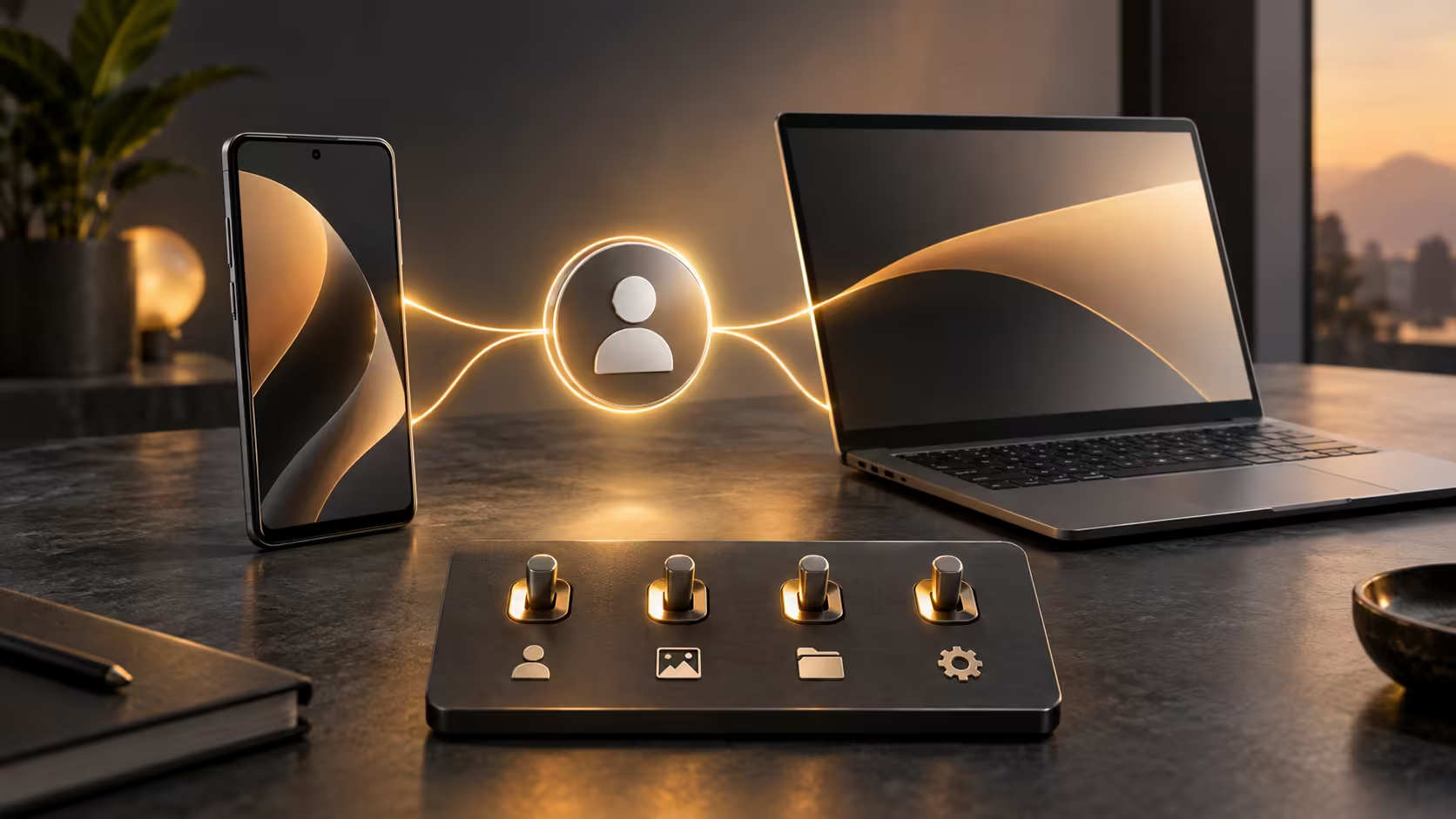
A phone can be nearby, signed in and still not be ready for the feature you want. Pairing Android with Googlebook involves more than recognising a device name. The phone version, account context and permission you grant all influence what happens next, so begin with one clear task.
Quick Answer
Google specifies Android 17 or later and setup for its advertised Googlebook phone integration. That requirement does not confirm every phone and app combination. Check the supported update route, choose the intended account and try a harmless file first; a R0 preparation check can identify a missing requirement before you depend on pairing.
📱 Establish the phone baseline
Identify the exact phone model and the Android version it currently runs. A brand name or purchase year cannot substitute for that information. Follow the phone manufacturer's supported update instructions if an update is available. A future update promise and an installed release are different starting points.
Do not treat an unofficial operating-system modification as an ordinary requirement for using a laptop. It can change support and security assumptions while still failing to establish the integration you need. If your phone has no supported route to the stated requirement, evaluate Googlebook's laptop functions independently of that phone feature.
Choose the phone you actually use for the intended task. A spare device may make a demonstration possible while leaving your normal files and accounts elsewhere. Decide whether the purpose is accessing selected photos, continuing a supported activity or using a particular app. That choice determines what you should verify.
Keep the phone accessible during setup so you can read and approve the prompts yourself. A pairing request should correspond to an action you initiated. Check the device identity rather than approving an unexpected request simply because both devices are in the same room.
🔑 Review the account and permission context
Make sure you know which account holds the files or application access you want. Personal and school identities can coexist on a phone, but that does not mean every integration is permitted across them. An organisation may apply its own restrictions. Avoid moving private or managed data between contexts just to bypass an unclear prompt.
Read each permission in terms of what it enables. File access, notifications, microphone access and app display are distinct capabilities. Grant the access needed for the task rather than assuming a blanket approval is always required. If the scope is unclear, consult the current product help before accepting it.
Use a sample photograph or non-sensitive document for the first trial. Open it, observe what is visible on the laptop and confirm where any saved copy goes. The aim is to understand the boundary between viewing something on the phone and creating another file on the computer.
If your work produces important originals, plan a separate copy rather than relying on pairing as backup. Evetech's external SSD range can support that storage planning once the connection is confirmed. A convenient phone link and a recoverable archive solve different problems.
🔄 Test the three features separately
Quick Access concerns reaching files on the phone. Cast My Apps streams a phone application to the laptop. Continue On transfers supported activities between devices. Those descriptions explain why a pass in one feature cannot prove a pass in the others. Keep a small result for each function you intend to use.
For file access, identify the source file and any destination copy. For app streaming, try a harmless screen and confirm how you stop the session. For continuation, begin with a supported activity and observe what transfers. Do not assume an unsaved project, every browser state or all third-party applications will move intact.
If something fails, record the phone model, software versions, feature name and error wording. Check the current requirements for that feature. Restarting through normal controls may be a sensible reversible step after saving work, but avoid repeatedly changing unrelated permissions without knowing what the failing function needs.
Connection conditions also deserve a deliberate trial. Rehearse in the environment where you intend to use the feature, then note any dependency described by the current setup instructions. Do not invent a universal Bluetooth or same-network rule from another phone-link product; use Googlebook's own requirements when they are provided.
For a stationary workspace, an external keyboard may make longer phone-originated tasks easier once the software route works. Confirm input behaviour inside the particular app, because displaying a phone app on a larger screen does not automatically provide a full desktop interface.
Finish by finding the documented way to end or remove the connection. Pairing should be reversible when a device changes hands or the feature is no longer needed. Knowing the exit route is part of setup, not a troubleshooting step to discover months later.
Frequently Asked Questions
What Android version does Googlebook phone integration require?
Google states Android 17 or later for the advertised phone integration, with setup required and feature-specific conditions.
Does Android 17 guarantee every phone feature works?
No. Version is an entry requirement, not a promise that every device, account and third-party app supports every integration.
Are Quick Access and Cast My Apps the same thing?
No. Quick Access concerns phone files, while Cast My Apps streams an app from the phone.
What should I pair first?
Use the intended personal phone and account, then try a harmless file before granting access to sensitive material.
Build around the phone workflow that works for you.
Explore Evetech laptop accessories after confirming the account, connection and input requirements of your chosen integration.