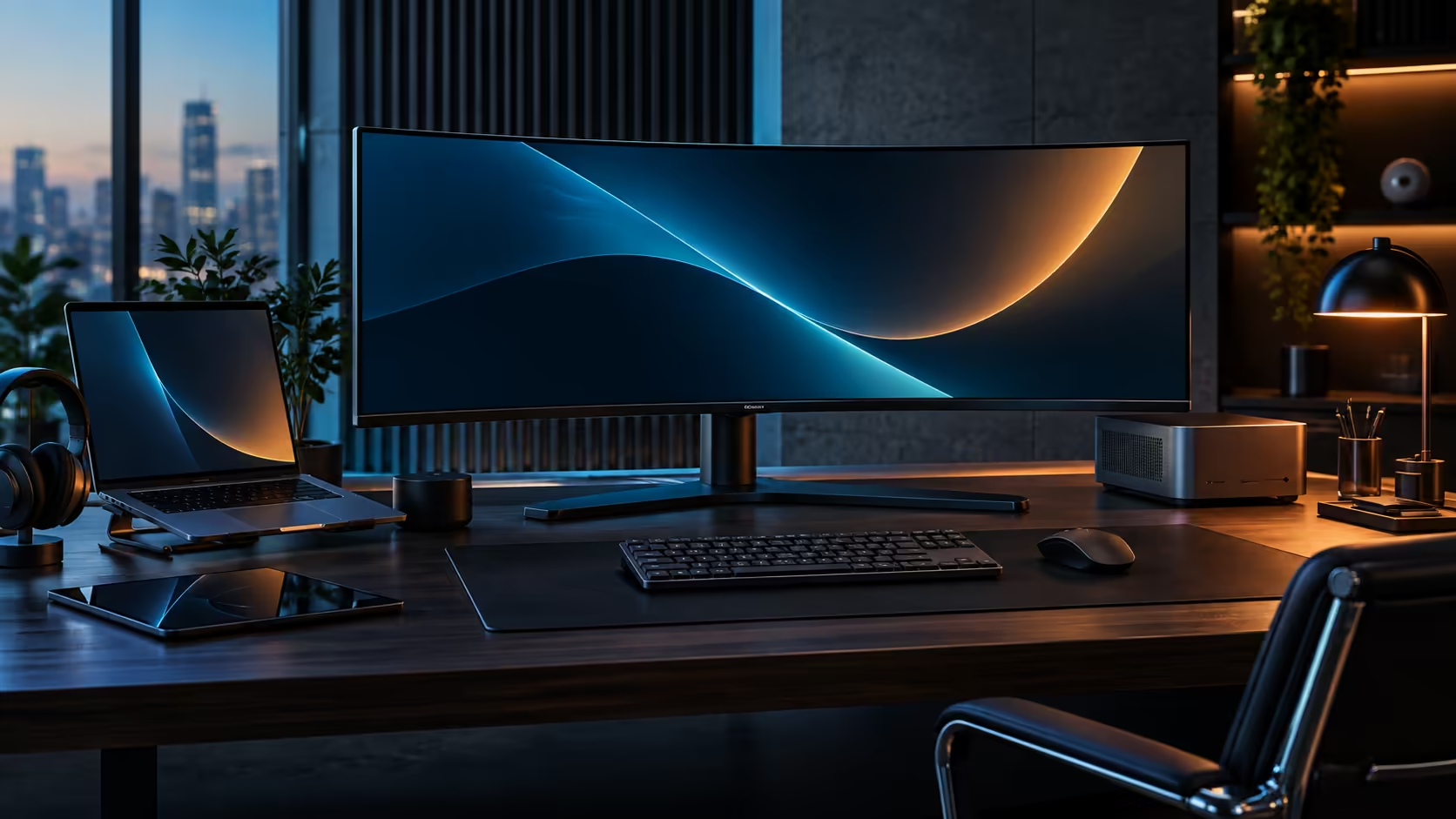
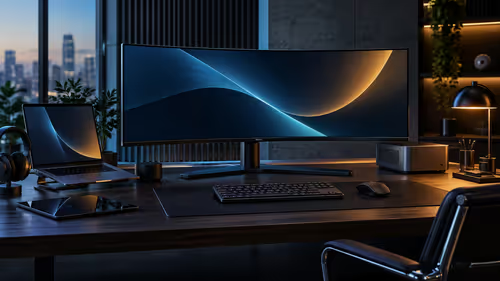
A one-cable desk sounds like a marketing line until you actually count what used to sit on top of the desk: a power brick, a separate USB hub, a wired network lead and a monitor cable, four plugs feeding one single laptop. The AOC CU34E4CW collapses all four into a single USB-C run, and getting it right the first time is a five-minute job rather than a five-cable one.
Quick Answer
Plug one USB-C cable from the laptop into the CU34E4CW, and the screen carries video, data, a wired network connection and up to 90W of charging back down that same lead. At R7,999 the panel replaces the dock, the charger and the network adapter you would otherwise buy separately, and the whole desk drops to three cables: monitor power, the network run and the one lead to the laptop.
🔌 What the single cable actually needs to do
A USB-C port that only charges is not enough for this to work, so check the laptop side before anything else.
The port has to support DisplayPort Alt Mode for video and USB Power Delivery for charging on the same connector, which almost every laptop from the last five years does, but a handful of budget models still split video and power across two different ports. Look for a small monitor or "P" icon printed beside the port, or open the laptop's own specification sheet and search for USB-C DisplayPort or USB-C PD.
Once that is confirmed, one certified USB-C to USB-C cable is the only lead the laptop needs. The CU34E4CW then does the rest: it decodes the video signal, sends up to 90W back to charge the laptop, and exposes its own USB hub, KVM and RJ45 socket to the connected machine.
🖥️ The plug-in order that avoids a blank screen
Order matters more than people expect on the first setup.
Connect the monitor to power and switch it on first, so it has fully booted before anything else talks to it. Plug the keyboard, mouse and network cable into the monitor's own ports next, since those are wired to the panel rather than to the laptop. Only then run the single USB-C cable from the laptop to the monitor.
If the screen stays blank on that last step, open the laptop's display settings and check whether an external monitor has actually been detected before assuming the cable is faulty. Windows sometimes needs the display duplicated or extended manually the first time a new monitor connects, even when the hardware side is working correctly.
🔋 Getting the full 90W, not a trickle charge
Charging can technically happen and still be too slow to keep up with a laptop under load, so the wattage the laptop actually draws is worth checking.
A laptop rated for a 45W or 65W charger draws well within the CU34E4CW's 90W ceiling, so the battery holds steady or climbs even while running video calls and a browser. A workstation-class laptop rated at 130W or more will still charge over the same cable, just more slowly than its own supplied brick manages, because the monitor cannot exceed what it is built to deliver.
Windows shows the charging rate under Settings, then System, then Power and battery, if you want to confirm the number rather than guess it from the battery percentage climbing.
For the peripherals side of the same desk, the docking station range covers a separate hub for a laptop that lacks the port this setup needs, and USB hubs are the cheaper fallback if you only need extra ports rather than charging. The full office monitor range is where to compare this panel against other docking options before you commit a desk to one cable.
Frequently Asked Questions
Do I need a special USB-C cable for docking?
A certified USB-C to USB-C cable rated for both DisplayPort Alt Mode and 90W Power Delivery is enough. Most cables sold as "docking" or "monitor" cables meet both.
What happens if my laptop only supports 65W charging?
Nothing changes on your end. The monitor delivers what the laptop asks for up to its 90W ceiling, so a 65W laptop simply draws 65W and charges normally.
Why is my screen blank after connecting the USB-C cable?
Usually the monitor was not powered on first, or Windows has not detected the external display yet. Power up the monitor before connecting the laptop and check display detection if the screen stays dark.
Does the laptop's original charger still work alongside this setup?
Yes. The USB-C cable and the original charger both work at once if you want the extra headroom, though most laptops do not need both once docked.
Does the RJ45 port work without installing drivers?
On Windows and macOS it is generally detected automatically, since it presents as a standard wired network adapter through the same USB-C connection.
Ready to cut your desk down to three cables?
Confirm your laptop's USB-C port supports both video and charging, then build the rest of the setup around one lead.