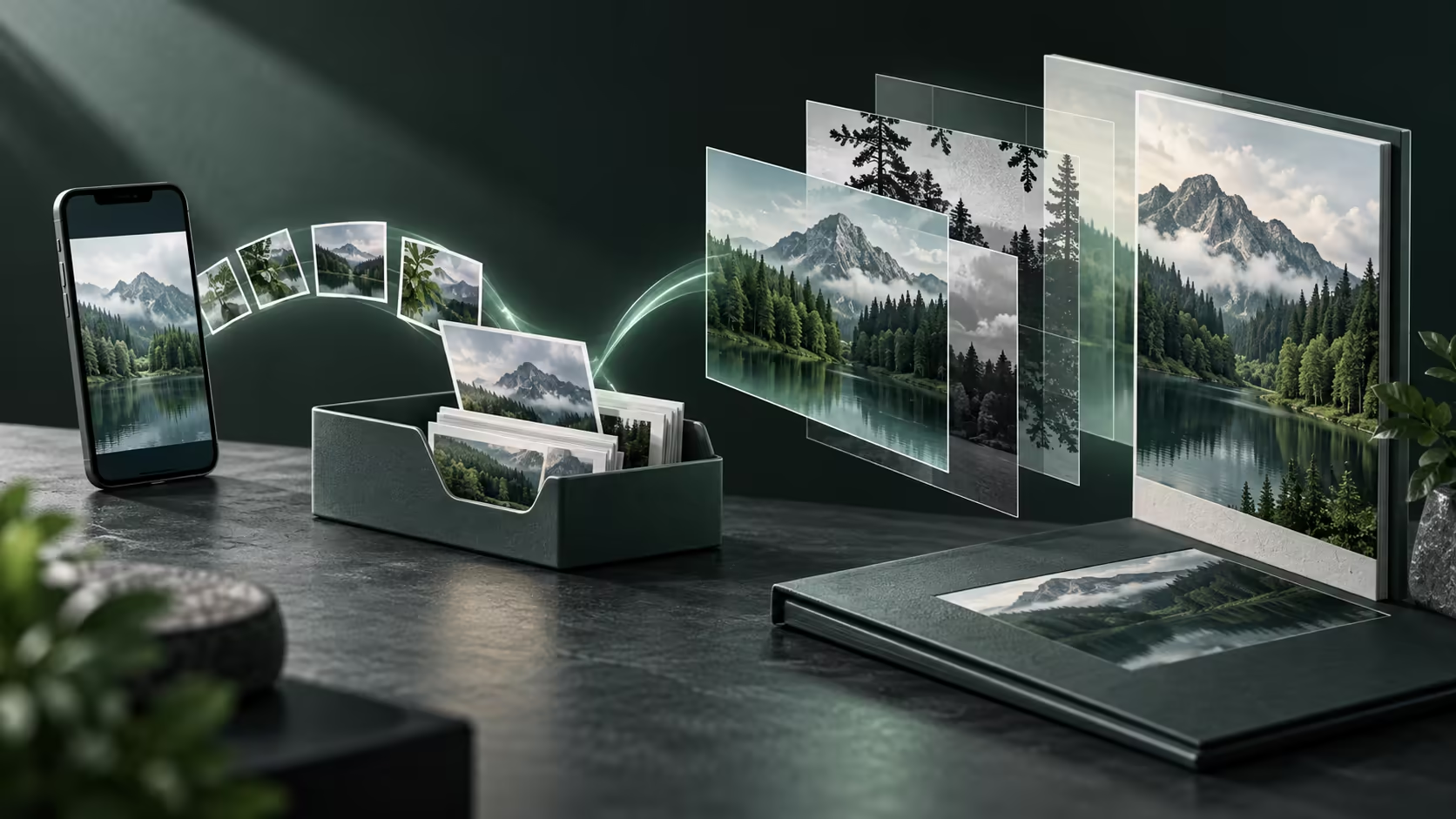
The photograph that looks perfect on a phone can become awkward when cropped for a wide cover or compressed for sharing. A Googlebook photo workflow should protect the original while making deliberate choices about the finished image. Transfer is only the first step; the output deserves its own inspection.
Quick Answer
Select and preserve your source photographs, create an organised working project and export for the actual destination. Google Photos quality settings can affect stored detail, so understand which copy you are editing. Start with a R0 three-image practice project before committing an entire collection to an unfamiliar workflow.
📷 Choose the source before choosing an effect
Begin with a small selection of photographs that serve the project. A school poster, family album and social banner need different compositions. Look for a clear subject and enough surrounding space for the intended crop. An attractive image is not automatically the best fit for a particular layout.
Identify where the original lives. It may remain on the phone, exist in a cloud collection or have been copied to another drive. If you use Google Photos, distinguish Original quality from Storage saver. Google's documentation explains that the latter may reduce size or quality, which can matter if you later need a larger output.
Keep an untouched source copy before making destructive changes. The working image can be cropped, adjusted and exported repeatedly while the original remains available for a different project. Do not clear the phone collection merely because thumbnails appear on another device; first establish that the required files and quality have been preserved.
Googlebook's phone integration can provide a route to phone files, but access and backup are different outcomes. After obtaining the selected images, confirm where the actual project copies are stored. A convenient view into another device is not by itself an independent archive.
🎨 Build the project around its destination
Write the required output dimensions and format before editing. A wide banner and a square tile can use the same source photograph, yet need different crops. Position the subject deliberately and leave room for any text. Cropping after the layout is finished often forces you to redo both the image and the typography.
Use a simple folder structure for source images, editable work and exports. Keep any added graphics or audio alongside the project if the application references them. A project file that points to missing source material is not a complete handover, even when its filename looks reassuring.
Google lists creative applications for Googlebook, but choose the actual supported edition and features you need. Opening a familiar brand does not establish compatibility with every desktop plug-in or project format. Try a small representative edit and export before moving a complex existing project into the new workflow.
For a workspace where image detail matters, compare monitors at Evetech for useful size and documented colour capabilities. Confirm the laptop connection separately. A larger display helps inspection, but a marketing label alone cannot promise a calibrated result.
🖼️ Inspect what you exported
Open the exported file rather than judging only the editor preview. Confirm the dimensions, orientation and visible crop. Inspect text at the size a reader will see it, especially on a small screen. A sharp-looking design at full zoom can have unreadable labels when reduced to its real placement.
Choose format according to the destination. A photograph often suits JPEG, while an image needing transparency may call for a different format supported by the receiving platform. Follow the destination's documented requirements rather than changing extensions manually. Exporting creates a format; renaming does not.
Compare a lighter export with a higher-quality one if file size matters. Look at faces, fine lines and text edges. Compression should be a deliberate compromise, not a hidden default you discover after sending the image. Keep the editable project so a different size can be generated later without repeatedly degrading the same export.
Name the final file clearly enough to identify its use, such as club-poster-print or family-cover-web, with a date when useful. Keep approval versions distinct if somebody else is reviewing the project. This avoids accidentally delivering an earlier crop or a draft with placeholder text.
Store the finished project and essential originals in a second location. Evetech's portable SSD selection can help with capacity planning after connection support is established. Restore a sample project from that copy to make sure the media came with it.
A good photo workflow finishes with a usable output and recoverable sources. That gives you room to revise the design next week without hunting through a phone, a cloud album and several unnamed downloads.
Frequently Asked Questions
Should I edit the only copy of a phone photograph?
Preserve an original first. Use a working copy or a reversible editing workflow so an export mistake does not replace the source.
Does Storage saver preserve every original pixel?
Google Photos Storage saver may reduce quality or resolution. Use the documented quality setting that matches the intended output.
Is a shared album a finished project backup?
Not necessarily. Keep the project, source images and final exports together in a separately recoverable copy.
Why can a portrait image look wrong in a banner?
A wide crop removes part of a tall composition. Choose a focal point and inspect the crop before adding text.
Give your photo project a clear path to the final file.
Explore displays and storage at Evetech around the image size, connection and archive capacity your projects need.