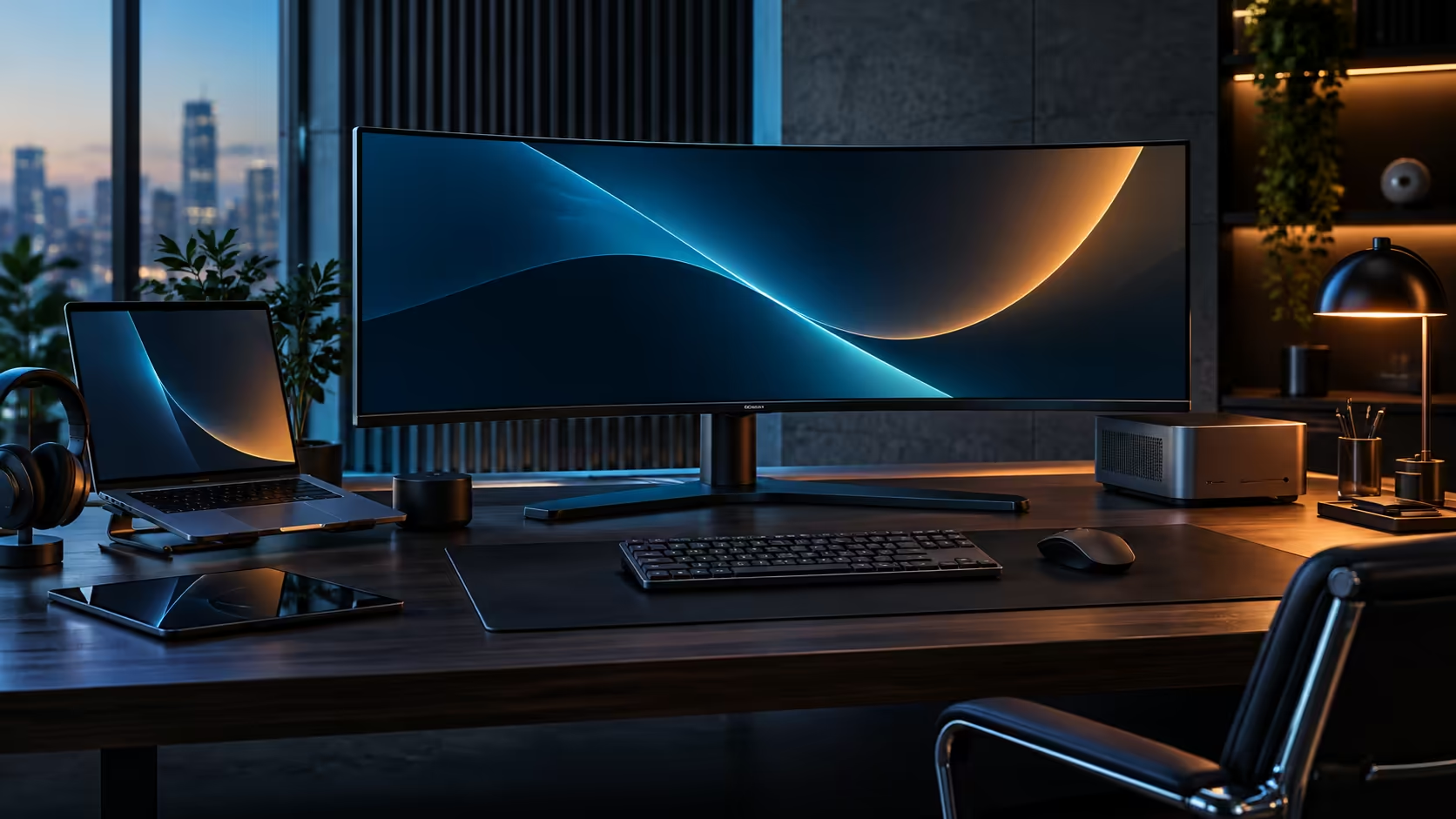
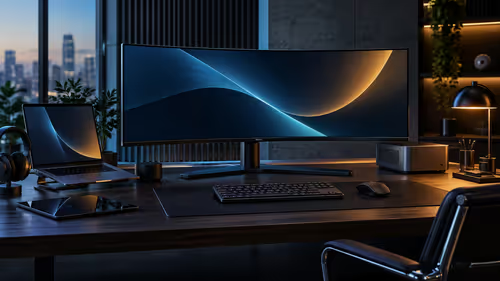
Two computers on one desk usually means two keyboards, two mice and a habit of reaching sideways to grab the other set. A built-in KVM switch removes that reach entirely: one keyboard and mouse, and the screen decides which machine they belong to. The AOC CU34E4CW carries the feature at R7,999, and setting it up correctly takes about ten minutes.
Quick Answer
Connect both computers to the R7,999 CU34E4CW using two different video inputs, plug the keyboard and mouse into the monitor's own USB ports rather than into either PC, then switch the KVM in the monitor's on-screen menu so the connected devices follow the active input. The handover happens the moment you change the video source, and it works the same whether both machines are Windows, or one is Windows and the other is a Mac.
🖱️ How the switch actually decides which PC gets control
The monitor, not either computer, is doing the switching, which is why nothing needs installing on either machine.
Your keyboard and mouse plug into USB ports on the back of the CU34E4CW rather than into a PC directly. The monitor's internal KVM logic then routes that USB connection to whichever video input is currently displayed on screen. Change the input from PC1 to PC2 using the monitor's menu or an assigned hotkey, and the keyboard and mouse follow automatically within a second or two.
Because the switching lives in the monitor, it works identically for a Windows desktop, a Mac Mini or a work laptop docked over USB-C. The panel has no idea what operating system is on the other end of the cable.
🔀 Setting it up without losing a device along the way
The most common mistake is plugging a peripheral into the wrong port, which looks like a KVM fault but is a cabling one.
Dig into the monitor's on-screen menu for a KVM or USB Selection entry, typically tucked under Setup or Input. Make sure it is switched to auto rather than pinned permanently to one PC. Plug your keyboard and mouse into the monitor's designated USB upstream port, and give each computer both a video cable and a USB cable of its own, since the KVM has nothing to route through without that second link from every machine.
A picture that switches correctly while the keyboard stays dead almost always traces back to a loose or missing USB link from that particular computer, not a fault in the KVM logic itself.
⌨️ What a built-in KVM will not do for you
A monitor-based KVM is genuinely convenient, and it has real limits worth knowing before you plan around it.
File transfer between the two computers is not part of the feature. Switching your keyboard and mouse to PC2 does not copy anything from PC1, so a shared network folder or a USB drive is still how files move between the two machines. Clipboard sharing is the same story: copying text on one PC and pasting it on the other needs separate software, not the KVM.
Audio routing also depends on the model and menu setting rather than following the same logic as USB. Check whether the CU34E4CW's speakers or a connected headset follow the active video input or stay fixed to one source, since the two behave differently on some panels.
For the keyboard and mouse feeding into this setup, the keyboard and mouse combo range and the office keyboard range both list USB wired options, which avoid the extra dongle a wireless set would add to an already busy set of ports. The wider office monitor range is worth a look if a two-computer desk is the reason you are shopping in the first place.
Frequently Asked Questions
Do both computers need to be the same operating system for KVM to work?
No. The monitor's KVM only handles the keyboard and mouse routing over USB, so a Windows PC and a Mac work through the same switch without issue.
Why does my keyboard stop working when I switch inputs?
Usually the USB cable from that specific computer to the monitor is not connected, or is plugged into the wrong port. The KVM needs a live USB link from every PC it should control.
Can I copy files between two PCs through the KVM?
No. The KVM only switches keyboard and mouse control, not data. Use a shared network folder or a USB drive to move files between the machines.
Does switching the KVM also switch the monitor's speakers?
That depends on the specific menu setting, since audio routing is configured separately from USB switching on some panels. Check the audio source setting alongside the KVM setting.
Is a hotkey available to switch between computers?
A configurable keyboard shortcut is available on most panels once set up in the menu, giving a faster way to swap machines than opening the on-screen display each time.
Ready to run two computers off one keyboard and mouse?
Set the KVM to follow your video input in the monitor menu, then plug both PCs in with a video and a USB cable each.