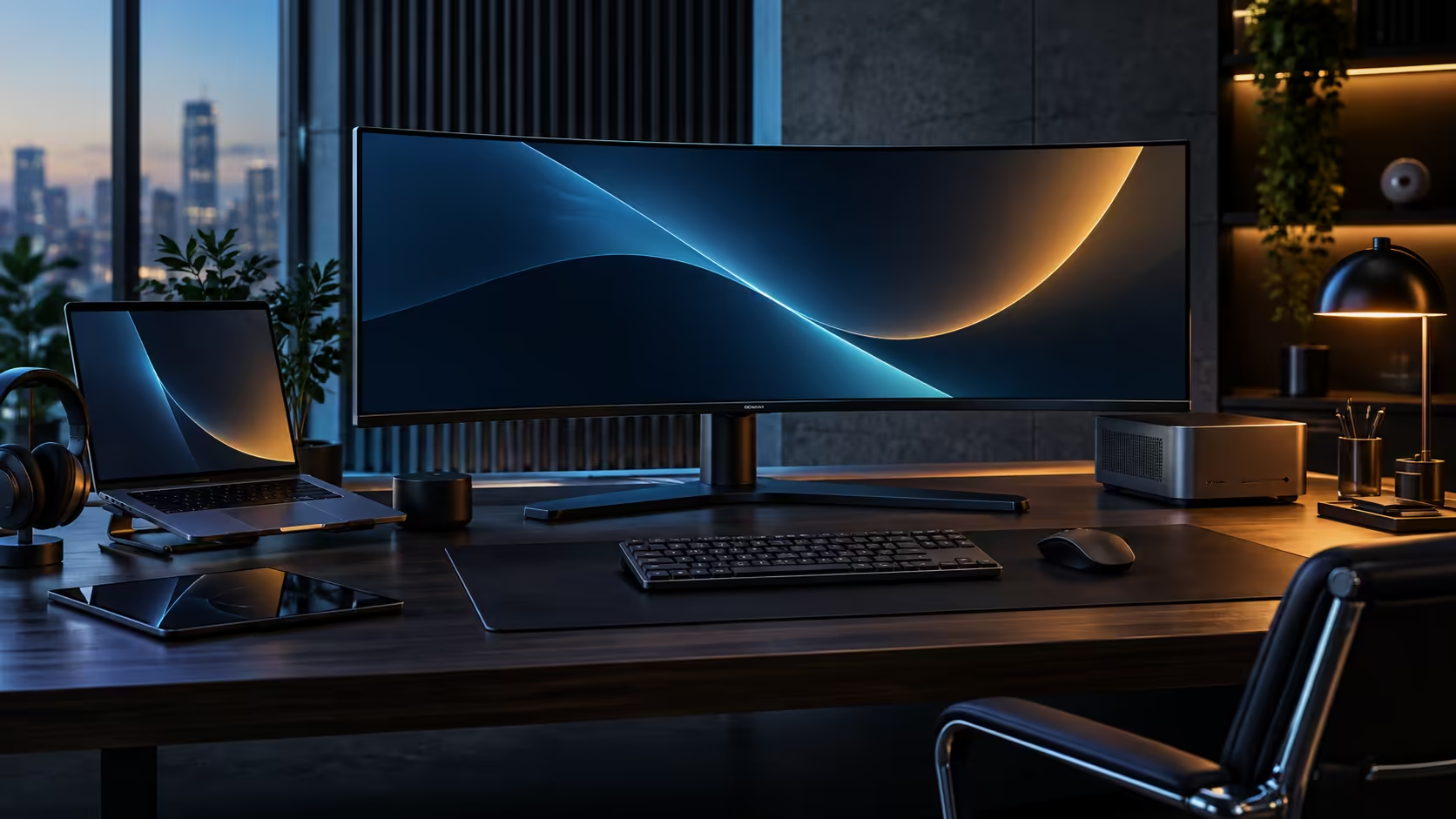
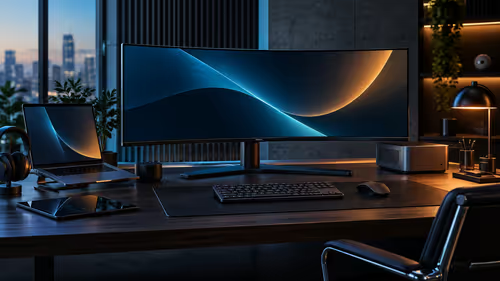
Most people set up a wide monitor by centring it, plugging it in and leaving the resolution wherever Windows put it. A 34-inch ultrawide rewards a bit more attention than that, because the extra width only pays off once you have deliberately divided it into working zones instead of letting one window stretch across all 3440 pixels.
Quick Answer
Split the CU34E4CW's canvas into three columns rather than maximising one app across the full width, snap a browser or reference document to each side, and keep your primary task in the centre third at eye level. Raise the stand so the built-in camera sits level with your eyes, not below your chin, and the R7,999 panel handles calls through its own 5MP camera and two 5W speakers without any extra hardware on the desk.
🖥️ Dividing 3440 pixels into zones that actually help
A single maximised window on a screen this wide just means longer lines of text to track, not more useful space.
Windows' own Snap Layouts, opened by hovering the maximise button or pressing Windows key plus Z, offer thirds and quarters that suit a 21:9 panel far better than the default halves built for a 16:9 screen, splitting the CU34E4CW's 3440 pixels into three columns of roughly 1100 to 1150 pixels each. A common working split is a document or code editor in the centre third, a browser or reference material on one side, and a chat or email client on the other, each wide enough to read without scrolling sideways.
Resist the urge to run everything at three equal columns permanently. The middle third deserves to be wider for your primary task during focused work, then rebalanced to equal thirds when you are cross-referencing two sources against a third.
📷 Getting the camera and calls right
A camera built into the top bezel puts you at the wrong angle if the monitor itself is sitting too low, which is a setup mistake rather than a hardware one.
Raise the CU34E4CW on its stand until the top edge, where the 5MP camera sits, is roughly level with your eyes when seated normally. Looking slightly down into a low camera reads worse on a call than looking slightly up, so err on the side of raising the panel rather than lowering it. The stand gives about 180mm of height travel, which covers most desk and chair combinations without needing a riser underneath.
For audio, the two built-in 5W speakers are enough for casual playback and are one less desk item, but for calls where colleagues need to hear you clearly over open-plan noise, a dedicated headset picks up your voice far better than any monitor's built-in microphone.
🎯 A working layout that survives a full day
The setup that looks good in a screenshot and the one that survives eight hours of real use are not always the same thing.
Keep your most-used window in the centre third, since that is the zone requiring the least neck movement across a full day. Put reference material you check occasionally, rather than continuously, on the far edges, because the curve of the 1500R panel means the extreme sides sit slightly further from direct focus than the centre. Save the far-left and far-right thirds for things you glance at rather than read continuously: a chat window, a monitoring dashboard, or a music player.
Before you finalise a layout, check whether the applications you use most support Windows Snap Layouts directly, since a handful of older programs resize awkwardly and are better managed by manually dragging their edges to the third-width you want.
Rounding out a call-ready desk, the webcam range is worth a look if you decide the built-in camera does not suit your lighting, and the office headset range solves the audio side for noisier rooms. The full office monitor range shows how this panel compares against other options if the layout above is not quite the fit for your desk.
Frequently Asked Questions
How do I split an ultrawide monitor into multiple windows in Windows?
Hover over a window's maximise button, or press Windows key plus Z, to open Snap Layouts. Ultrawide-specific layouts appear there with thirds and quarters suited to a 21:9 screen.
What height should I set an ultrawide monitor at for video calls?
Raise the stand until the top edge, where the camera sits, is level with your eyes. Looking slightly down at the screen is far more common on calls than looking slightly up, and it reads worse on camera.
Is the built-in webcam good enough for daily video calls?
A 5MP camera at eye level covers most everyday calls well, particularly compared with a laptop's downward-angled lens. Poor room lighting affects any built-in camera more than the megapixel count does.
Do the built-in speakers replace a headset for calls?
For listening, generally yes. For your own voice being heard clearly in a noisy room, a headset microphone still outperforms any monitor's built-in microphone.
Does the curve make the edges of the screen harder to read?
Not meaningfully at normal viewing distance. The 1500R curve is there to keep the far edges roughly as close to your eyes as the centre, which helps rather than hinders edge readability.
Ready to turn 3440 pixels into a working layout instead of one wide window?
Set up Snap Layouts for thirds, raise the stand to eye level, and let the built-in camera handle your next call.