English menus in the launcher do not guarantee English voices in a game. Steam game language not changing usually calls for checking which setting was changed, which languages the title supplies and whether the new files have finished downloading. A different headset cannot translate the audio, and reinstalling everything is a poor first experiment.
Quick Answer
Check the affected game's language setting separately from Steam's interface language. Choose a supported option, finish any requested download, then review the game's own voice and subtitle controls. Start with R0 in hardware spending: this is a software selection problem until there is separate evidence of an audio-device fault.
💬 Separate launcher menus from game content
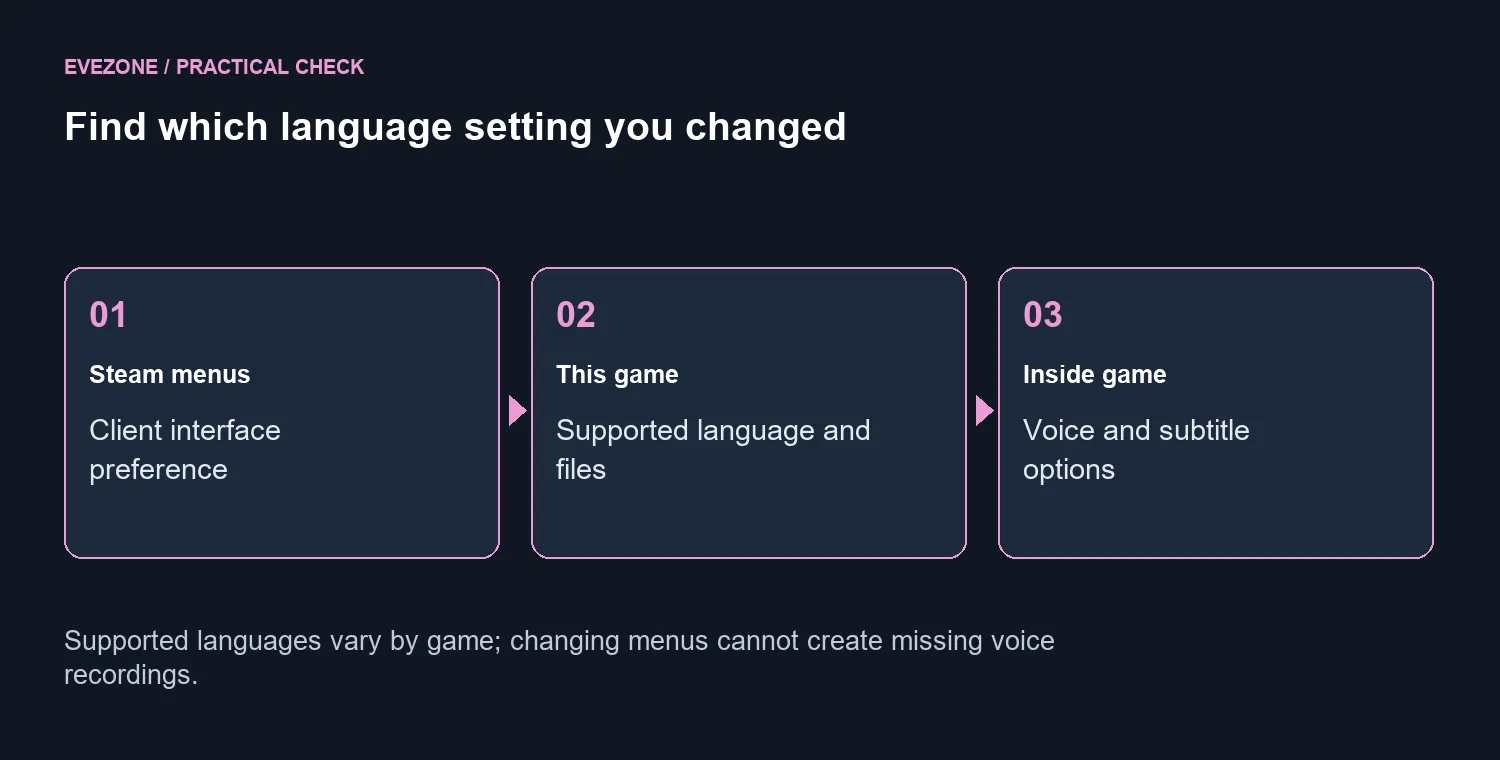
The client interface preference controls Steam itself. The game can have an independent language selection, and the developer decides what translated content exists. A language appearing in one place does not prove that every game has recorded dialogue in it.
Open the game's Properties from your library and look for its language option. Choose the intended supported language and watch the download queue before launching again. Valve notes that language files may need to download, so a change is not necessarily instantaneous.
🎧 Check voices and subtitles inside the title
Once the download has finished, inspect the game's settings. Some games separate text and spoken audio; others do not. Check the title's own support guidance when those options differ from what you expected, instead of assuming the launcher overrides every menu.
Take a note of the exact mismatch: wrong menus, wrong subtitles or wrong voices. That makes troubleshooting much more precise. If the chosen language is not supplied for a particular part of the game, changing your speaker or headset will not add it.
Browse gaming headsets only for an actual listening need such as fit or a failed device. On 27 September 2026, the in-stock Marvo Akari 50 listing showed R199, but even an expensive audio upgrade cannot change the language of the recording being played.
📥 Avoid repeating a full download without a reason
On a metered connection, changing preferences repeatedly before testing them can make the process harder to follow. Change one relevant setting, let Steam complete its work and launch the game once. Record the result before moving to another option.
If you need publisher support, include the title, selected game language and whether the language download completed. Keep a distinction between understanding the dialogue and hearing it at all. A wired headset can be useful for isolating a real playback fault, but the same clearly audible wrong-language voice through multiple devices points back to the game content and settings.
Do not add random launch commands found in an unrelated game's discussion. Use instructions for the specific title and keep track of changes so they can be reversed.
Frequently Asked Questions
Does changing Steam menus change every game?
No. The client interface and individual game language settings are separate. Review the affected game itself.
Why did Steam start a download?
A supported language may need additional files. Allow that download to finish before judging the change.
Can a headset change spoken language?
No. The game selects the audio content. A headset only reproduces the signal it receives.
What if the desired language is not supported?
Changing a client setting cannot add a translation the game does not supply. Check the game listing and publisher guidance.
Can voices and subtitles use different languages?
That depends on the game. Check its audio and text settings rather than assuming Steam can split them for every title.
Should I reinstall the entire game first?
Start with R0 settings checks and any requested language download. Save a full reinstall for a documented support step.
Need better listening after fixing the language?
Choose a comfortable headset from Evetech for audio quality and fit, after the game is playing the content you want.