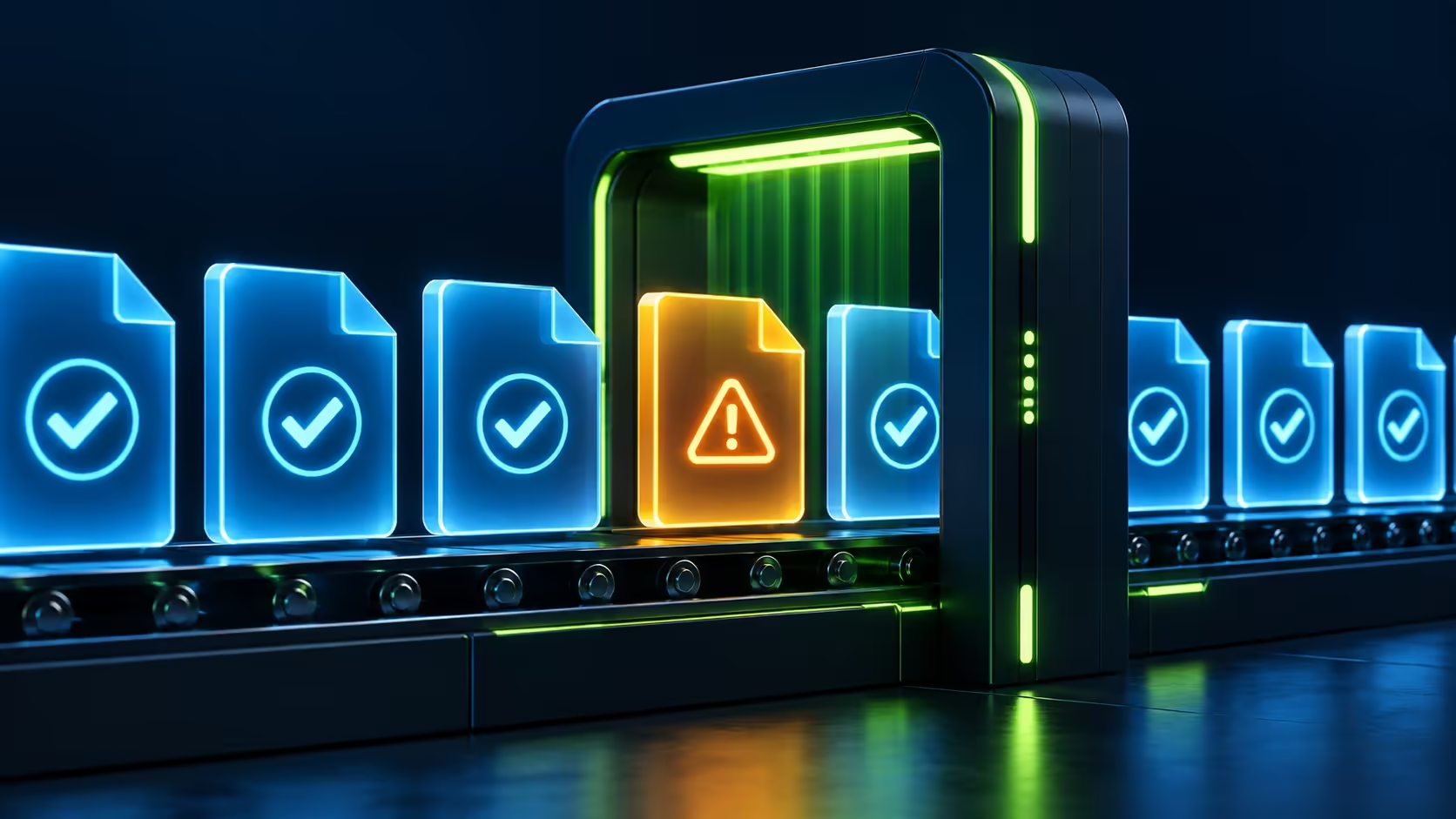
A failed-file count looks alarming after a long download, especially if you were already worried about storage. Steam files failed to validate is not, by itself, a diagnosis of broken hardware. The important next question is whether the game actually has a problem, because some local configuration differences are expected.
Quick Answer
Valve explains that some local configuration files can fail verification without needing replacement. Run one clean check, then test the game instead of repeatedly chasing a zero count. That costs R0 in new hardware; a R1,499 ADATA SU650 512GB listing on 27 September 2026 is a storage price reference, not a reason to replace a drive after one message.
🗂️ Understand what the result can tell you
Verification compares installed game content with what Steam expects. It is a useful troubleshooting step, but the displayed count is not a drive-health test. A harmless configuration difference and a game that still crashes are not the same outcome.
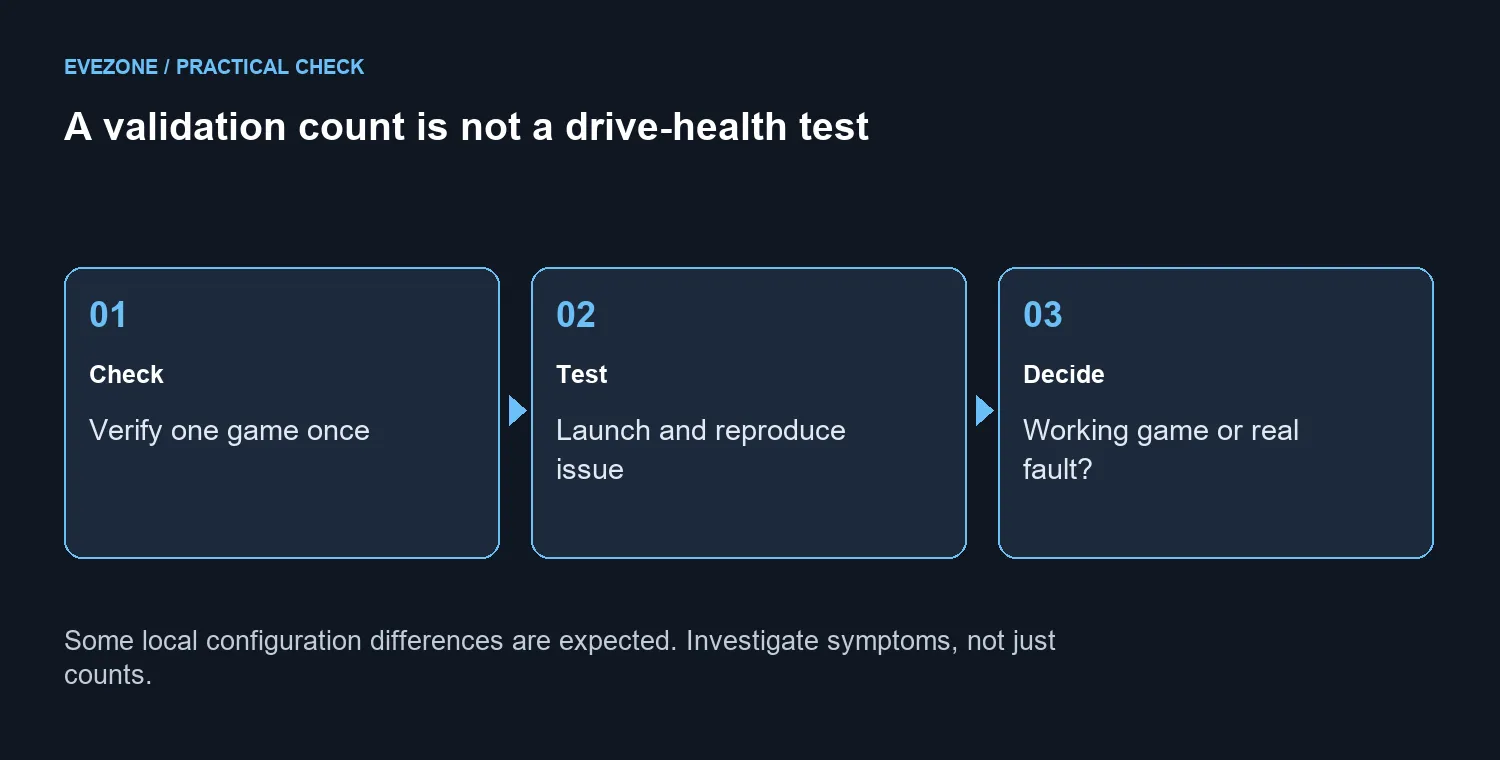
Open the affected title in your library, choose Properties, then Installed Files and the integrity verification option. Close the game first. Valve advises checking a single game at a time and avoiding other intensive work during the process, so let this one task finish before starting another.
🧪 Test the symptom after the check
Launch the game and try the action that previously failed. If it now works, stop. Repeating verification purely to erase a count can waste time and data without improving anything you can observe.
If it still fails, write down the exact error and where it happens. Keep the verification result as one piece of evidence, alongside the game version and whether the failure affects other titles. Ask the publisher for the next relevant support step rather than making the warning carry more meaning than it has.
💾 Keep replacement storage as a separate decision
Compare internal SSD options when you have a capacity need or evidence of a storage fault. Neither a particular number of failed files nor a frustrating evening establishes that conclusion on its own. Back up important personal data before any invasive troubleshooting or replacement work.
An external SSD may serve a different storage requirement, but purchasing one does not explain why a local configuration file differs. Keep your repair notes focused on what actually fails. For a support request, a short, repeatable description of the problem is more useful than a screenshot of a count with no context.
Avoid deleting configuration folders simply to make the message disappear. Those files may contain settings you want to keep, and changing them would add another variable to the test.
Frequently Asked Questions
Does one failed file prove the SSD is damaged?
No. Valve notes that local configuration files can fail verification without requiring replacement.
Where is the verification option?
Open the game in your Steam Library, choose Properties, then Installed Files and Verify integrity of game files.
Should several games be checked together?
No. Valve advises one game at a time and avoiding other system-intensive processes during verification.
What if the game launches normally afterwards?
Stop repeating the check just to remove a count. Keep the result in mind only if an actual symptom returns.
What if the game still crashes?
Record the crash, game version and verification outcome. Use the game support steps rather than treating the count as a diagnosis.
Must I buy replacement storage immediately?
No. The initial check costs R0 in new hardware. The ADATA SU650 512GB was R1,499 on 27 September, but a warning alone is not a purchase reason.
Still have a real storage problem?
Keep the test results and compare replacement storage at Evetech only when capacity or fault evidence supports it.