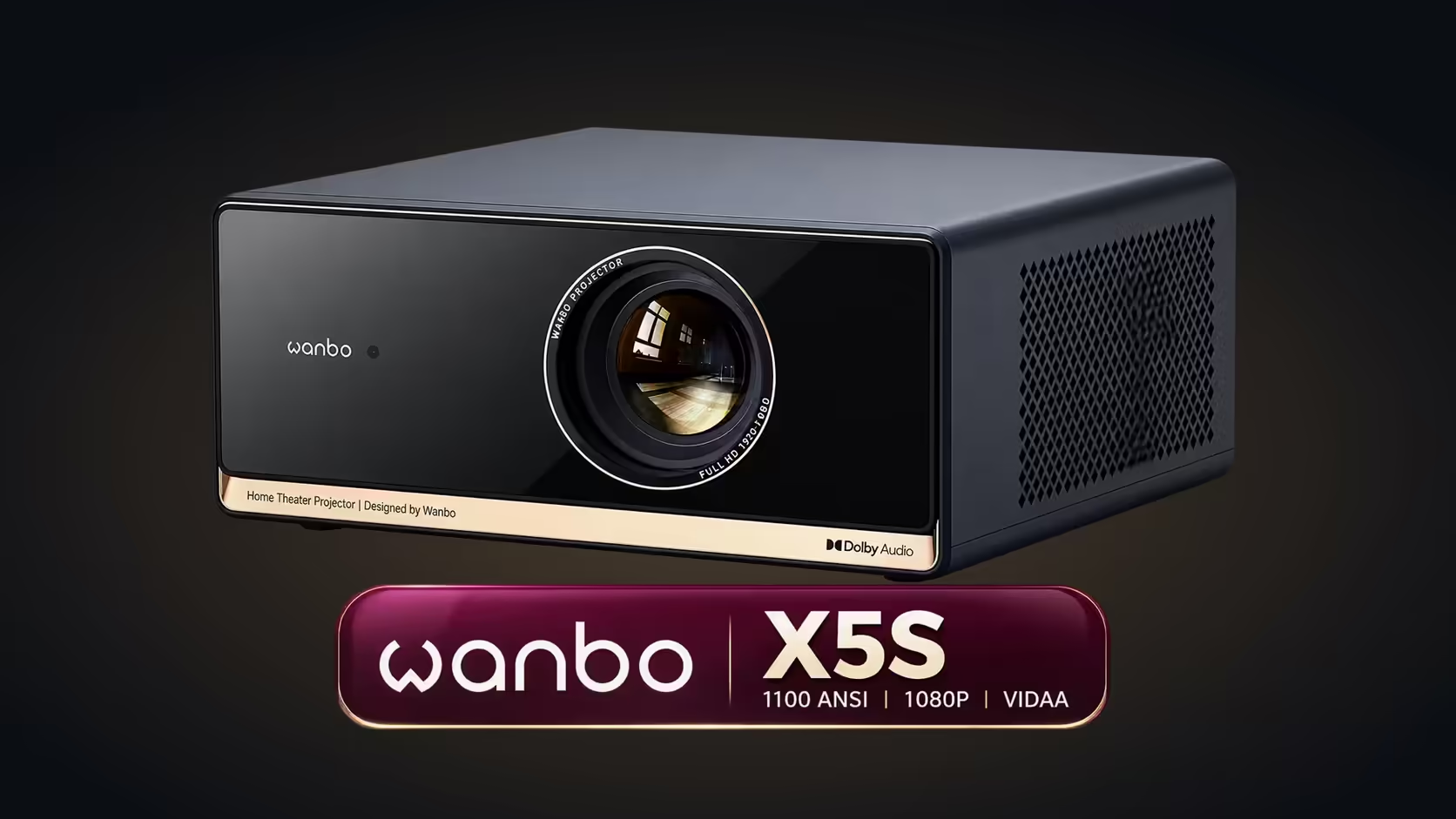
A trapezoid picture is the most common complaint in a new projector set-up. The top edge is wider than the bottom, or one side leans, and the picture looks slightly wrong even when it is sharp. The Wanbo X5S carries full auto keystone for exactly this problem, so the correction is done for you rather than by hand. Run the correction first, then check the result against a straight line before you touch anything else.
Quick Answer
Switch on full auto keystone first, because the X5S squares a trapezoid picture by itself. If the shape still looks uneven, level the projector so its lens points near the centre of the wall and run the correction again, moving the projector a little by hand only for a last small tweak. The X5S costs R6,899 including VAT.
🔄 Run the automatic correction first
Hold a straight edge along the top of the 2.2-metre-wide picture, and check whether the gap at either end is under 3 cm.
Full auto keystone reads the tilt of the projector and reshapes the image so the edges are square. Power the X5S on, let the picture settle, then look at the shape. If the picture comes up square, you do not need to press anything extra. If it does not, give the image a few moments and check again, because the correction can take a short time to finish.
Hold a straight edge, such as a framed print or a shelf, against the top of the picture and compare. The target is a rectangle that runs level with that line. If the top edge is still visibly wider than the bottom after the correction, the projector is tilted beyond what the automatic system can fix alone.
📏 Level the projector before you correct again
A stubborn trapezoid usually comes down to position. A lens set well above or below the middle of the wall makes the image lean, so stand the projector on a level surface and shift it until the lens is about level with the middle of the picture. On a 100-inch picture that middle is roughly 60 centimetres above the bottom edge, and a lens placed near it keeps the tilt small.
Once the projector is level, run the correction again. A square picture with a small remaining error beats a heavily corrected one, because every correction softens the image slightly.
✋ Nudge by hand only as a last step
Move the projector in steps of about 1 cm, one change at a time, which is the safest way to finish.
If one edge still looks off after the projector is level and the automatic correction has run, make one small nudge to the projector's position. Change one thing at a time, watch the picture settle, and stop as soon as the edges look straight. Do not stack several corrections, because each digital correction reshapes the image again and sharpness can drop with every step.
Check the wall too. A surface that is not flat or square can make a correct picture look uneven, so if the shape is still off after the projector is level, look at the wall before you change any setting.
Frequently Asked Questions
Do I need to press a button to correct the shape?
No. Full auto keystone runs on its own. Leave the picture to settle and check the shape against a straight line.
The picture is still a trapezoid after the correction. What now?
Move the projector so its lens sits near the centre of the wall, then run the correction again. If it still leans, check the wall for an uneven surface.
Will keystone correction make the picture blurry?
It can soften the image slightly, which is why placing the projector square to the wall is the better fix.
For the X5S itself, see the projector range, and for other projectors with set-up features, the projector category.
Get the shape right from the start.
Browse the projector category and choose a unit whose set-up features suit your wall.