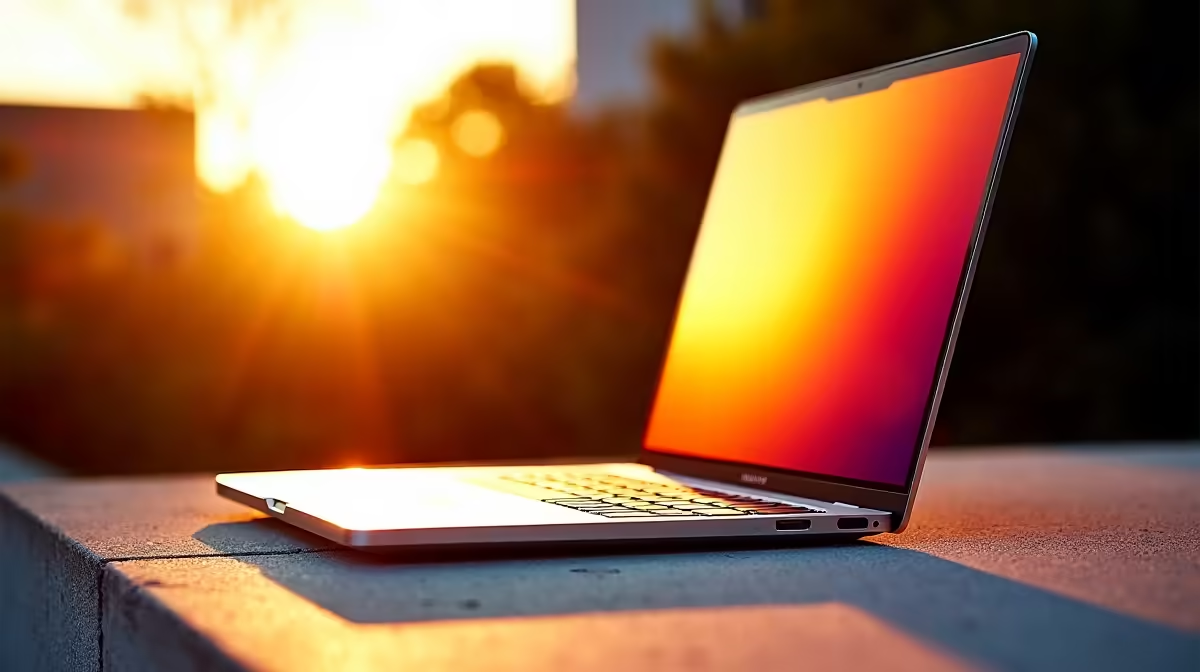
Your new laptop shouldn't just be a tool; it should be an extension of you. That's where ASUS Vivobook customization comes in, turning a great device into your personal command centre. Forget boring, default setups. In South Africa, we like our tech to have as much personality as we do. This guide will show you how to unlock your Vivobook's full potential, from performance tweaks to aesthetic flair, making it uniquely yours. 🚀
Unboxing Your Creativity: First Software Steps
Before you even think about hardware, the journey of ASUS Vivobook customization begins with software. The moment you boot up, you have a canvas ready to be painted. The pre-installed MyASUS app is your first stop. It’s the central hub for system diagnostics, support, and crucial settings like battery health charging and display colour profiles.
Spend some time here. Do you prefer vivid colours for watching Showmax, or an eye-care mode for late-night study sessions? Customizing your Vivobook starts with these small but impactful choices. If you've just grabbed one of the latest ASUS laptops on special, exploring MyASUS is the best way to get acquainted with your new machine.
Dialling In Performance: Custom Vivobook Setups 🔧
Every user is different. A student in Pretoria needs long battery life, while a graphic designer in Cape Town needs raw power. Your Vivobook can adapt.
Fine-Tuning Your Engine
Inside the MyASUS app, look for "Fan Profile." This setting is key for balancing performance and acoustics.
- Performance Mode: Unlocks the full power of your CPU for demanding tasks like video editing or light gaming. Expect the fans to spin up.
- Standard Mode: The default, intelligent setting that balances power and noise for everyday tasks.
- Whisper Mode: Perfect for libraries or quiet offices, it limits performance to keep the laptop nearly silent.
Whether you're running on the latest AMD tech from our ASUS Ryzen laptop deals or a beastly Intel chip from our range of powerful ASUS Intel laptops, tailoring these profiles to your workflow is a core part of Vivobook personalization.
Display Pro Tip ✨
The ASUS Vivobook OLED models have stunning screens. To prevent burn-in and keep colours perfect, use the ASUS OLED Care features in MyASUS. It includes a pixel-shifting function and a custom screensaver that runs after 30 minutes of inactivity. Activate it—it’s a lifesaver for your display's longevity!
Making It Yours: Aesthetic Personalization
Now for the fun part. A truly custom setup reflects your style. The Vivobook series, with its bold colour-blocking and standout Enter key, is practically begging for more personality.
- Custom Wallpapers & Themes: Go beyond the default Windows backgrounds. Use a high-resolution photo of Table Mountain or a cool design from a local artist. Match it with a Windows colour theme for a cohesive look.
- Laptop Skins & Decals: High-quality vinyl skins can completely transform your laptop's appearance while protecting it from scratches. From carbon fibre textures to colourful patterns, you can make your Vivobook one-of-a-kind.
- Keyboard Customization: Coloured keyboard protectors or individual key decals can add a splash of colour and make typing a more tactile experience.
The goal of this visual ASUS Vivobook customization is to make you smile every time you open the lid. You can see how these design principles are applied across the entire ASUS Vivobook range, providing the perfect starting point for your creative vision.
Ready to Create Your Ultimate Vivobook?
True personalization starts with the right foundation. The ASUS Vivobook gives you the power and style to build your perfect setup. Explore our massive range of laptop specials and find the perfect machine to conquer your world.