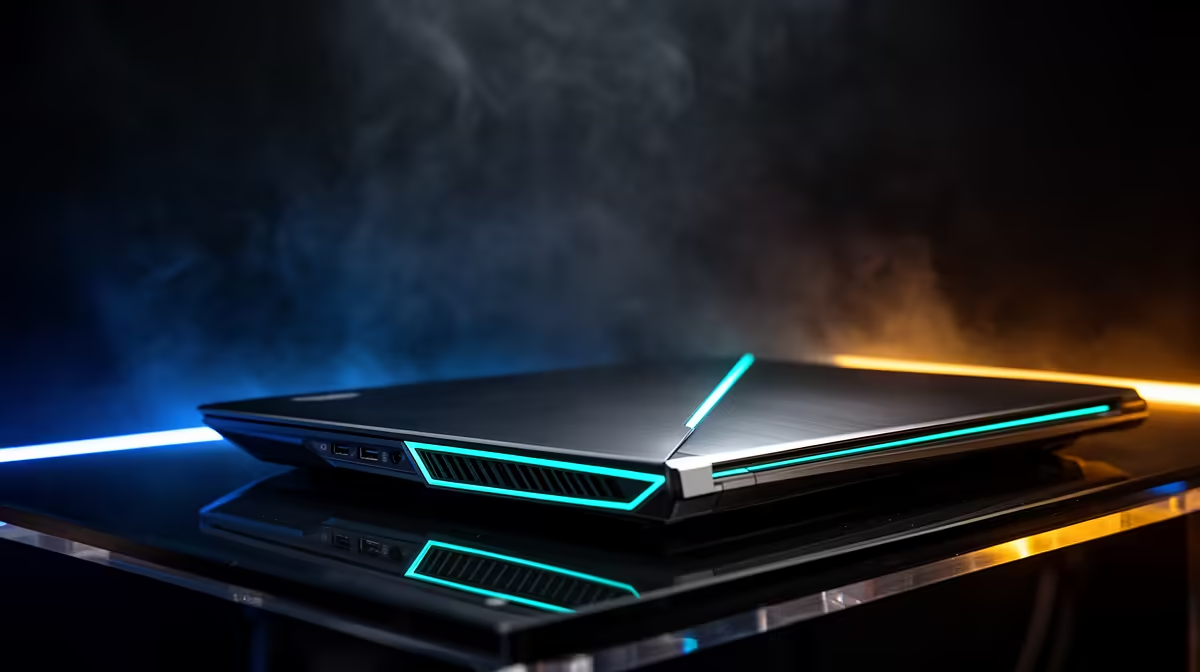
You’ve unboxed your new Lenovo gaming laptop, booted up your favourite title, and… the sound is just… okay. Those explosive cinematics and subtle enemy footsteps sound a bit flat, right? You're not alone. While Lenovo packs incredible performance into its machines, default audio can often be improved. This pro guide will show you how to enhance the audio quality on your Lenovo gaming laptop, turning muddy sound into a crystal-clear tactical advantage. 🎧
First Steps: Optimise Your Built-in Audio Software
Before you even think about buying new gear, the biggest gains are often hiding in your laptop's software. Most modern Lenovo gaming laptops come with powerful audio suites like Dolby Access or Nahimic Audio pre-installed. These aren't just fancy logos; they are command centres for your sound.
Fine-Tuning with Nahimic or Dolby
- Find the App: Search for "Nahimic" or "Dolby Access" in your Windows Start Menu.
- Explore Presets: Once open, you'll find pre-configured profiles for Music, Movie, Communication, and Gaming. The Gaming preset usually boosts key frequencies for footsteps and directional cues.
- Customise the EQ: Don't be afraid to dive into the equaliser (EQ) settings. Try boosting the bass for more impactful explosions or raising the treble for clearer dialogue and in-game alerts. A few small tweaks here can dramatically improve your Lenovo laptop's sound.
Making these adjustments is crucial, whether you're gaming on a value-packed rig like one from the Lenovo IdeaPad 3 Gaming laptop deals or a higher-end model.
Quick Windows Audio Fix 🔧
Right-click the speaker icon in your taskbar, go to "Sound settings," and then "More sound settings." Find your speakers, click "Properties," and head to the "Enhancements" tab. Make sure settings like "Bass Boost" or "Virtual Surround" are either configured to your liking or disabled if they're interfering with your game's audio engine.
Unlocking Immersive Sound with Windows Settings
Beyond dedicated apps, Windows itself has a few tricks up its sleeve. The most important one for gamers is Spatial Sound.
Activate Windows Sonic for Headphones
If you're using a headset, this is a must. Windows Sonic is a free, built-in spatial audio solution that creates a more immersive, three-dimensional soundscape.
- Right-click the speaker icon on your taskbar.
- Hover over "Spatial sound."
- Select "Windows Sonic for Headphones."
This simple change can make it much easier to pinpoint the direction of enemy fire or footsteps. It's a standard feature that brings out the best in the integrated sound hardware found on the latest machines, including the impressive new Lenovo LOQ gaming laptops.
Hardware Upgrades for the Ultimate Audio Experience
Software tweaks can take you far, but to truly elevate your audio, hardware is the final frontier. If you've optimised your settings and still crave more, it's time to consider an external solution. ✨
A high-quality gaming headset is the single best investment you can make to enhance your audio quality. It bypasses your laptop's small internal speakers entirely, providing superior drivers, noise isolation, and a high-quality microphone for comms. Pairing a top-tier headset with a powerhouse machine from the Lenovo Legion gaming laptop deals creates a truly pro-level gaming setup.
From software tweaks to hardware upgrades, you now have the knowledge to get incredible sound from your machine. Taking a few minutes to configure your settings properly ensures you're getting the most out of the impressive technology packed into all modern Lenovo gaming laptops. Happy gaming!
Ready to Hear Every Detail? 🚀
Great audio can be the difference between victory and defeat. Whether you're after a budget-friendly beast or a top-tier powerhouse, the right machine is waiting for you. Explore our full range of Lenovo Gaming Laptops and find the perfect rig to dominate the competition.