Is your work laptop crawling? That dreaded "Low Disk Space" warning flashing just before a big presentation? In the fast-paced South African corporate world, a slow machine isn't just an annoyance… it's a productivity killer. Before you budget for a brand-new device, consider a powerful, cost-effective solution: a laptop storage upgrade. It’s one of the most significant performance boosts you can give your machine, turning sluggishness into speed. 🚀
Why a Laptop Storage Upgrade is Your Best Productivity Hack
If your laptop still runs on a traditional Hard Disk Drive (HDD), you're working with technology that's over a decade old. HDDs use spinning platters and a mechanical arm to read data, which is a major bottleneck. Upgrading your laptop storage to a Solid-State Drive (SSD) eliminates these moving parts, resulting in a monumental performance leap.
Here’s what you gain:
- Blazing-Fast Boot Times: Go from a coffee break to your desktop in seconds. Essential for getting back to work quickly after load shedding.
- Instant Application Loading: Large spreadsheets, complex presentations, and demanding software will launch almost instantly.
- Improved Durability: With no moving parts, SSDs are more resistant to bumps and drops—a huge plus for professionals on the move.
- More Capacity: Finally have enough space for all your critical project files, software, and system updates without compromise.
This single upgrade can make a three-year-old machine feel brand new, optimising your workflow for a fraction of the cost of a replacement.
Choosing the Right Drive: NVMe vs. SATA SSD
When planning your laptop SSD upgrade, you'll mainly encounter two types: SATA and NVMe. Think of them as different lanes on a highway.
- SATA SSDs: These are the standard. They use the same connector as older HDDs, making them a direct and easy replacement for most laptops. They are significantly faster than any HDD and offer a fantastic performance-for-rand value. Many excellent AMD laptops on special offer a great balance of power and storage upgradability.
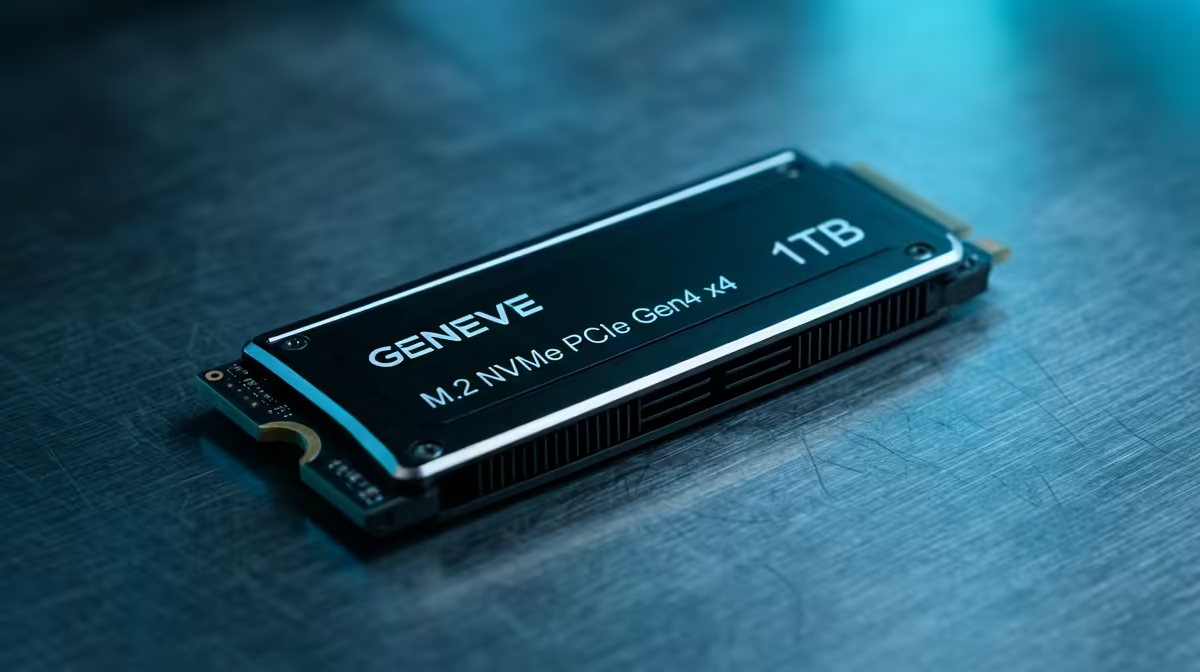
- NVMe M.2 SSDs: This is the express lane. ⚡ These drives are small sticks that plug directly into the motherboard, offering speeds that are multiple times faster than SATA. Most modern laptops support NVMe, but it's crucial to check your device's specifications first.
To find out what your laptop supports, a quick search for your model number plus "storage upgrade" or "M.2 slot" will usually give you the answer.
Cloning Made Easy 🔧
When upgrading, you can either do a fresh Windows installation or "clone" your existing drive. Cloning creates an exact copy of your old drive on the new one, including your OS, files, and settings. Free tools like Macrium Reflect Free or Clonezilla make this process straightforward, saving you hours of setup time.
The Step-by-Step Laptop Storage Upgrade Process
Ready to get hands-on? Here’s a simplified guide to upgrading your laptop storage.
Step 1: Check Compatibility & Choose Your Drive
Confirm whether your laptop needs a 2.5-inch SATA SSD or has an M.2 slot for an NVMe drive. Purchase the correct drive with the capacity you need—500GB is a great starting point for most professionals, while 1TB offers comfortable breathing room.
Step 2: Back Up All Your Critical Data
This is the most important step. Before you do anything else, back up your important files to an external drive or cloud service. Even if you plan to clone your drive, having a separate backup is non-negotiable.
Step 3: Clone Your Old Drive or Prepare for a Fresh Install
Using the cloning software mentioned in our tip, connect your new SSD to your laptop (usually via a USB-to-SATA/NVMe adapter) and follow the software's instructions. Alternatively, create a bootable Windows installation USB if you prefer a clean start. Many modern Intel laptops on special have the processing power to make these data-heavy tasks fly by.
Step 4: The Physical Installation
- Power Down: Unplug the laptop and shut it down completely.
- Open It Up: Place the laptop upside down on a soft cloth and unscrew the back panel.
- Disconnect Battery: As a safety precaution, carefully disconnect the battery from the motherboard.
- Swap Drives: Locate the old drive, unscrew it, and replace it with the new SSD.
- Reassemble: Reconnect the battery, screw the back panel on, and you're done!
Boot up your laptop and enjoy the incredible new speed. ✨
When a Full Laptop Replacement is the Smarter Move
A laptop storage upgrade is powerful, but it can't fix everything. If your machine is struggling with an old processor, has insufficient RAM for your tasks, or a failing battery, a new drive might just be a temporary fix. For professionals whose work involves heavy multitasking, video editing, or even some after-hours gaming, the combination of a modern CPU, GPU, and fast storage is key. In these cases, investing in one of the best gaming laptop deals can double as a high-performance workhorse that will serve you for years to come.
Ready for a Real Performance Boost? A simple storage upgrade can breathe new life into your machine. But if your laptop is showing its age in other ways, a fresh start might be the ultimate productivity boost. Explore our massive range of laptop specials and find the perfect machine to conquer your workday.