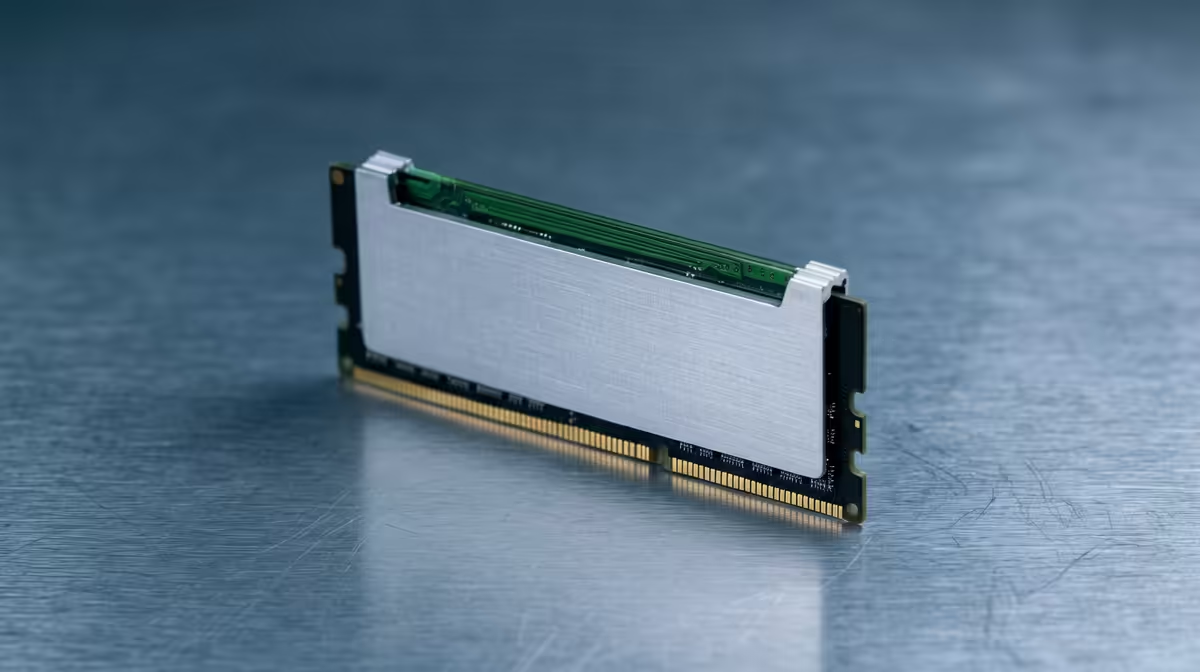
That spinning circle during a crucial client call… we've all been there. Your laptop gasps for air, juggling a dozen browser tabs, a massive spreadsheet, and your team chat. Before you start pricing a whole new machine, consider a simpler, cheaper fix: a laptop RAM upgrade. For many South African professionals, this single component is the key to unlocking a massive corporate speed boost, turning daily frustration into seamless productivity. Let's dive in. 🚀
Why You Should Upgrade Your Laptop RAM
Think of RAM (Random Access Memory) as your laptop's short-term memory or its digital workbench. The more workbench space you have, the more projects (apps, files, browser tabs) you can have open and active at once without slowing down. When you run out of RAM, your computer starts using the much slower storage drive to compensate, and that's when you feel that painful lag.
For a modern corporate workflow, a simple RAM upgrade can be transformative. It directly impacts your ability to multitask efficiently. If your daily routine involves switching between resource-hungry applications, you'll feel the difference immediately. Whether you're running on the latest platforms, like these powerful AMD laptops on special, or an older machine, having sufficient RAM is non-negotiable for smooth performance.
Is a RAM Upgrade Possible for Your Machine? 🔧
Before you get excited, there's a crucial first step: confirming your laptop can actually be upgraded. Many modern ultrabooks and slim devices, especially some found in our range of Intel laptops on special, have their RAM modules soldered directly onto the motherboard to save space. This makes an upgrade impossible.
Here’s how to check:
- Search Your Model: The quickest way is to Google your exact laptop model number followed by "RAM upgrade." Tech forums and manufacturer spec sheets will usually give you a clear answer.
- Check Task Manager: On Windows, the Performance tab in Task Manager will show you how many memory slots are being used. If it says "Slots used: 1 of 2," you're in luck!
If you find you have a free slot, the next step is to determine the maximum RAM your laptop's motherboard can support.
Check Your RAM Usage ⚡
Curious how much RAM you're actually using? On Windows, press Ctrl+Shift+Esc to open Task Manager, go to the 'Performance' tab, and click 'Memory'. This shows your total capacity and current usage. If you're consistently hitting over 80-90% during normal work, it's a clear sign you need to upgrade your laptop RAM.
Choosing the Right Memory Module
When you're ready to buy, you need to match the new RAM to your system's requirements. It's not one-size-fits-all.
Key Specs to Match:
- Type: Your laptop will support a specific generation, like DDR3, DDR4, or the newer DDR5. You cannot mix and match these. The new module must be the same type as the old one.
- Speed: Measured in Megahertz (MHz), like 3200MHz. It's best to match the speed of your existing RAM for optimal stability.
- Capacity: How many Gigabytes (GB) do you need? For most corporate users today, 16GB is the new minimum for comfortable multitasking. 8GB is often the bottleneck.
If your work involves heavy creative apps or you enjoy some after-hours gaming, 32GB might be a worthy investment. You'll often find higher RAM configurations in the best gaming laptop deals, as they're built for maximum performance from the start. An upgrade is one thing, but starting with a powerful base is another. ✨
Ready for a Real Speed Boost?
Upgrading your laptop's RAM can breathe new life into your machine. But if your laptop is truly showing its age, sometimes a fresh start is the best investment. Explore our massive range of laptop specials and find a device with the power you need, right out of the box.